Table Options and Sorting
Throughout HiveRx, tables are a tool used to display various groups of information. Each table includes a number of columns to highlight the most relevant information. These tables also include a number of sorting and customization options, allowing you to customize table views to your needs, per session.
There are a number of lists displayed in a table format. This includes items such as the Ingredients table when viewing a formula record or the Patients list when viewing all patients records in the system.
The table format helps with identifying relevant information about each type of record it displays, whether that's the record ID, the patient's name, or the expiration date for a chemical record. Though each table in the app displays different types of information, each table includes a number of options and settings to customize its display.
Search fields
 Many pages with tables also include a search section, allowing you to filter the results that appear in the table below. The available search fields vary depending on the type of information displayed in the related table.
To filter the results that appear in the table below, fill out the most relevant search fields. For some items, this might include the record ID and for others, this may include personal information like a patient's name or a provider's NPI number. Once you've entered the relevant search terms, click the Search button to filter the results below.
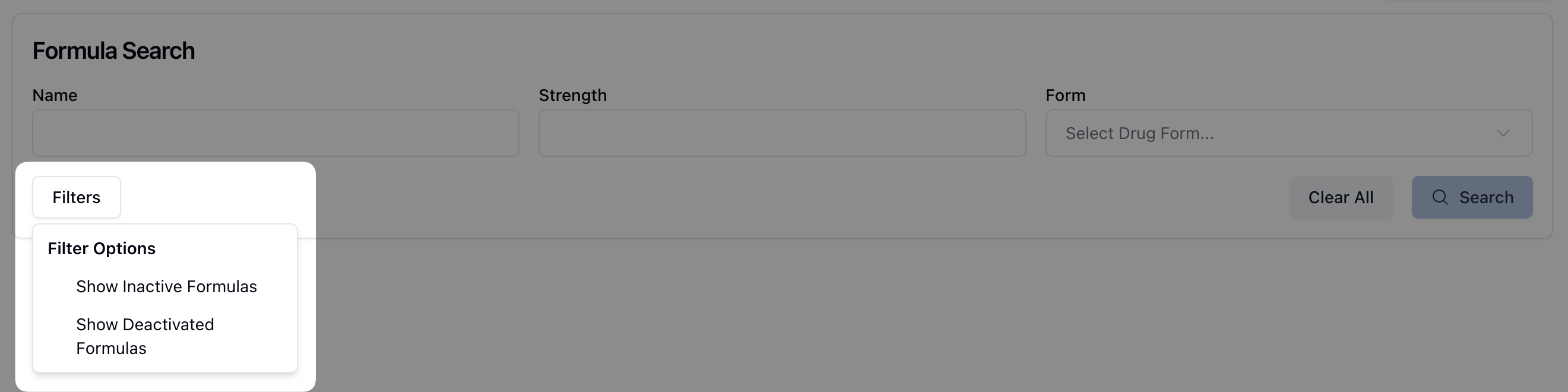 Some tables offer additional or advanced filter options. Depending on the table, these filters may allow for including inactive records in the results table or for highlighting only priority items. You can view which options are available by clicking on the Filters button, when applicable.
 To remove any search filters, click the Clear All button to return to the default setting. Clicking Clear All removes any filters and displays all results in the table below.
Records per page and pagination
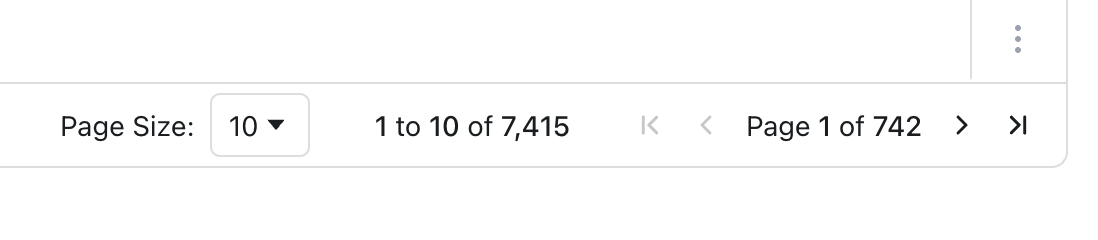 By default, tables display 10 results at a time. At the bottom of the table, you can paginate through additional results by clicking on the arrows in the lower right corner. Information about which page you are currently viewing is visible between the pagination icons, such as
 Page 5 of 57.
To increase the number of results displayed per page, click the drop-down menu next to Page Size. Then, select from the available options to adjust the number of results displayed per page, ranging from 10, 20, to 50 results per page.
Column options
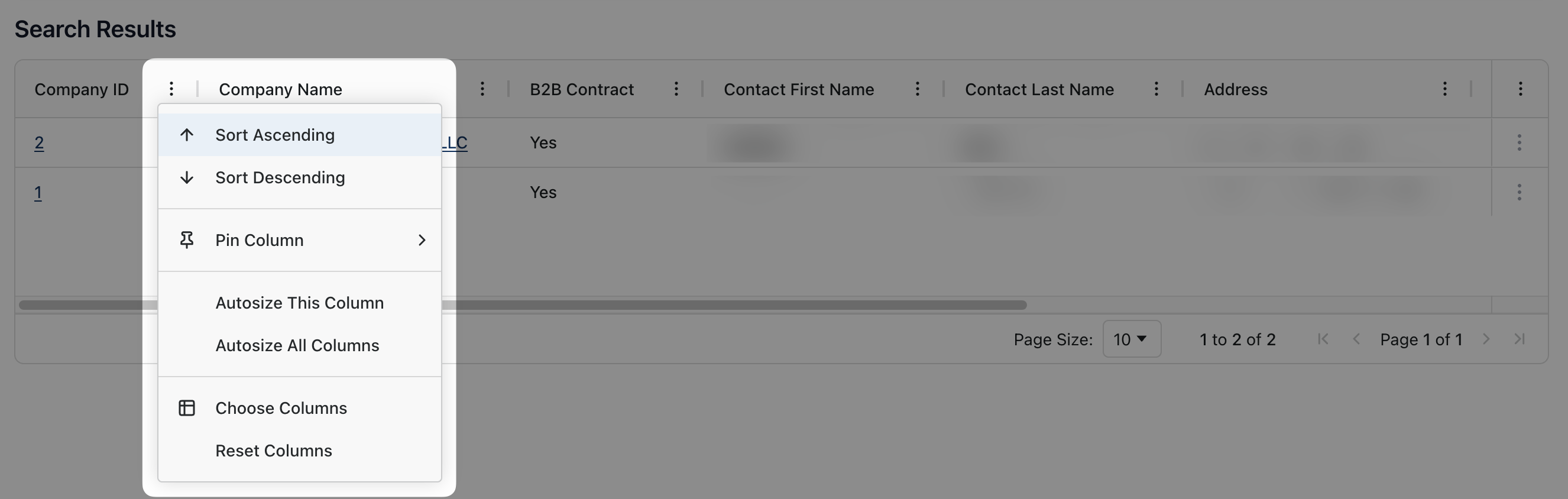 You can sort the order in which results appear by using the columns listed at the top of the table. Clicking on the three vertical dots menu ( ⠇) to the right of each column title opens a sorting options menu. Each menu includes the following customizations:
Sort Ascending ↑: Sorts results from the lowest value to the highest, depending on the type of data. For example, sorting by the chemical name displays results in alphabetical order.
Sort Descending ↓: Sorts results from the highest value to the lowest, depending on the type of data.
Pin Column (No Pin, Pin Left, Pin Right): Use this to pin a column in place so it remains visible on the screen as you scroll. You can also select No Pin to remove any pin settings.
Autosize This Column: Automatically resize the column to the width of the content.
Autosize All Columns: Automatically resize all columns on the page to the max content width per column.
Choose Columns: You can remove or add columns to the screen by clicking on the checkbox next to the column title. A check mark indicates the column is active and visible.
Reset Columns: Resets any of the custom column settings to the default.
Note that changing the table settings and display is only visible per user and per session. For example, if you deselect certain columns from appearing on a page, no one else in the system can see this change. Likewise, refreshing the page resets your customizations back to default settings.