Chemicals
The Chemicals section and related pages allow you to view, manage, and track chemicals within the system. This includes basic information about the chemical, as well as inventory tracking and total stock information for pharmacy operations management.
.png) To do: Similar to formulas, is there any chemical information or data that we need to be sensitive of in screenshots?
To do: Similar to formulas, is there any chemical information or data that we need to be sensitive of in screenshots?
The Chemicals page allows you to view, manage, and modify all chemicals available in the app. Via this Dashboard, you can track and monitor relevant data regarding chemical inventory, uses, and compliance information. (To do: Does this feel like the most accurate representation of what this section is used for?)
Each chemical record acts as a building block for formulas. This means that chemicals may include chemicals derived from formulas, or subformulas, as well. Each chemical record includes basic information about the chemical, as well as inventory tracking and total stock information for pharmacy operations management.
Chemical Search and Search Results
The Chemicals page displays the Chemical Search and Search Results sections, which includes a list of chemicals entered in the app.
 The Chemical Search section offers a handful of fields that allow you to filter which chemicals appear in the results below. These fields include:
Name | The chemical name. |
Strength | The strength of the chemical. |
Form | The drug form, such as Patch or Spray. |
Once you've entered the relevant search terms, click the Search button to filter the results that appear in the table below. If you'd like to reset the table back to its default, click the Clear All button to remove any search terms or filters.
 It's also possible to include deactivated chemicals in the search results by clicking on the Filters button and selecting the appropriate option from the dropdown.
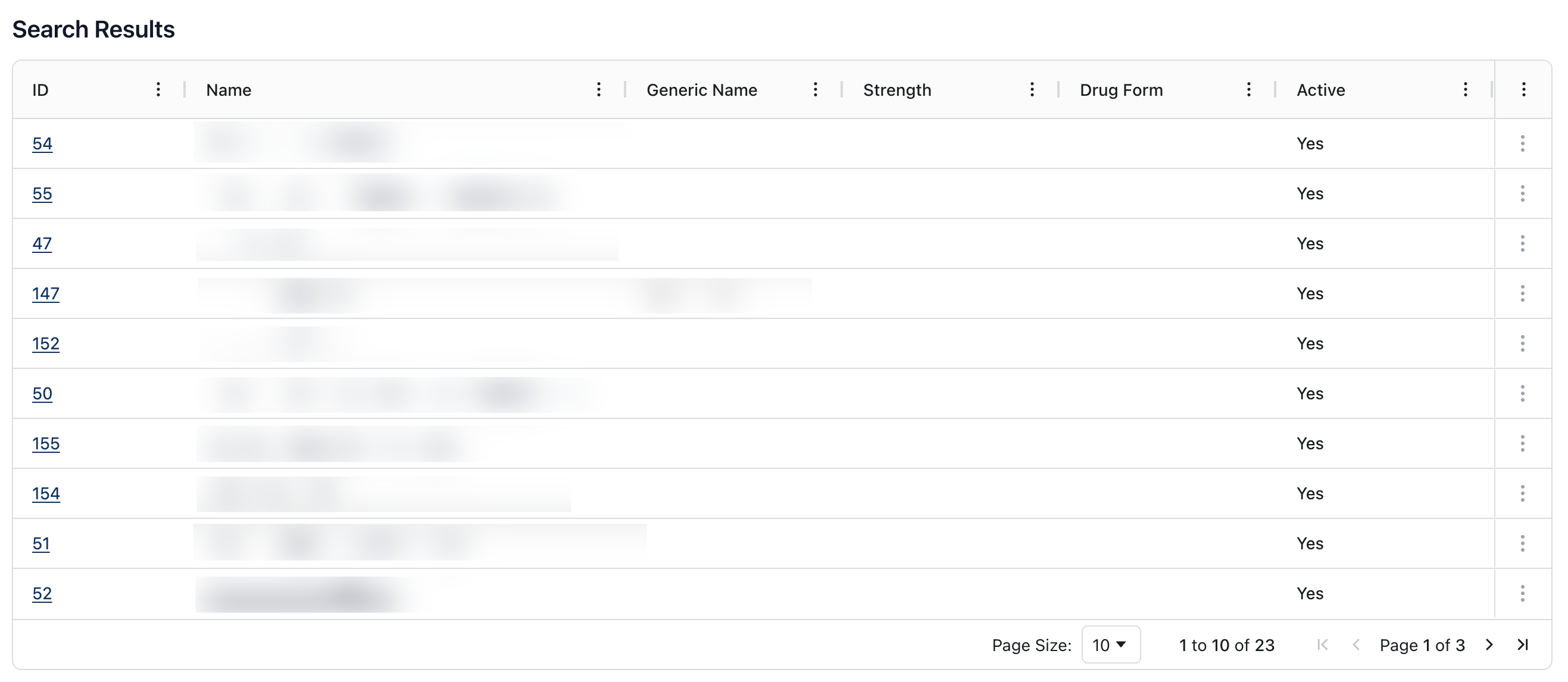 The Search Results section displays chemicals in the order of [TBD], including the following information:
Name | The chemical name. |
Generic Name | The generic name of the chemical. |
Strength | The chemical strength. |
Drug Form | The chemical's drug form. |
Active | Whether the chemical is active or inactive. Active chemicals display a “Yes” in this column. |
You can sort search results according to the categories listed at the top of the table by clicking on the three dots ( ⠇) to the right of each column title.
For more information on ways in which you can customize the table view and sorting options, visit Table options and sorting.
Viewing a chemical
To view a chemical record, click the underlined chemical name in the Search Results table.
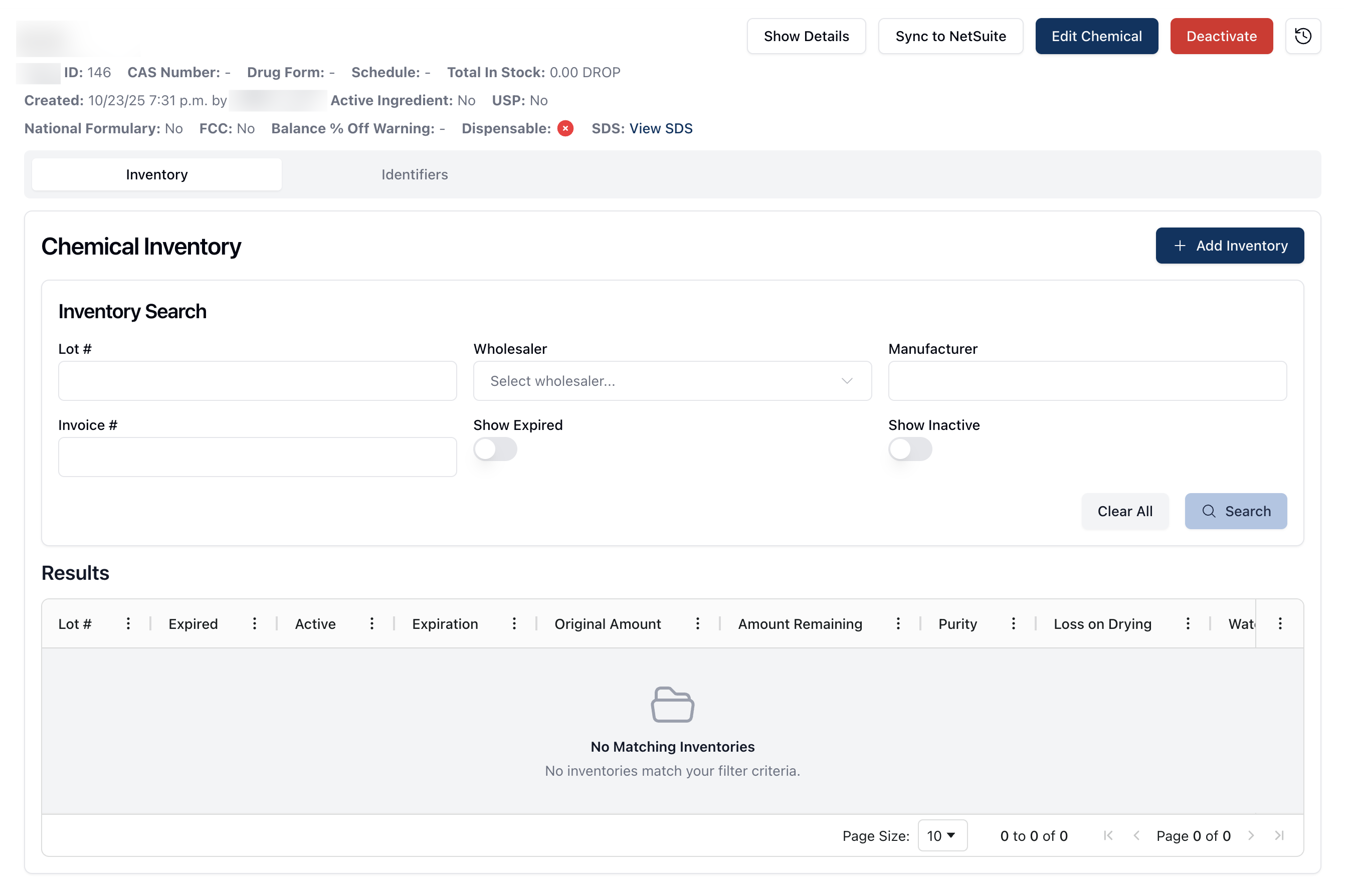 Once on the chemical record, the following basic information appears below the chemical name:
CAS Number | The chemical's CAS (Chemical Abstracts Service) number. |
Drug Form | The chemical's drug form, such as Inhaler or Drops. |
Schedule | The chemical's drug schedule classification, selected from a dropdown list. |
Total in Stock | The total amount of the chemical that's in stock. |
Created | The date and time the chemical was added to the system, as well as the user who added it. (To do: Is "added to the system" accurate?) |
Active Ingredient | To do |
USP | To do |
National Formulary | To do |
FCC | To do |
Balance % Off Warning | To do |
Dispensable | Whether the chemical is available as a dispensable medication. Dispensable chemicals include a green check mark. |
SDS | Any related Safety Data Sheets for the chemical. If any SDS files exist, this field displays a link to view the related documentation. |
 To the right of the chemical name, the following buttons appear: Show Details, Edit Chemical, Deactivate, and Activity Log.
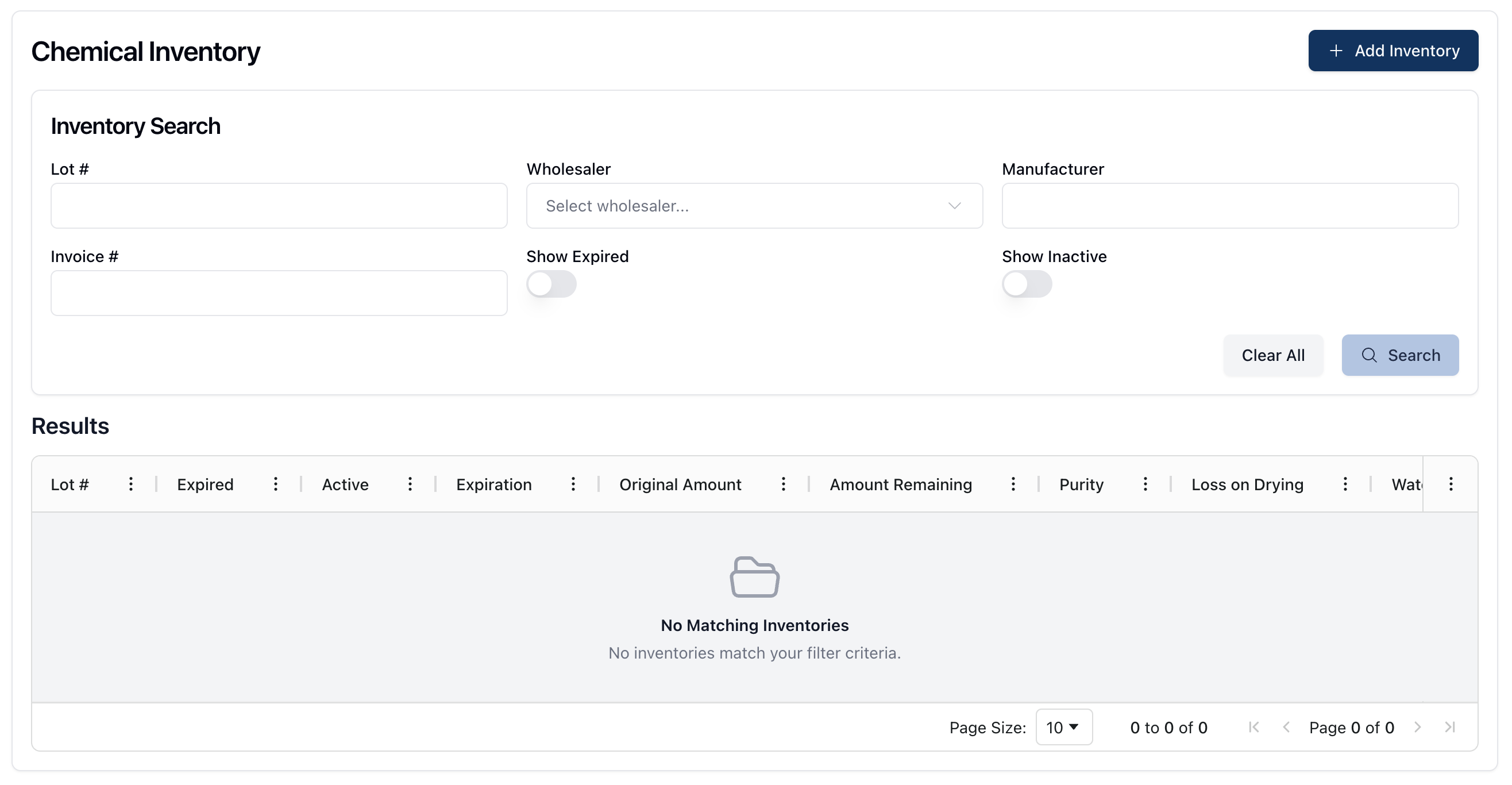 At the bottom of the page is the Chemical Inventory section, which displays each inventory record related to the chemical. For more information on Chemical Inventory, visit the Chemical Inventory section. (To do: Feedback request/editing note: Input on whether we should just include Chemical Inventory here or keep it as a separate section. I prefer the latter, but it feels a little disconnected.)
Show Details
 The Show Details button displays additional information related to the chemical record. This information includes:
Drug Form | The drug form of the chemical. |
Generic Name | The chemical's generic name. |
Common Uses | Common uses for the chemical, selected from a dropdown menu. |
Generic Product ID | The generic product ID for the chemical. (To do: Is this generated from the software or is it related to a national database ID number?) |
Strength | The chemical strength. |
Formula ID | The related formula ID if the chemical is a subformula, or created through compounding. |
Compounded In Store | Whether or not the chemical was compounded in store. |
Common Uses | |
C of A Not Required | Whether the chemical requires a Certificate of Analysis. |
Active | Whether or not the chemical is currently active. (To do: Does this mean active in the system or active to be used in a formula/dispensed?) |
Dispensable | Whether or not the chemical is dispensable. |
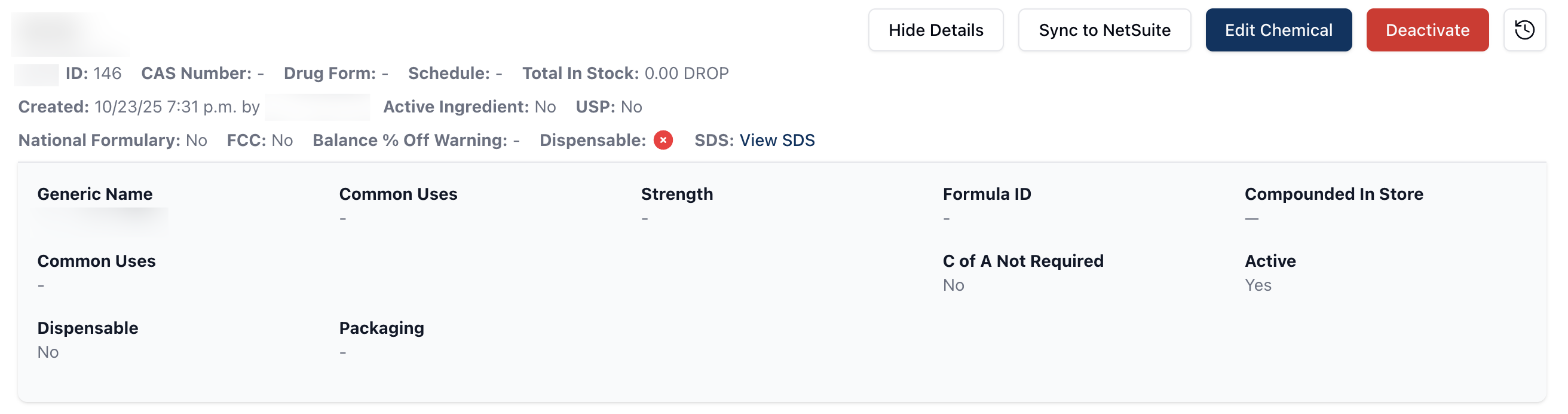 Note that not all fields are required when adding a new chemical. As such, some of the additional details may or may not contain information.
If you would like to close the additional details display, you can do so by clicking on the Hide Details button at the top of the page.
Edit Chemical
 To make any changes or edits to the chemical, click the Edit Chemical button. The Edit Chemical page contains a number of editable fields that you can modify, edit, or delete, as needed. For more information about each of the fields, visit Adding a new chemical
Once all of the relevant information is updated, click the Save Chemical button to save the changes. Alternatively, clicking Cancel returns to the chemical record.
Deactivate
 To deactivate a chemical record, click the Deactivate button in the upper right corner of the page. When a chemical is deactivated, the table view on the Chemicals page and the chemical record details indicate that the chemical is inactive.
Note that it's possible to include inactive records in search results using the Filters button in the Chemical Search.
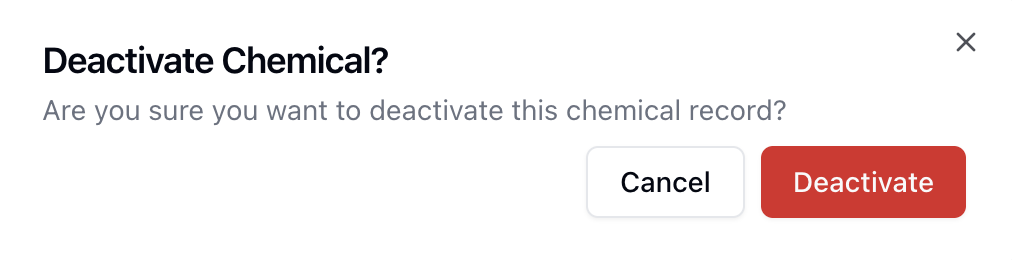 After clicking the Deactivate button, a popup appear to confirm the action. To move forward with deactivating a chemical, click the Deactivate button once more. Otherwise, clicking Cancel returns to the previous screen.
Activity Log
 You can view the system Activity Log by clicking on the clock icon in the upper right corner of the page.
For more information about the Activity Log, visit Activity Log.
Chemical Inventory
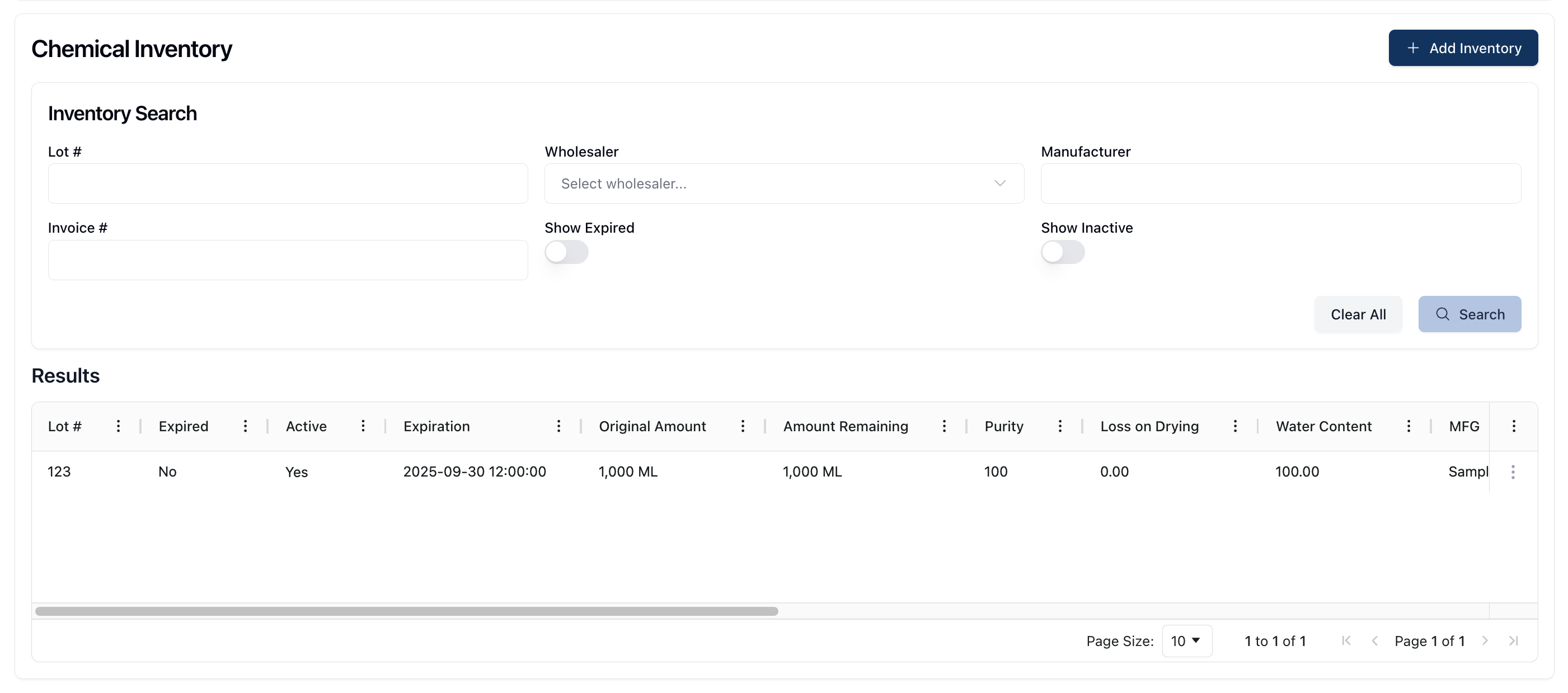 The Chemical Inventory section allows you to view and search the total stock and inventory records for the related chemical. It includes both the Inventory Search and Results, displayed in a table at the bottom of the page.
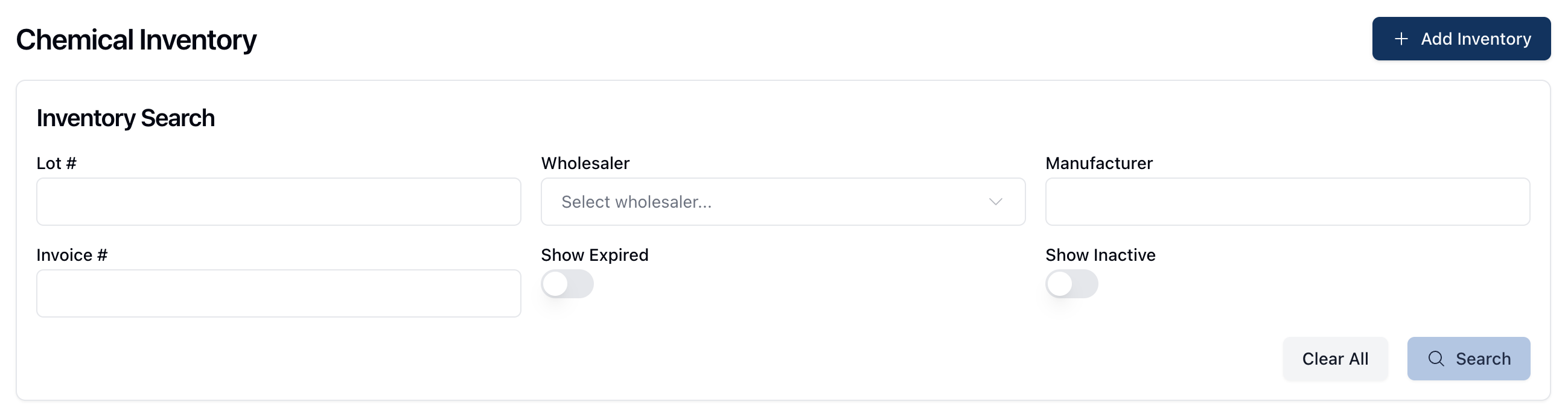 The Inventory Search allows you to filter the Results table with the following search fields:
Lot # | The lot number for the relevant chemical inventory. |
Wholesaler | The chemical wholesaler, available from a dropdown menu. |
Manufacturer | The chemical's manufacturer. |
Invoice # | The invoice number related to the chemical purchase. (To do: Is this invoice number the invoice for the pharmacy's purchase order?) |
Show Expired | Toggling this option on displays expired inventory related to this chemical. |
Show Inactive | Toggling this option on displays inactive inventory related to this chemical. |
After entering the relevant search terms, click the Search button to filter the displayed results. To return to the default display, click Clear All to remove any filters from the page.
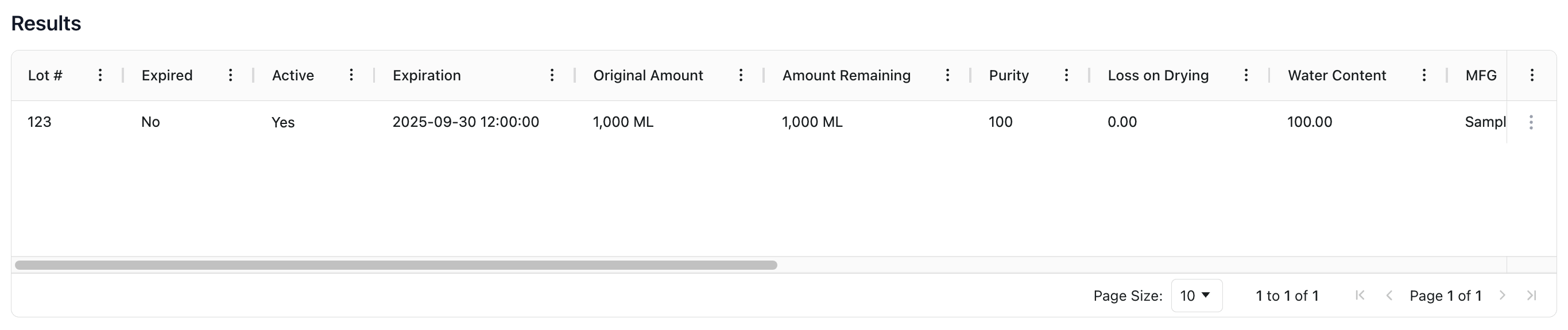 The Results table displays all inventory related to the chemical record and includes the following information:
Lot # | The chemical lot number. |
Expired | Whether the chemical inventory is expired or not. |
Active | Whether the chemical inventory is active or not. |
Expiration | The expiration date for the chemical inventory. |
Original Amount | The original amount logged in the inventory. |
Amount Remaining | The amount of inventory currently remaining. |
Purity | The chemical purity. |
Loss on Drying | |
Water Content | |
MFG | |
Wholesaler | The wholesaler for this chemical inventory record. |
# of Packages | The number of packages received in this inventory order. |
Package Size | The package size for the related inventory order. |
Invoice # | The invoice number for the purchased inventory. |
Invoice Date | The date on the invoice for this inventory order. (To do: Confirm if "date on the invoice" is accurate vs. date received or date paid.) |
Note | Any notes related to this particular inventory record. |
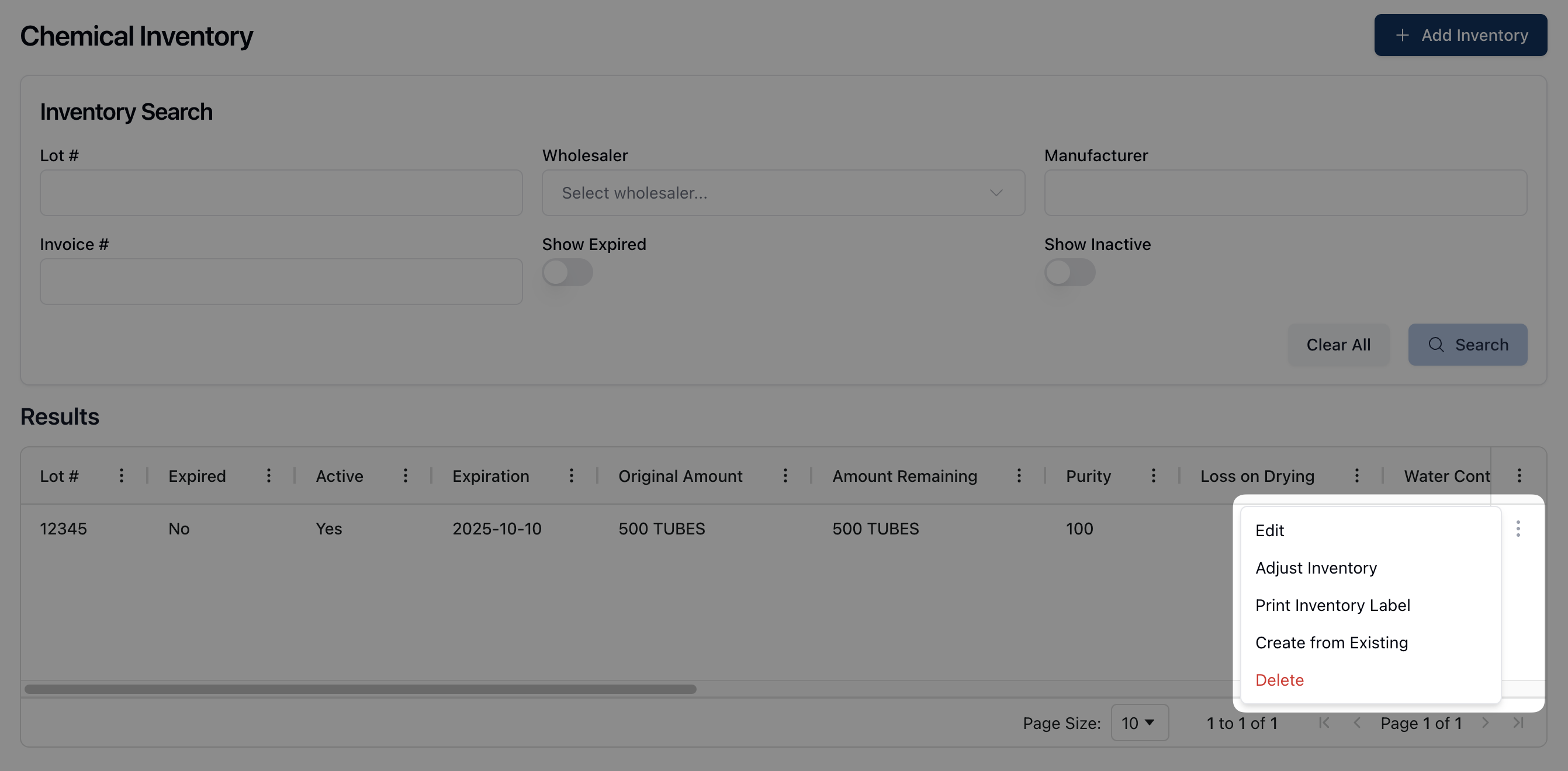 Scroll to the right of the table to view all the related information per inventory record. Clicking the actions menu ( ⠇) next to each record opens a dropdown menu with the following option:
Edit: Edit the inventory record
Adjust Inventory: Update the amount remaining for the inventory record
Print Inventory Label: Print a label for the inventory record
Create from Existing: Add a new chemical inventory based on an existing record
Delete: Delete the inventory record
Selecting Edit opens the Edit Chemical Inventory form. To update the chemical inventory record, modify or edit any of the available fields on the form. Once the relevant changes are made, click Save Inventory.
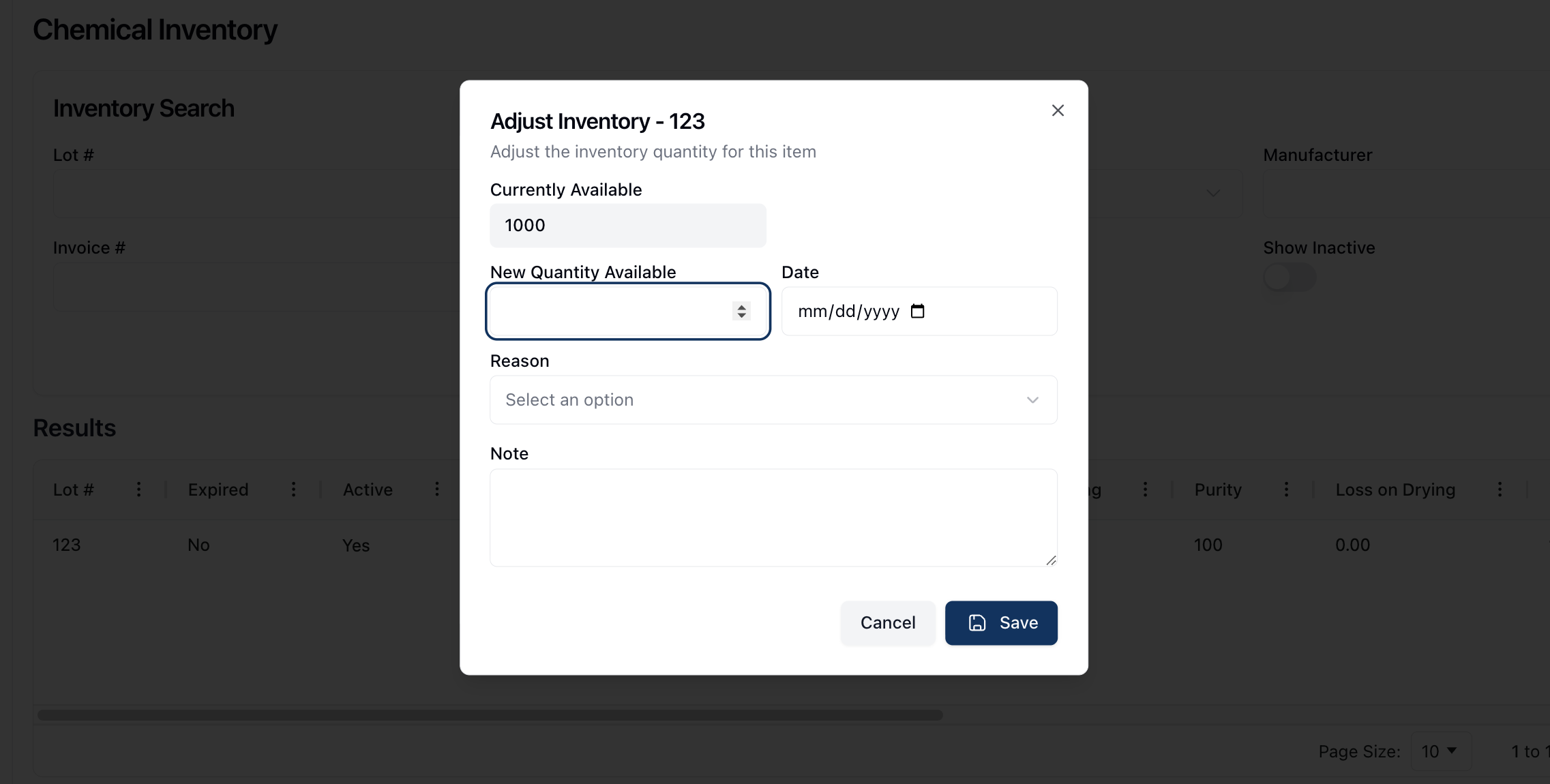 Selecting Adjust Inventory opens a popup window, which includes the New Quantity Available field. This field allows you to update the quantity available in the chemical inventory record.
The Date and Reason fields log the date of the change and the reason for the change. It's also possible to include a note in the Note field.
Once all of the fields are complete, click Save to adjust the chemical inventory.
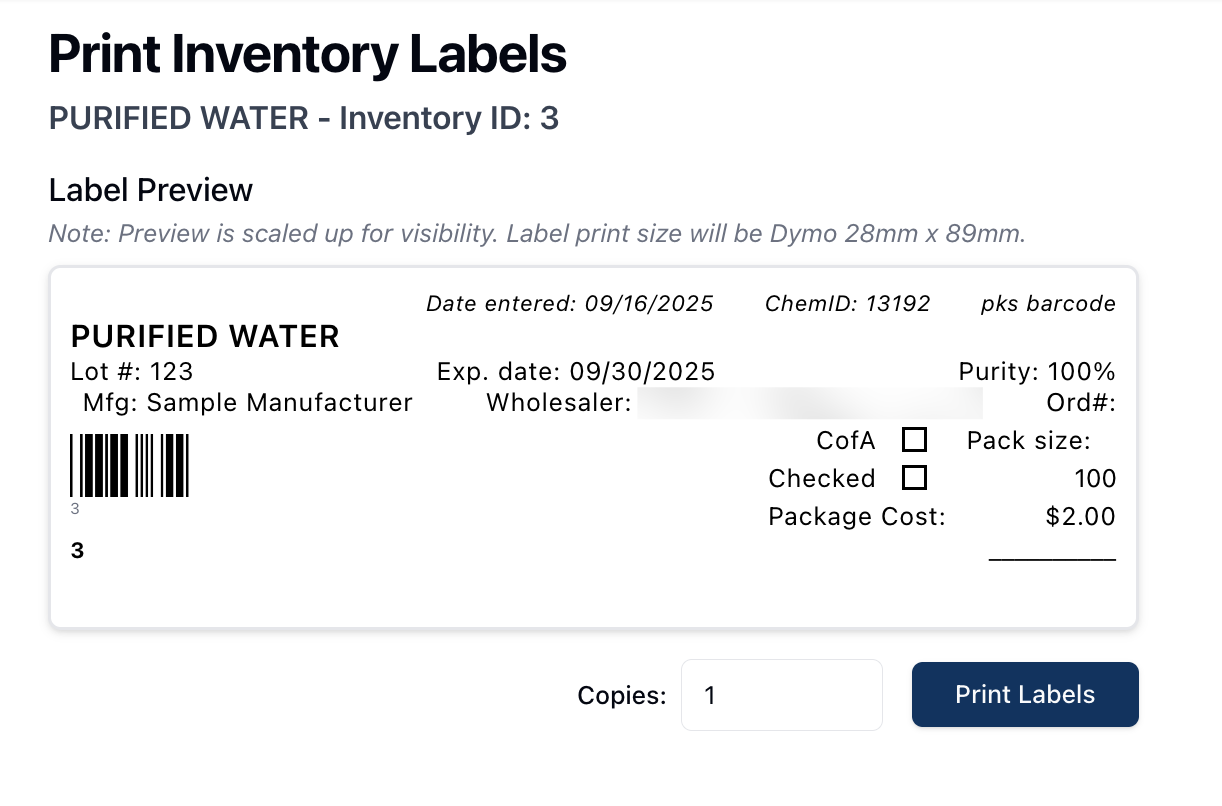 Print Inventory Label navigates to a new page, displaying the label preview for the related chemical inventory record. To adjust the number of labels printed, update the field next to Copies to reflect the number desired. When ready, click Print to print the label. Note that the label print size is Dymo 28mm x 89mm.
Create from Existing allows you to create a new chemical inventory based on the current inventory record. For more information on adding inventory, visit the Adding inventory section.
 Selecting Delete deletes the chemical inventory record. (To do: When deleting chemical inventory, is it removed from the system or does it show as deleted?)
Adding chemical inventory
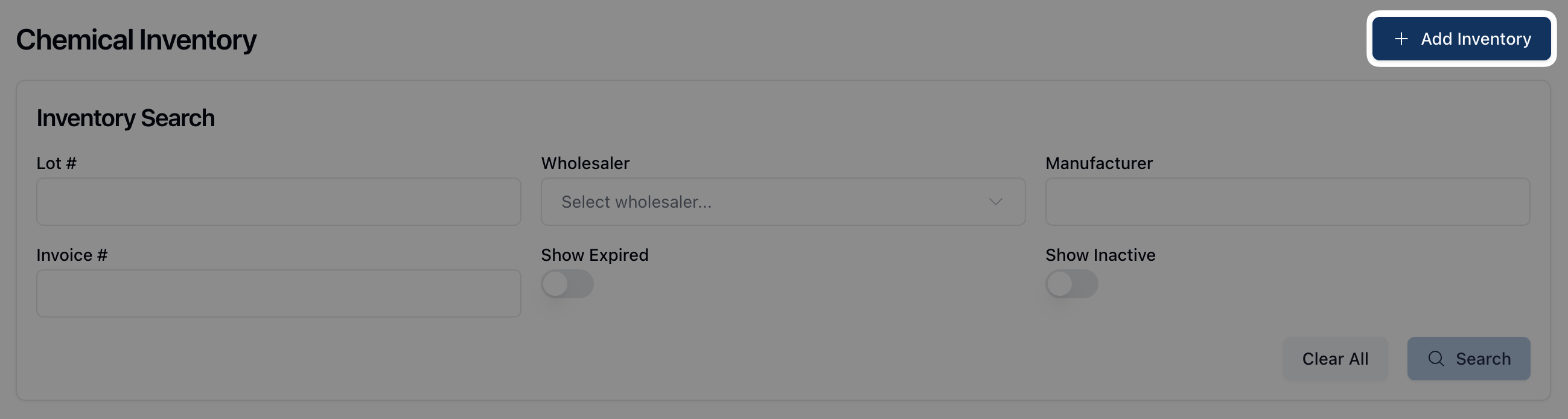 To add chemical inventory, click the + Add Inventory button in the upper right corner of the page. This will open a blank Create Chemical Inventory form.
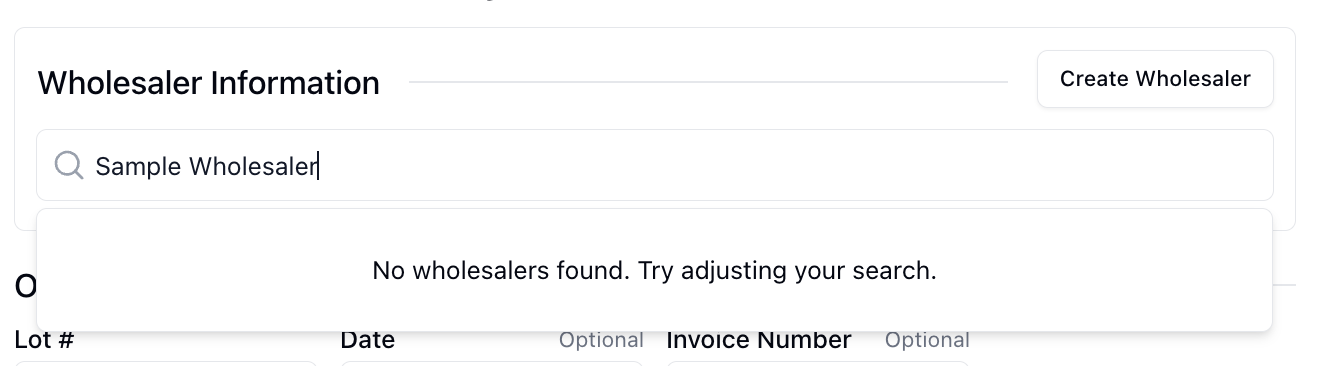
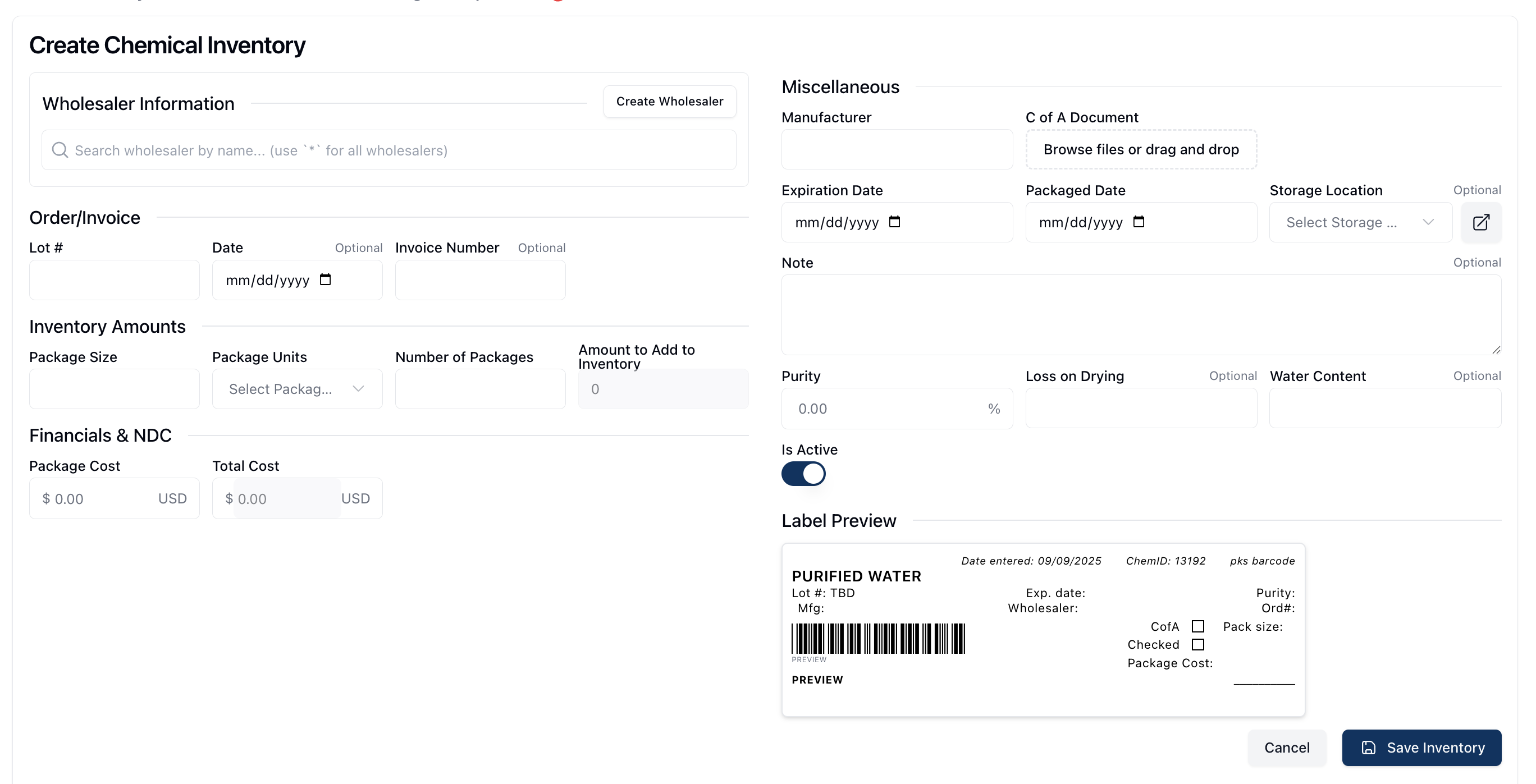 At the top of the form, the Wholesaler Information section includes a search field, allowing you to search the system for existing wholesale providers. If the wholesaler is not yet in the system, click the Create Wholesaler button to open the Creating Wholesaler form.
 Below Wholesaler Information, you may enter the Order/Invoice, Inventory Amounts, and Financials & NDC information. Note that all fields are required unless marked as optional. After entering the package size, units, number, and cost, the Amount to Add to Inventory and Total Cost are automatically calculated.
On the right side of the page, in the Miscellaneous section, you can upload a Certificate of Accuracy (C of A). To do so, either drag and drop the file(s) into the outlined area below C of A Document or click directly inside the upload area to select the related document(s) from your computer.
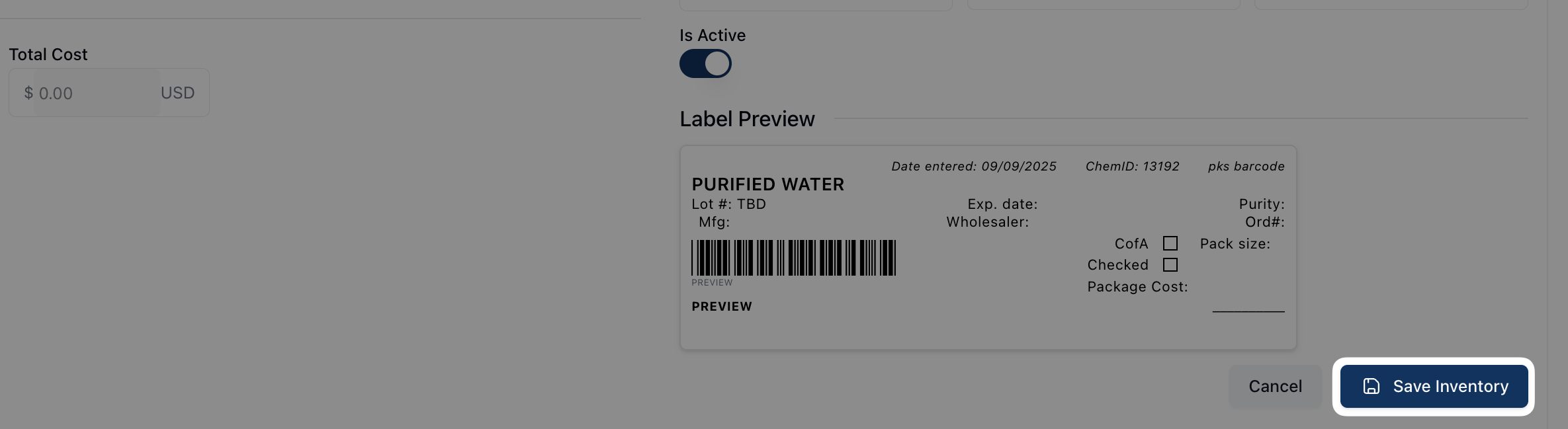 Once all relevant fields are complete, the lower right corner of the page displays an updated Label Preview.
To save the inventory, click Save Inventory to store it in the system.
Create from Existing Inventory
When adding additional inventory, the Create from Existing option allows you to copy inventory from an existing record. To do so, click the three dots ( ⠇) to the right of the inventory you'd like to copy while viewing the Results table. Then, select Create from Existing.
This opens a new Create Chemical Inventory form, prepopulated with the existing inventory information. Navigate through the form to update and modify any relevant fields.
Once you have many any relevant changes, click the Save Inventory button to save the inventory record.
Chemical Identifiers
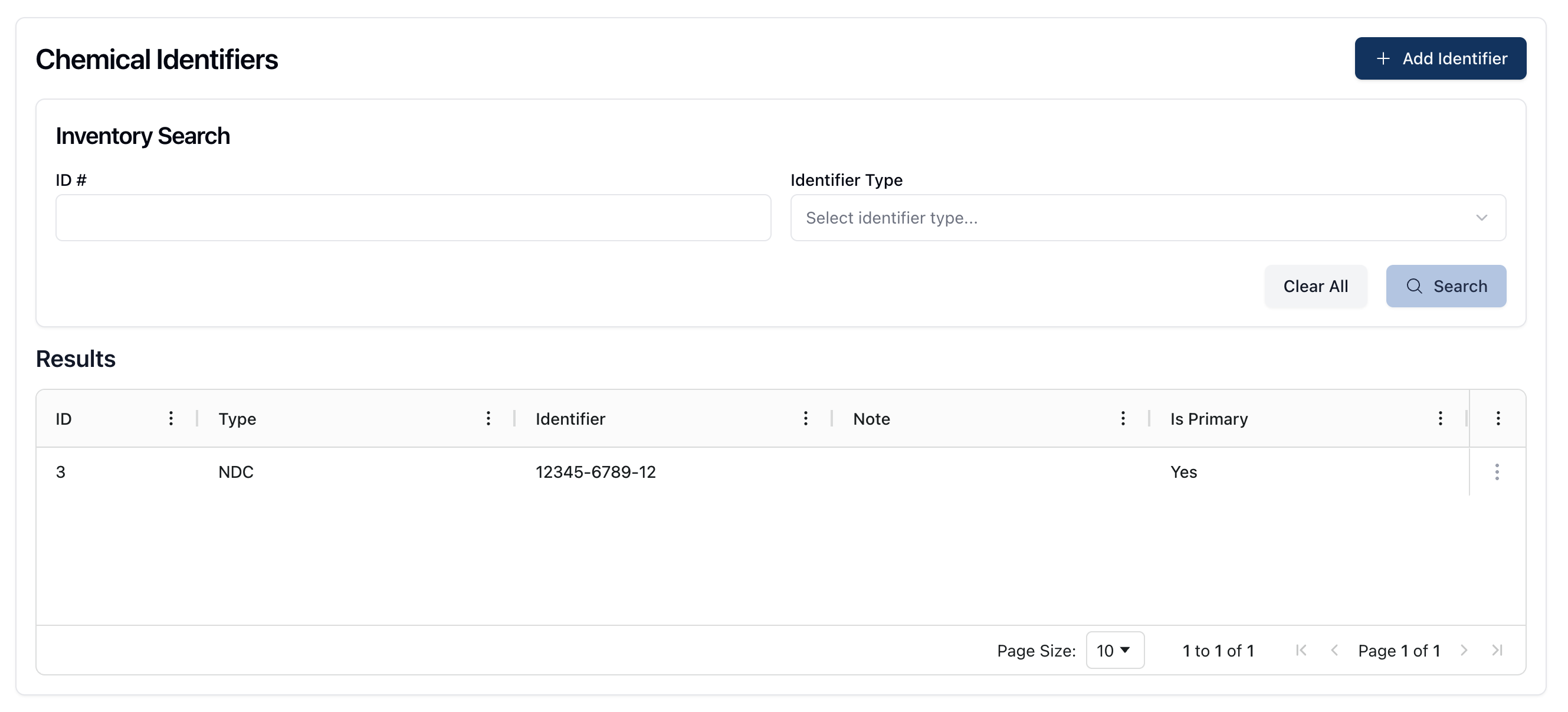 The Chemical Identifiers tab allows you to view and add various identifiers to a chemical record. Identifier types may include the NDC (National Drug Code) or UPC (Universal Product Code) numbers, as well as any other relevant identifiers. (To do: Are there any other use cases that might be relevant to highlight here?)
The Chemical Identifiers tab includes both a search area to search or filter any identifiers added to the chemical record and a results area to view a table-based list of related identifiers. To filter the search results, you can search via the chemical identifier's ID # or the Identifier Type, such as NPC or UPC.
To return to the default results table, click the Clear All button to remove any search filters.
When viewing the Results table, the following information is displayed:
ID | The ID for the chemical identifier record, automatically generated by the system. |
Type | The type of chemical identifier, such as UPC or NDC. |
Identifier | The chemical identifier, following the relevant format based on the identifier type. |
Note | A text-based field for any notes about the added chemical identifier. |
Is Primary | Whether or not the identifier entered is the primary chemical identifier for the chemical. The column displays “Yes” if the relevant identifier is primary. |
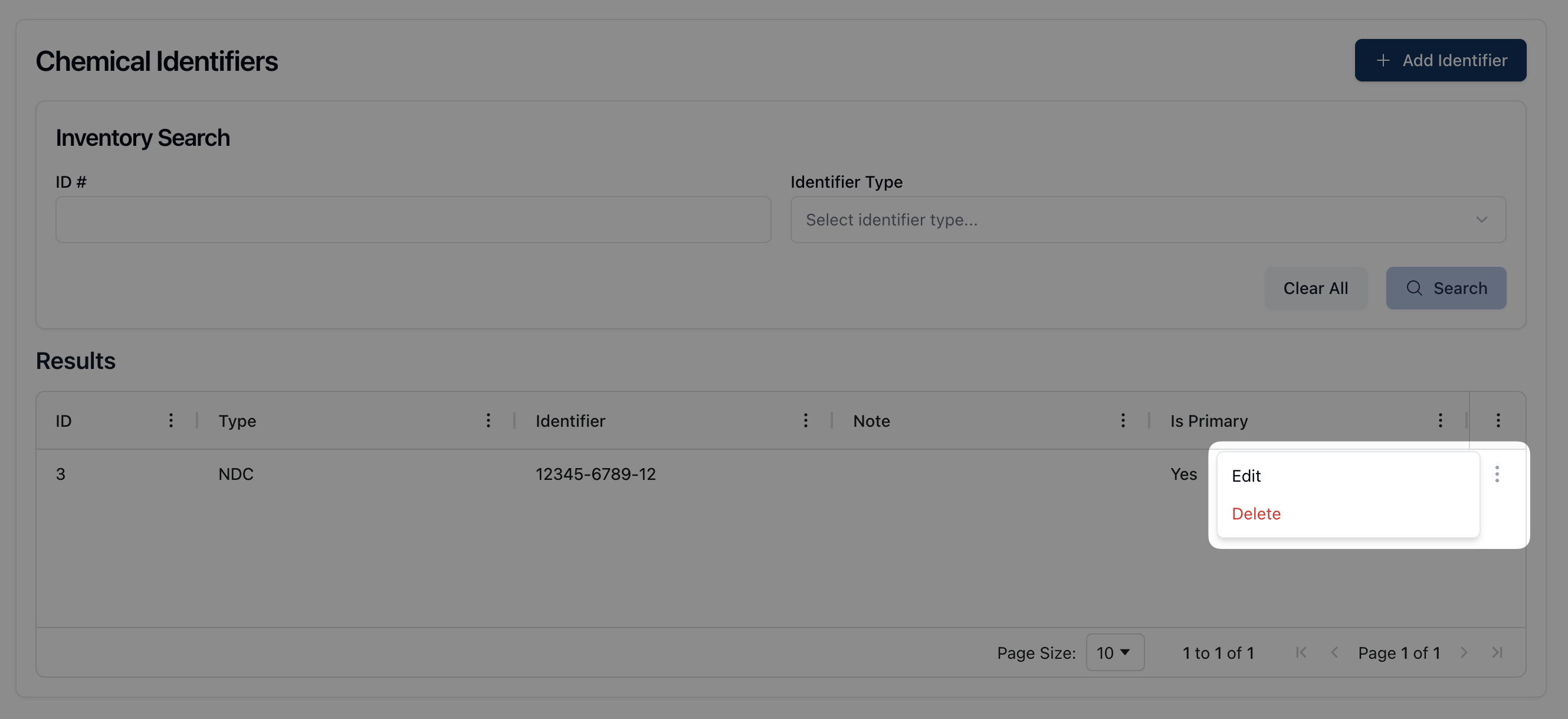 To open the actions menu for any of the chemical identifiers, click the three dots ( ⠇) to the right of the table item. Once open, this menu allows you to Edit or Delete the identifier.
Clicking Edit opens the Edit Chemical Identifier form, where you can adjust and/or edit the existing identifier information using the fields available. Once all relevant fields are updated, click the Save Identifier button.
To delete a chemical identifier, click the Delete option. In the popup window that appears, click Delete once more to remove the chemical identifier from the system. Click Cancel to return to the previous page.
Adding a chemical identifier
 To add a new chemical identifier, click the + Add Identifier button, which opens the Create Chemical Identifier form.
 On the Create Chemical Identifier form, select the appropriate Identifier Type from the available dropdown list. Options include NDC, UPC, and Other. In the field below, enter the relevant chemical identifier, following the format based on the type specified.
If this identifier is the primary identifier for the chemical, click the toggle on below Is Primary. If you've selected Other as the Identifier Type, an optional Note field appears as well. In this field, enter any relevant information about the chemical identifier and type.
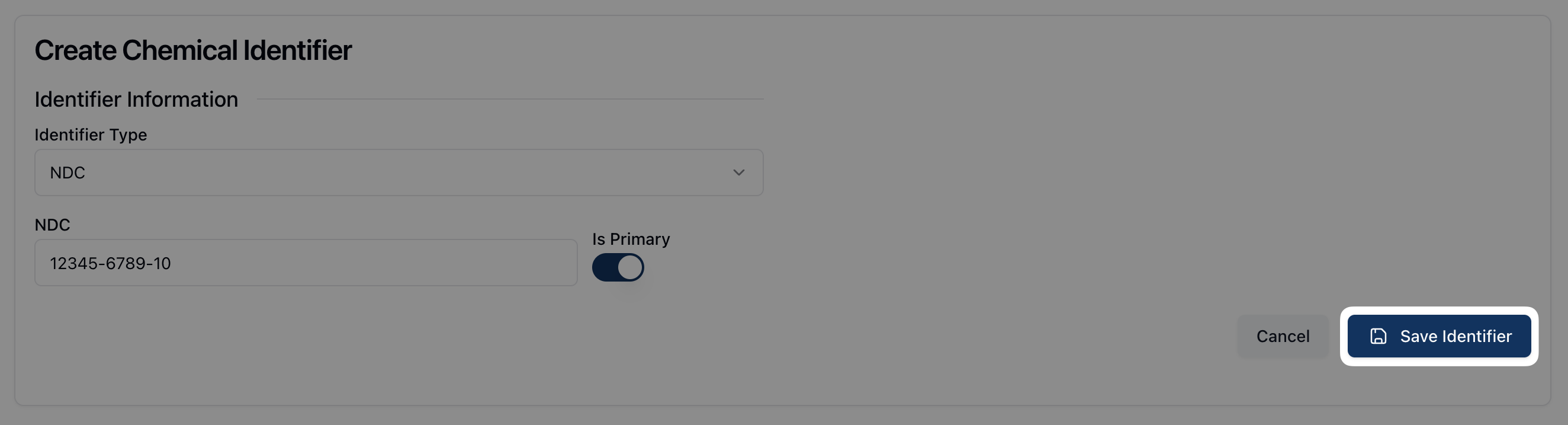 Once all relevant fields are complete, click Save Identifier to store the chemical identifier.
Adding a new chemical
 To add a new chemical, navigate to Chemicals and click the + New Chemical button in the upper right corner of the page. This opens the Create Chemical form.
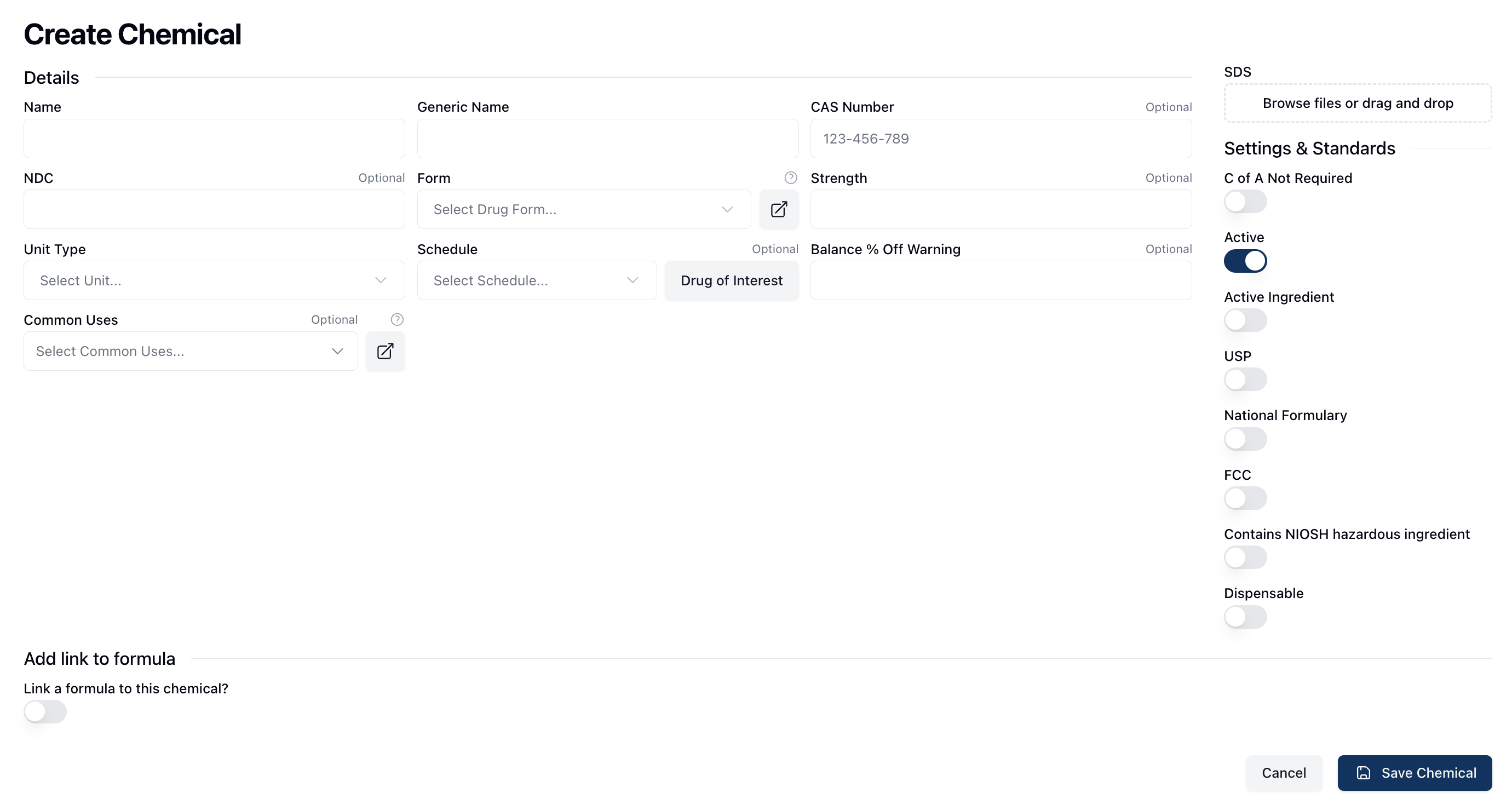 The Create Chemical form includes four distinct sections: Details, SDS, Settings & Standards, and Add Link to Formula.
Under the Details section, fill out all of the relevant fields regarding the chemical's basic information.
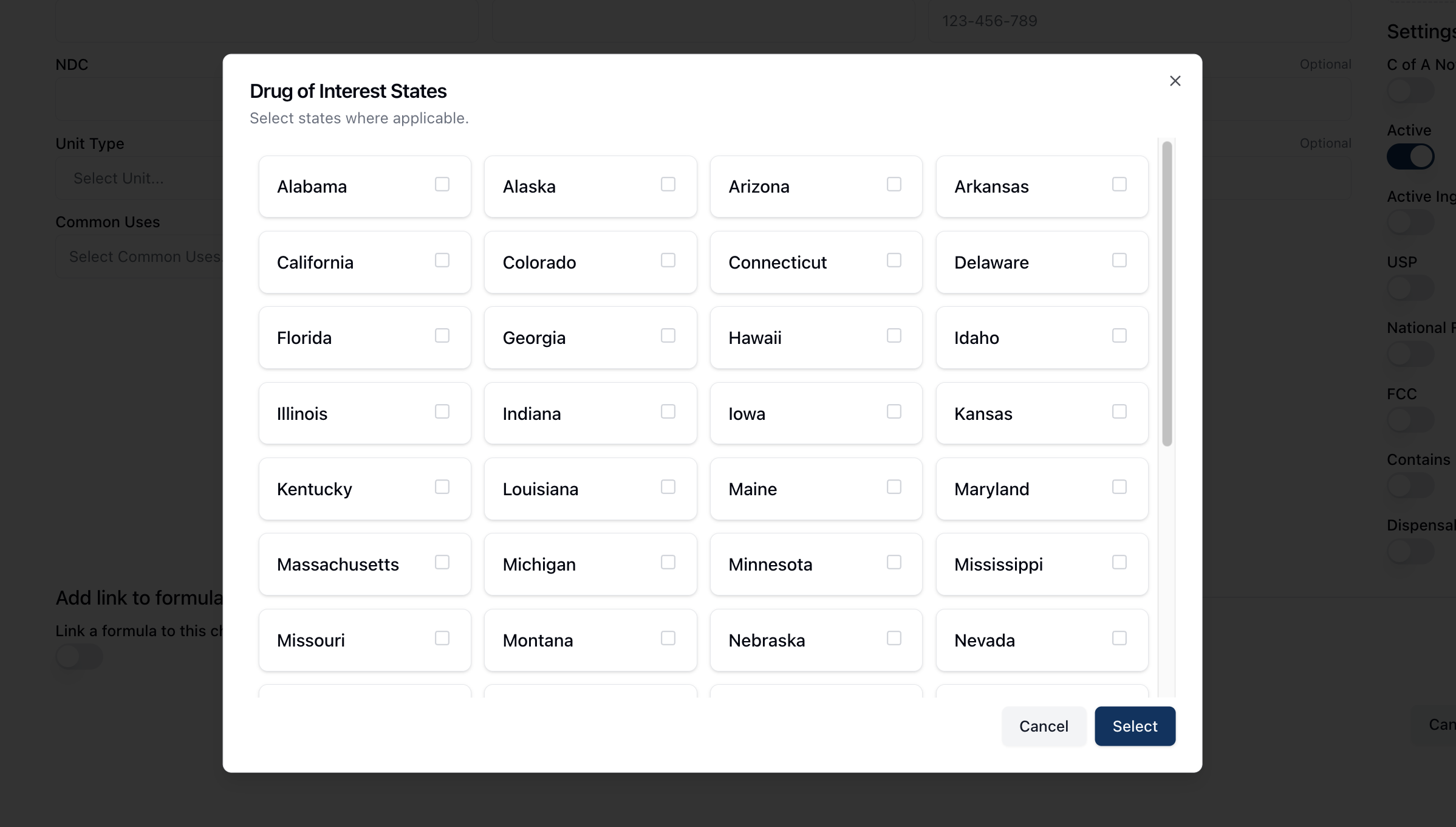 The chemical Schedule displays a dropdown list of available options. To the right of the Schedule field is a Drug of Interest button, which opens a popup allowing you to select the states in which the chemical is a drug of interest. (To do: I think the UI is pretty clear on this, but just confirming this is the correct interpretation.)
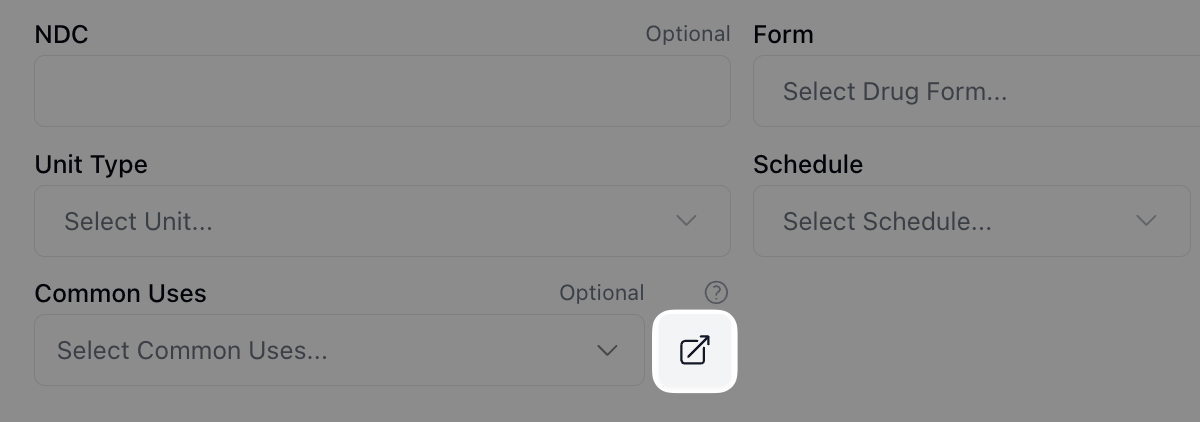 Fields such as Form and Common Uses display a set list of options in a dropdown menu. To manage which options are available, visit the Pharmacy Settings page or click the icon to the right of the field. For more information on managing these options, visit Pharmacy Settings.
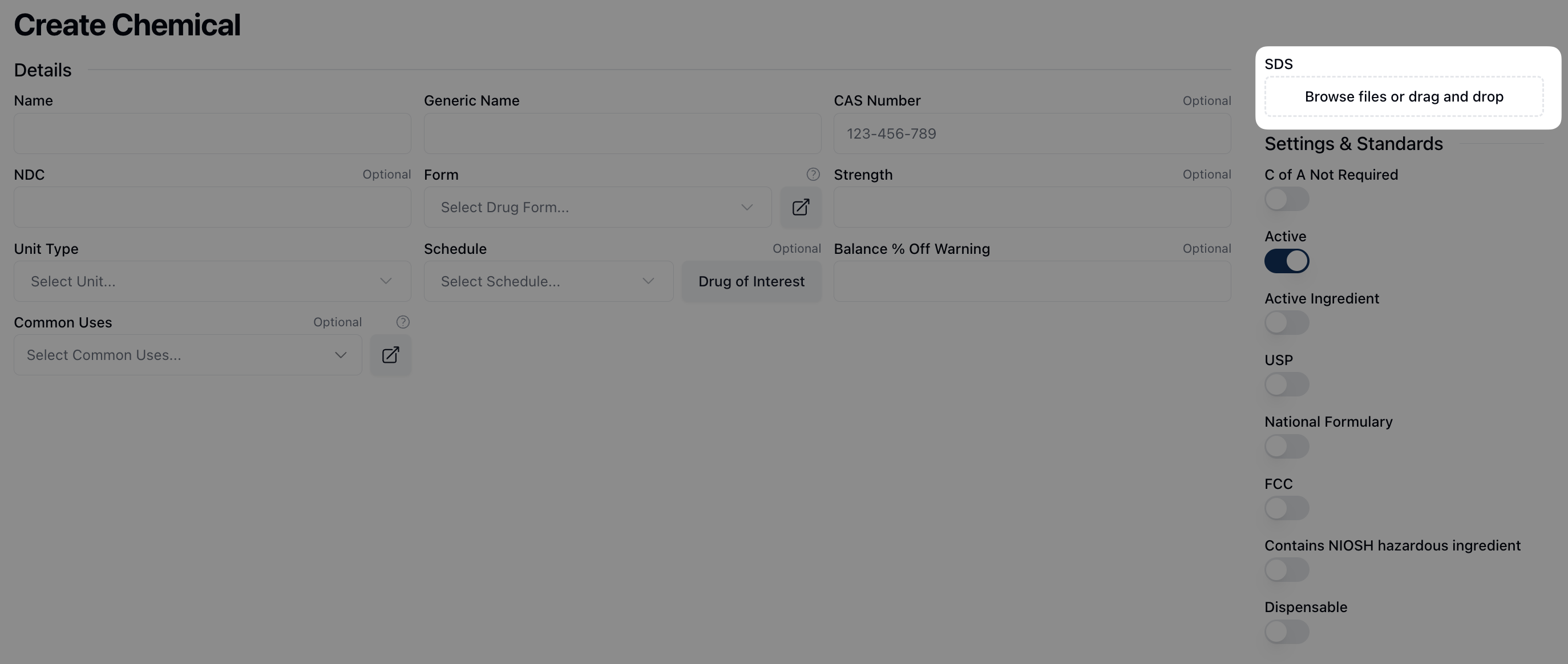 On the page's right sidebar, you can upload any safety data sheets under the SDS field. In the outlined area below SDS, drag and drop any related SDS document(s) to include with the chemical record. Alternatively, clicking directly inside of the field opens a system dialogue, allowing you to search and select any relevant document(s) from your computer.
 The Settings & Standards section includes a number of toggles that you can turn on when applicable. (To do: How much of this will fall under pharmacy practices vs. what we want to document? For example, do we need detailed information on each setting or would that be more of a pharmacy training/internal practice?) Toggling on Dispensable opens a new set of fields for Dispensable Medication. These fields include:
Form | The drug form, selected from a dropdown menu. You can manage the options that appear in the dropdown menu from the Pharmacy Settings page. |
Administration Route | How to administer the dispensable medication, selected from a dropdown menu. |
Flavor | The flavor of the dispensable medication. |
Therapeutic Type | The therapeutic type for the dispensable medication. |
Is Specified Pack | A toggle that you can turn on if the medication has a specified pack, the size of which may be entered in the Dispensing Pack Size field. |
Note that toggling on Contains NIOSH hazardous ingredient displays a badge next to the chemical name when viewing the related record. (To do: Would this be information we want to flag or highlight? For example, somewhat like an "Info Tip" with an icon and/or different background so it stands out more.)
 If the chemical is a subformula, or created from a formula via compounding, toggle on Link a formula to this chemical? In the search form that appears, enter the formula name to find and select the relevant formula that creates this chemical. If the formula isn't yet saved in the system, click Create Formula to add it.
Once selected, this displays a new Formula Information section. Here, you can view and/or remove the related formula from the chemical record.
 Once all fields are complete, click the Save Chemical button to save the chemical record. Clicking Cancel returns to the previous page.