How-to: Selecting a patient for an order
Search for and attach an existing patient to an order from the Create Order page.
Steps
1. Click the search field
In the Patient Information section, click the search field.

2. Type patient information
Enter part of the patient's name, date of birth, phone number, or ID. A dropdown appears with matching results showing each patient's name, ID, and date of birth.
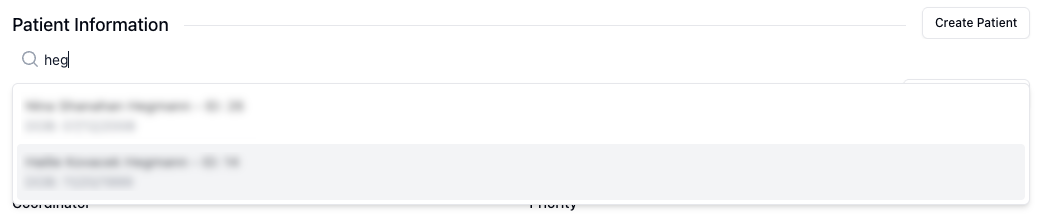
3. Select the patient
Click the patient's name in the dropdown to select them.
The patient's details appear in the Patient Information section, including name, DOB, gender, contact information, and address.

Related actions
View/Edit — Opens the patient record to view or update their information.
Remove — Clears the selection so you can search for a different patient.
Create Patient — If the patient doesn't exist, click this button to add a new patient record. See How-to: Adding a new patient.