Create Order
Use Create Order to manually enter orders that don't come through automated sources. This includes walk-in patients with paper prescriptions, verbal orders called in by prescribers, or transfers from other pharmacies. Once saved, the order appears in Incoming Orders where you can complete any remaining intake requirements before it advances to PV1.
Page layout
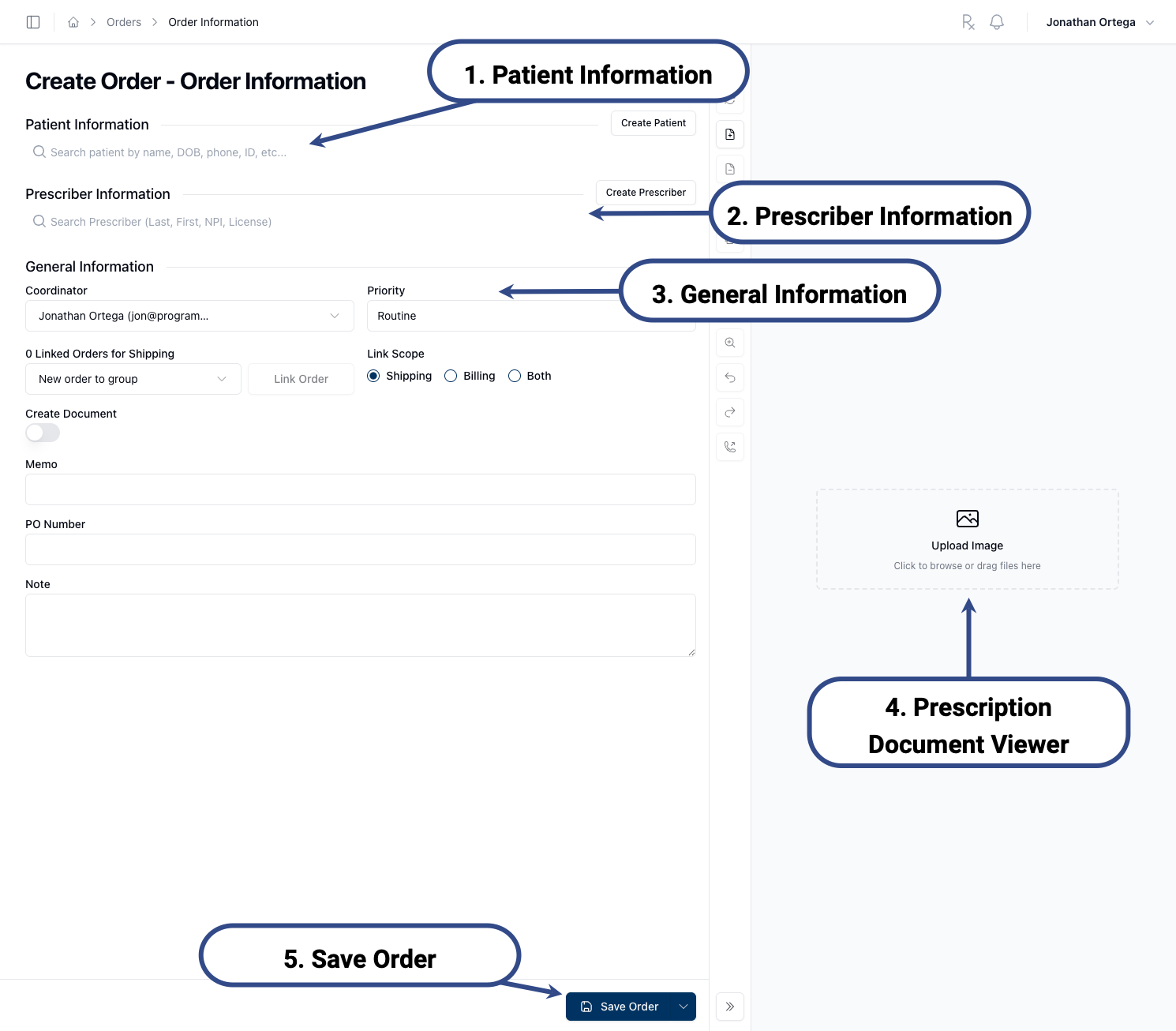
1. Patient Information — Search for an existing patient or create a new one.
2. Prescriber Information — Search for an existing prescriber or create a new one.
3. General Information — Coordinator, priority, linked orders, and notes for the order.
4. Prescription Document Viewer — Upload the prescription slip or document image.
5. Save Order — Save the order to send it to Incoming Orders.
Common next actions
When creating an order, you'll typically:
Select a patient — Search for and attach an existing patient to the order.
How-to: Selecting a patient for an order
Select a prescriber — Search for and attach an existing prescriber to the order.
How-to: Selecting a prescriber for an order
Upload a prescription document — Add the prescription slip image to the order.
How-to: Uploading a prescription document
Save the order — Save your order to send it to Incoming Orders.
How-to: Saving an order
Save an order as a draft — Save an incomplete order as a draft if you need to follow up later.
How-to: Saving an order as a draft