How-to: Adding a new patient
A streamlined, step-by-step refresher for adding a new patient record to the system.
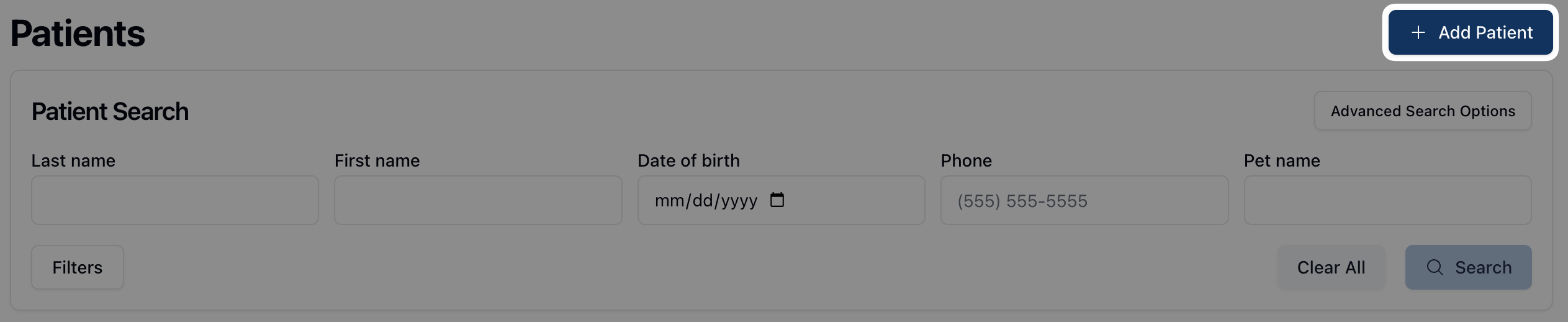
Click the Add Patient button in the upper right corner of the Patients page.
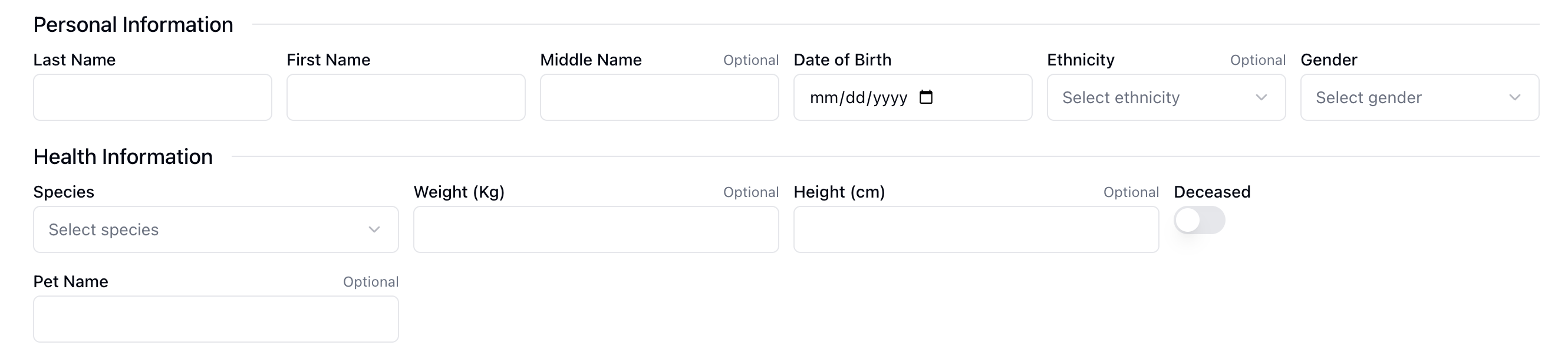
Review and complete the Create Patient form.
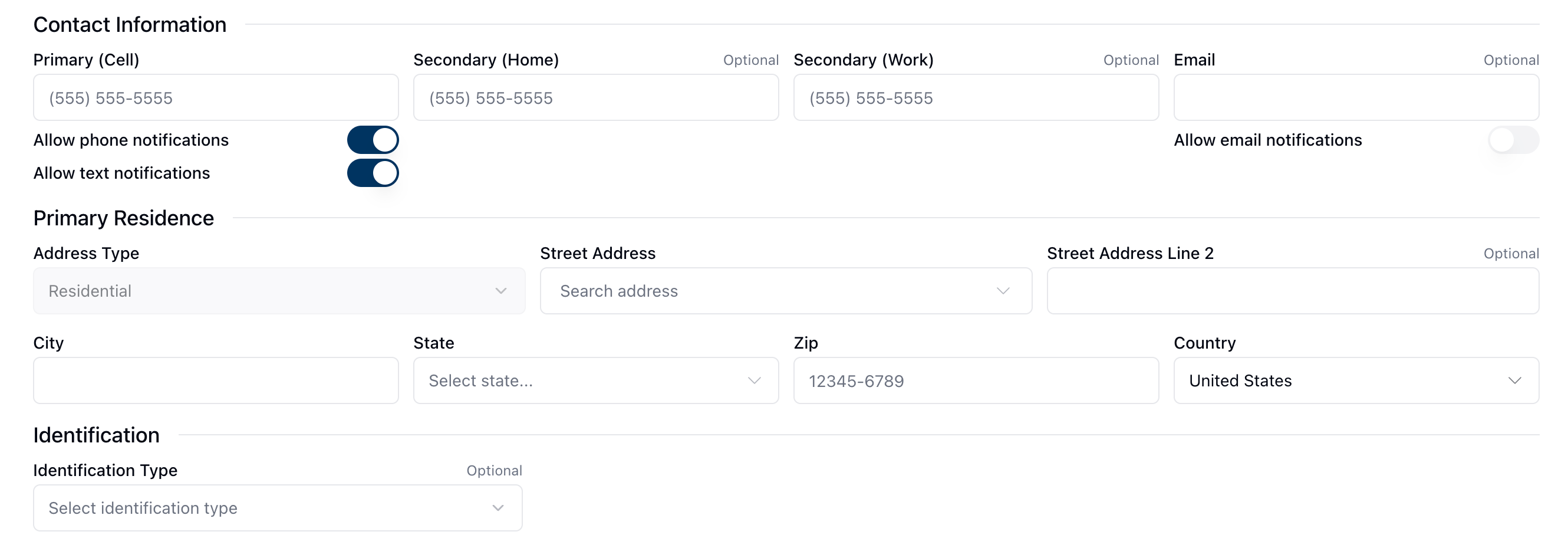
Enter the patient's contact information and any relevant communication preferences.
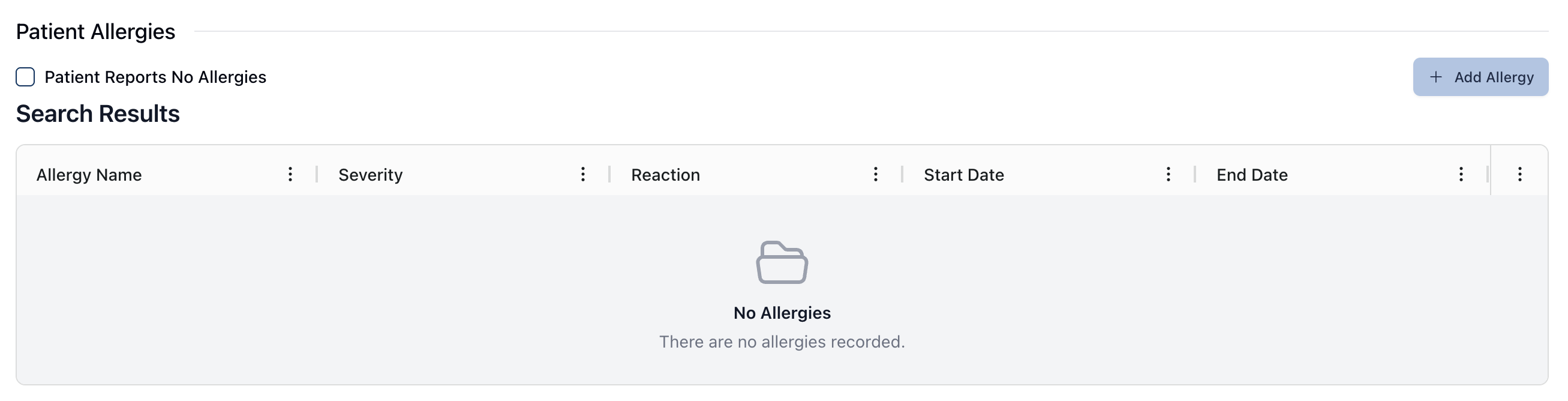
To add an allergy to the patient's record, click Add Allergy. If the patient has no known allergies, click the checkbox next to Patient reports no allergies.
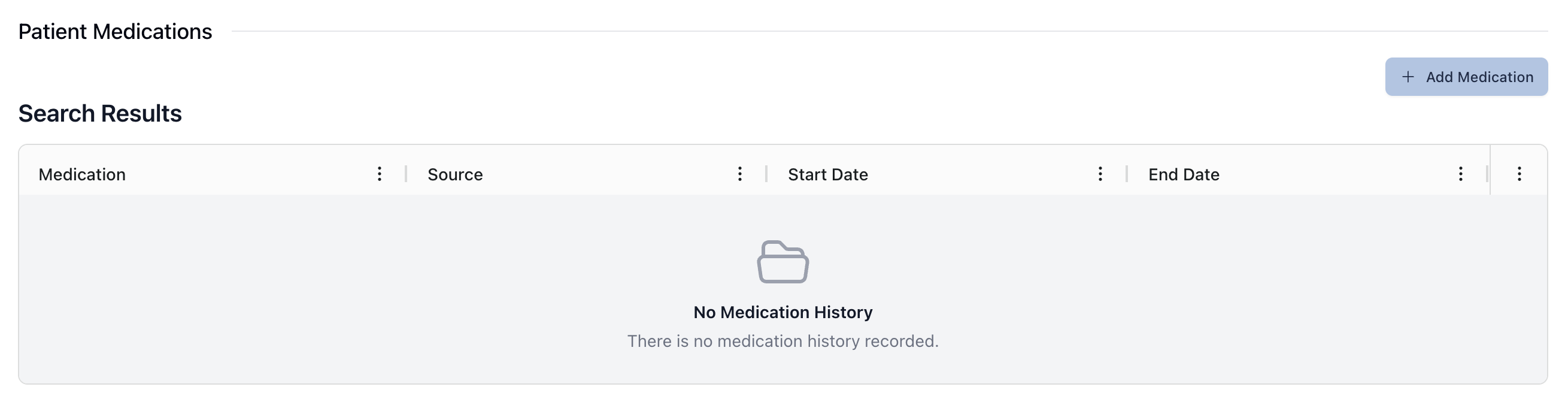
Click Add Medication to add any medication history to the patient profile.
Fill out the Additional Information section, if applicable.

Click Save Patient to save the new patient record.

If you need to edit or make changes after saving the patient information, open the patient profile and click the Edit Patient button to make any relevant changes to the patient's information.
