How-to: Saving an order as a draft
Save an order as a draft when you have incomplete information and need to follow up later.
When to use draft
New patient — You have basic info (name, DOB) but need to call the patient to complete their profile.
Missing information — The order is incomplete and you're waiting for details (patient didn't answer, pending callback, etc.).
What draft does
Disables validation — Required field checks are turned off while the order is in draft status.
Blocks advancement — The order cannot advance to PV1 until draft status is removed.
Steps
1. Click the Save Order dropdown
At the bottom of the page, click the dropdown arrow next to Save Order.
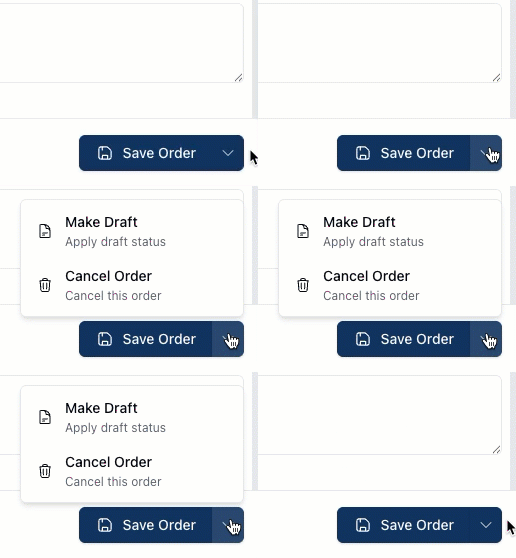 If no information has been added to the order, only Make Draft will appear in the dropdown.
2. Select Make Draft
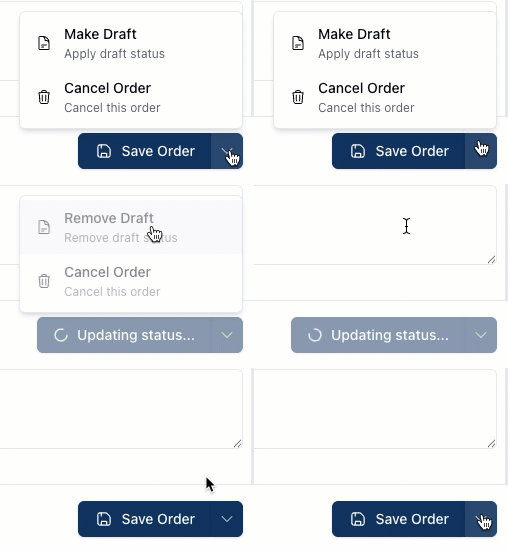
Click Make Draft to apply draft status to the order.
3. Confirm the order is in Draft Mode
At the top of the page, you'll notice the Draft badge next to Edit Order
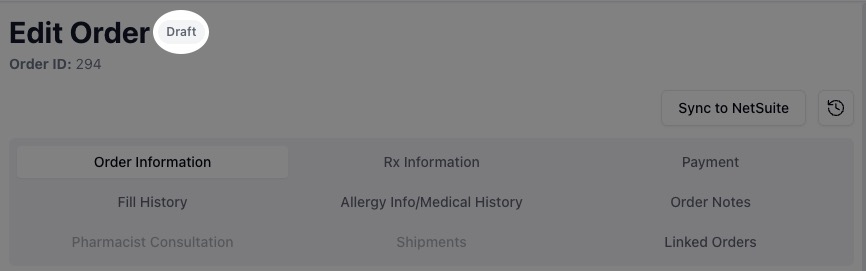 The order is saved with draft status and appears in Incoming Orders
Removing draft status
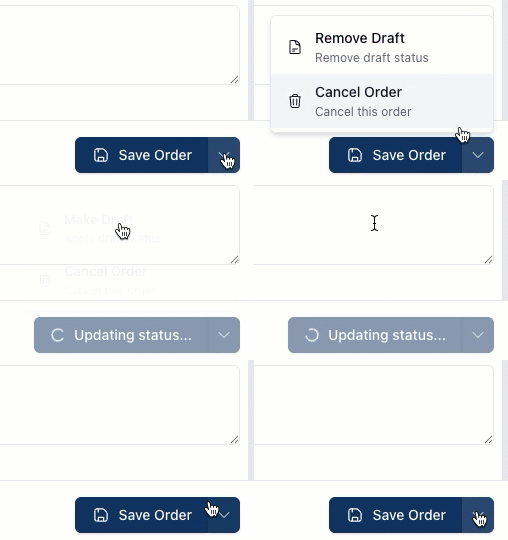
To remove draft status, click the Save Order dropdown and select Remove Draft.