How-to: Saving an order
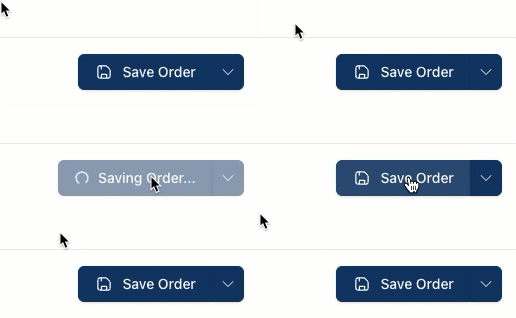
Save your order to submit it to the Incoming Orders queue.
Note: Orders are saved automatically as soon as you add information (patient, prescriber, etc.). The order appears in Incoming Orders immediately — you don't need to click Save Order to create it.
Steps
1. Click Save Order
At the bottom of the page, click Save Order.
2. Confirm the order is saved
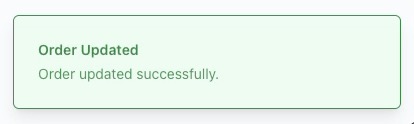
A confirmation message appears in the bottom right corner of the page: "Order updated successfully."
The order now appears in Incoming Orders.
Intake requirements
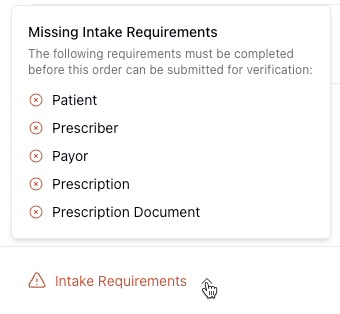
You can save an order even if information is missing. Expand Intake Requirements at the bottom of the page to see what's still needed before the order can advance to PV1.
See How-to: Completing intake requirements for details.
Related actions
Click the dropdown arrow next to Save Order for additional actions:
Make Draft — Save the order as a draft if you have incomplete information. See How-to: Saving an order as draft.
Cancel Order — Cancel this order.