How-to: Searching incoming orders
Use the Search Panel to find specific orders in the Incoming Orders queue.
Steps
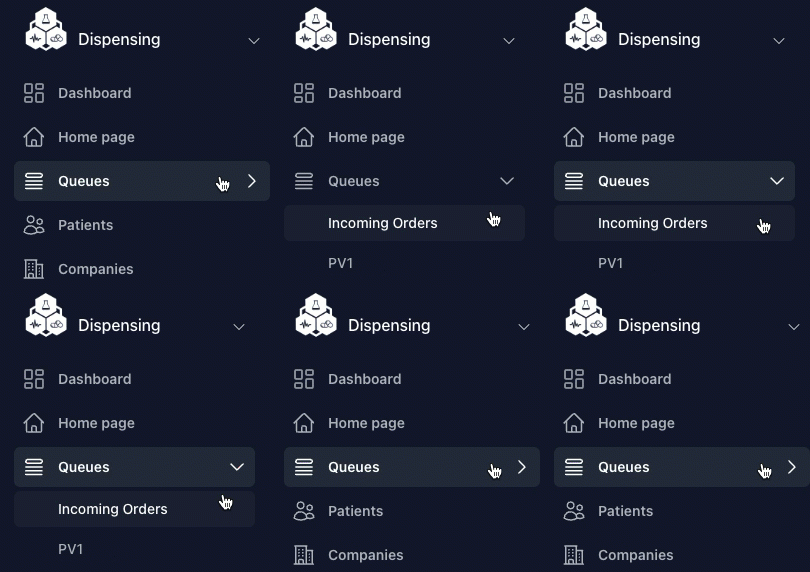
1. Go to Queues → Incoming Orders
From the left sidebar, expand Queues and select Incoming Orders.
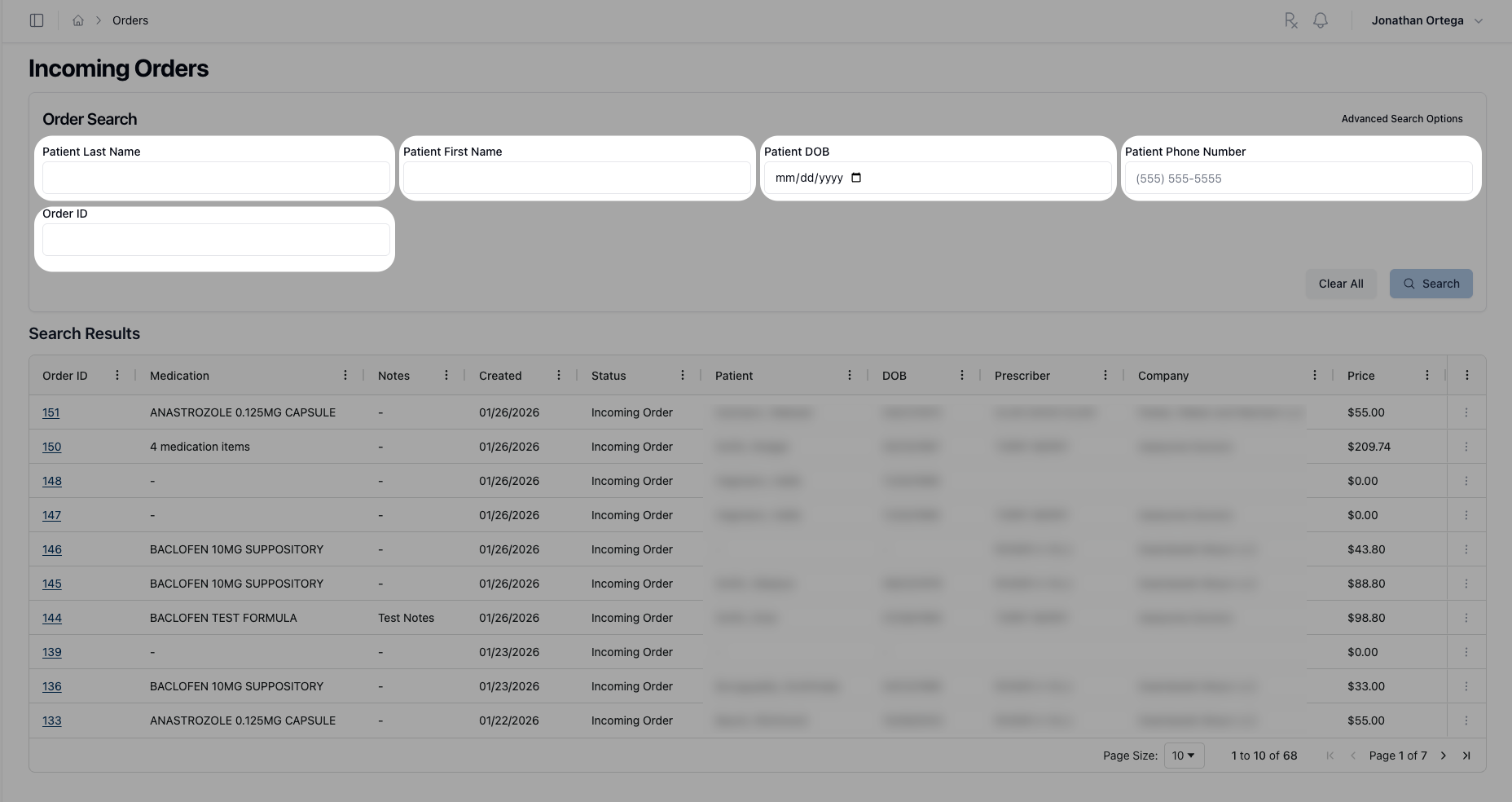
2. Enter your search criteria
In the Search Panel, enter any combination of:
Patient Last Name
Patient First Name
Patient DOB
Patient Phone Number
Order ID
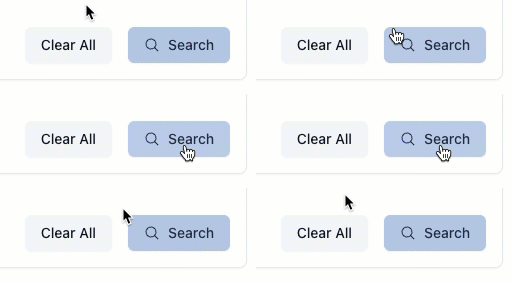
3. Run the search
Click Search or press Enter.
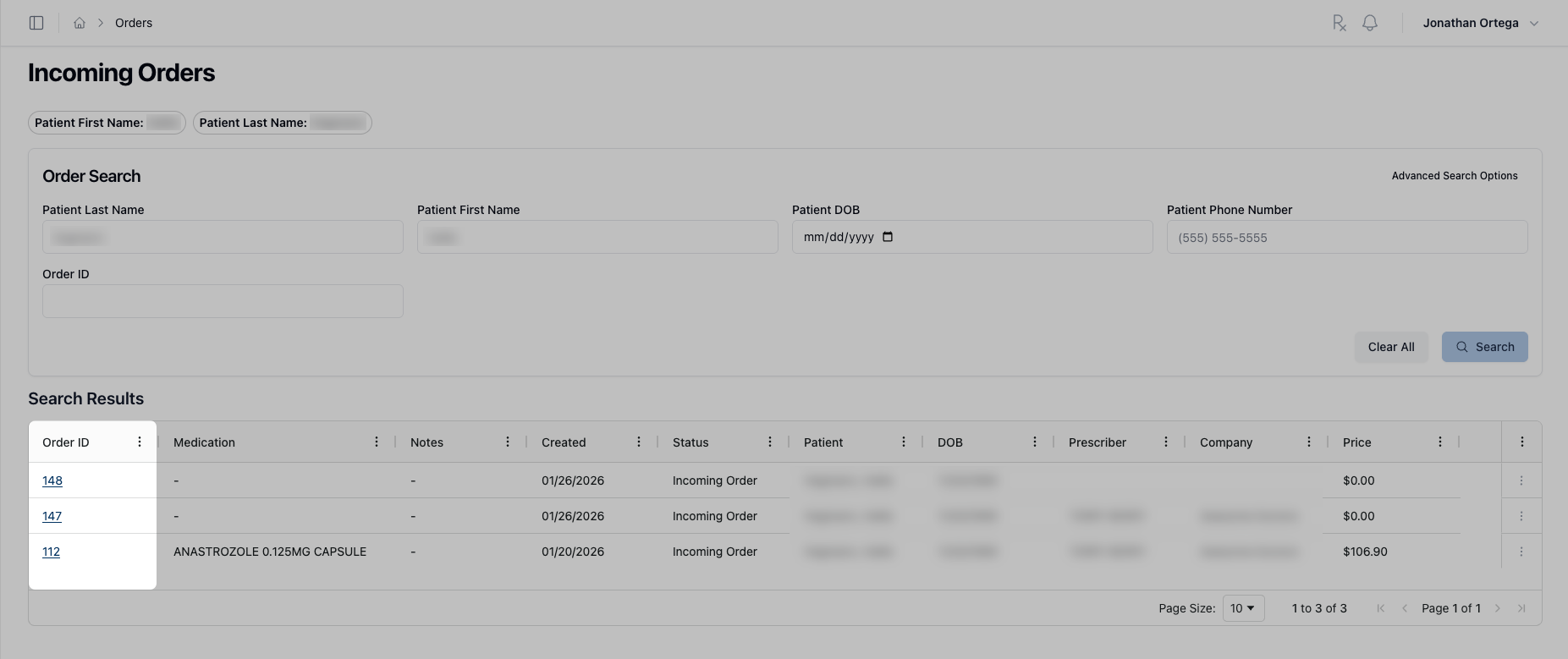
4. Review your results
Matching orders appear in the Results Table. Click an Order ID to open the full order details.
Using Advanced Search Options
For more specific searches, additional filters are available.
5. Expand Advanced Search Options
Click Advanced Search Options in the top-right corner of the Search Panel to reveal additional fields.
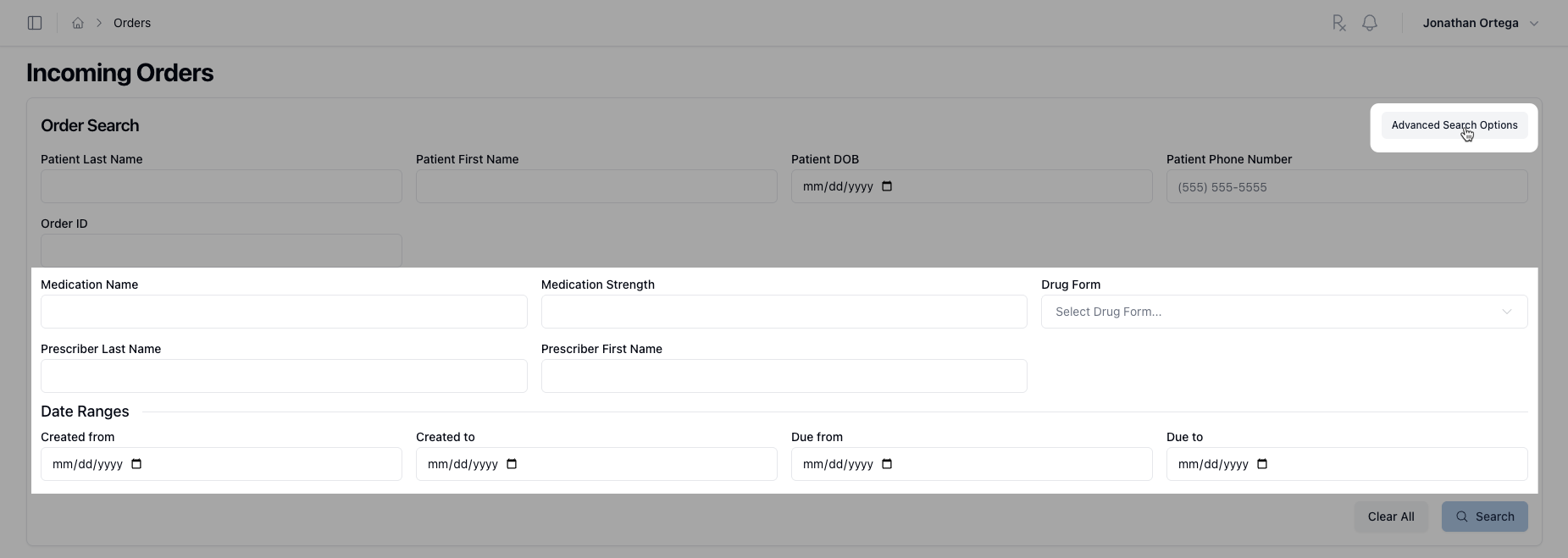 6. Enter additional criteria
Medication Name
Medication Strength
Drug Form
Prescriber Last Name
Prescriber First Name
Created from / Created to — filter by when the order was created
Due from / Due to — filter by when the order is due
7. Run the search
Click Search or press Enter.
Clearing your search
8. Reset the search form
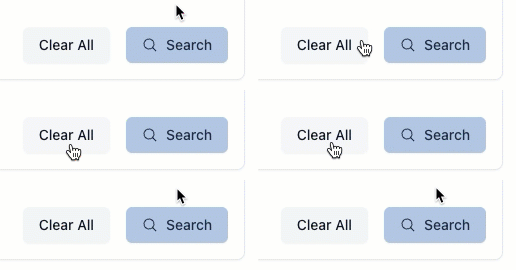
Click Clear All to reset all fields and return to the full list of incoming orders.
← Back to Incoming Orders · → Next: How-to: Viewing an incoming order