How-to: Viewing an incoming order
Open an order from the Incoming Orders queue to see its full details.
Steps
1. Locate the order in the Results Table
From the Incoming Orders queue, find the order you want to view. Use the Search Panel (TODO: link Search howto) if needed.
2. Click the Order ID
Click the Order ID link in the first column to open the order.

3. Review the Order Information page
The order opens to the Order Information tab by default, showing patient, prescriber, prescription, and general order details.
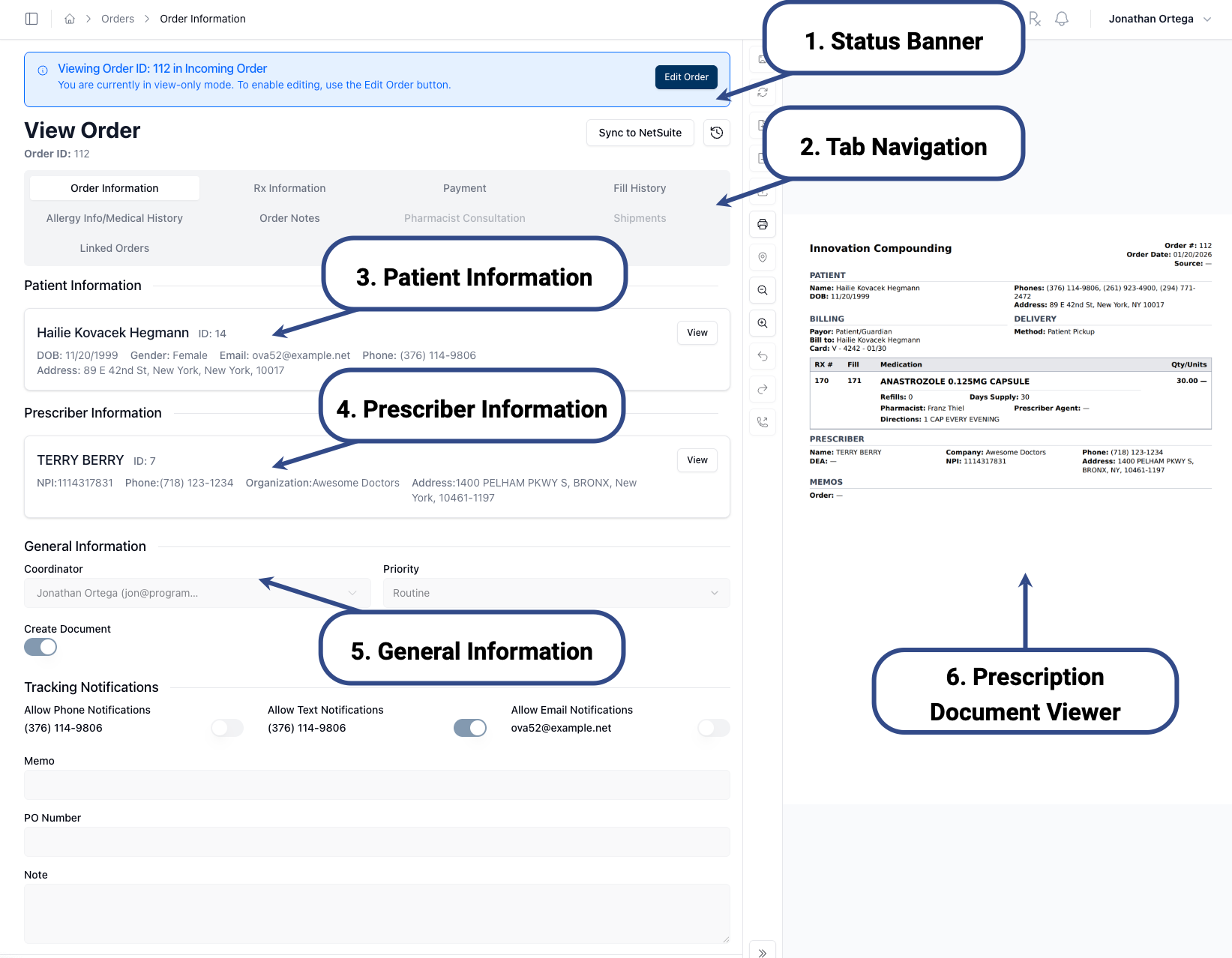
1. Status Banner — Shows the current queue and order mode. Click Edit Order to make changes.
2. Tab Navigation — Switch between Order Information, Rx Information, Payment, Fill History, and other sections.
3. Patient Information — Patient name, DOB, contact details, and address.
4. Prescriber Information — Prescriber name, NPI, organization, and contact details.
5. Prescription Document Viewer — Right sidebar displaying the uploaded prescription document (the slip from the prescriber) or a system-generated prescription image.
6. General Information — Coordinator, priority status, notification settings, and notes for the order.
← Back to How-to: Searching incoming orders · → Next: How-to: Completing intake requirements