How-to: Adding a company
A streamlined, step-by-step refresher for adding a new company.
Navigate to the Companies tab in the sidebar and click + Add Company.

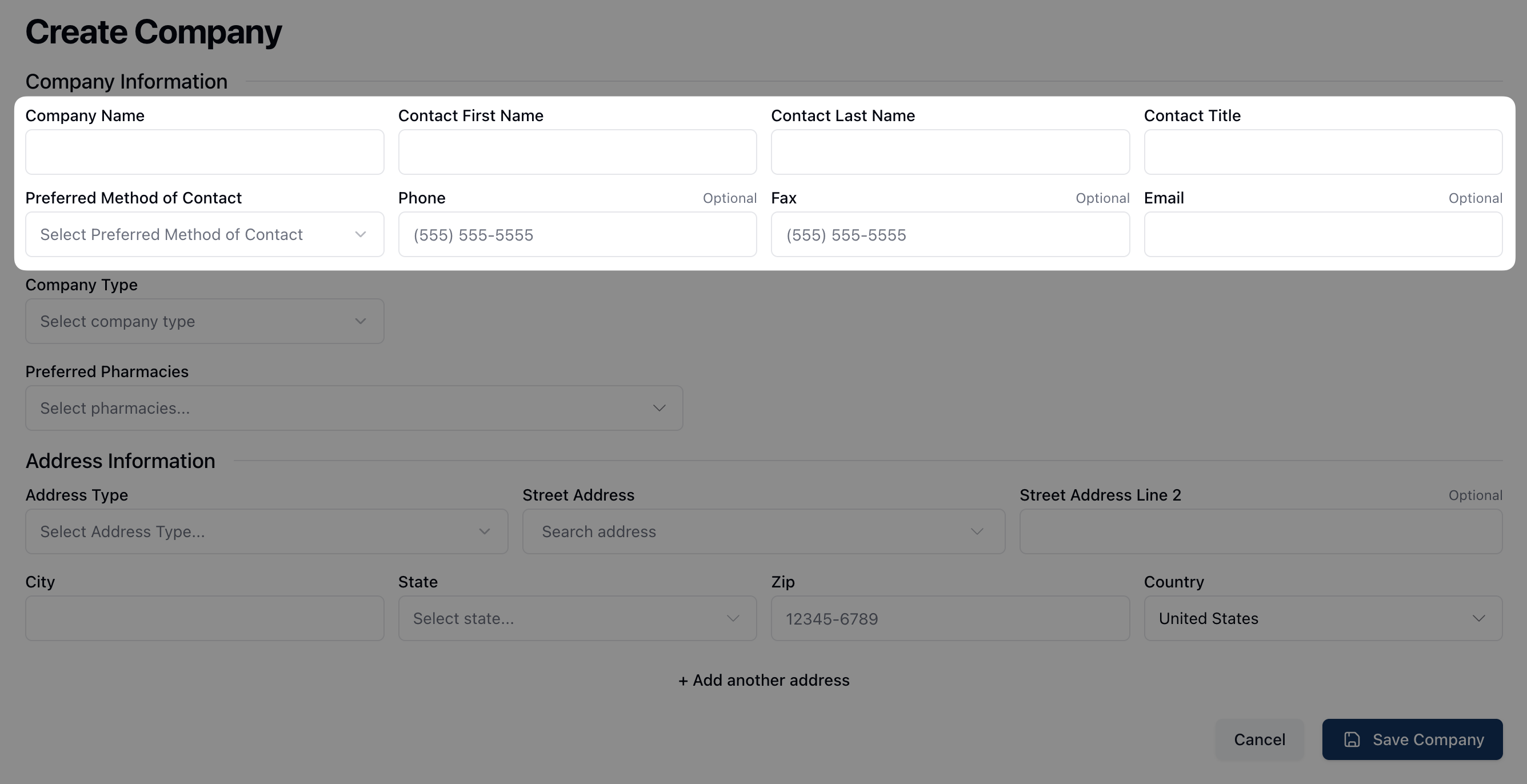
On the Create Company form, begin by filling out the company information, including the company name and relevant point of contact.
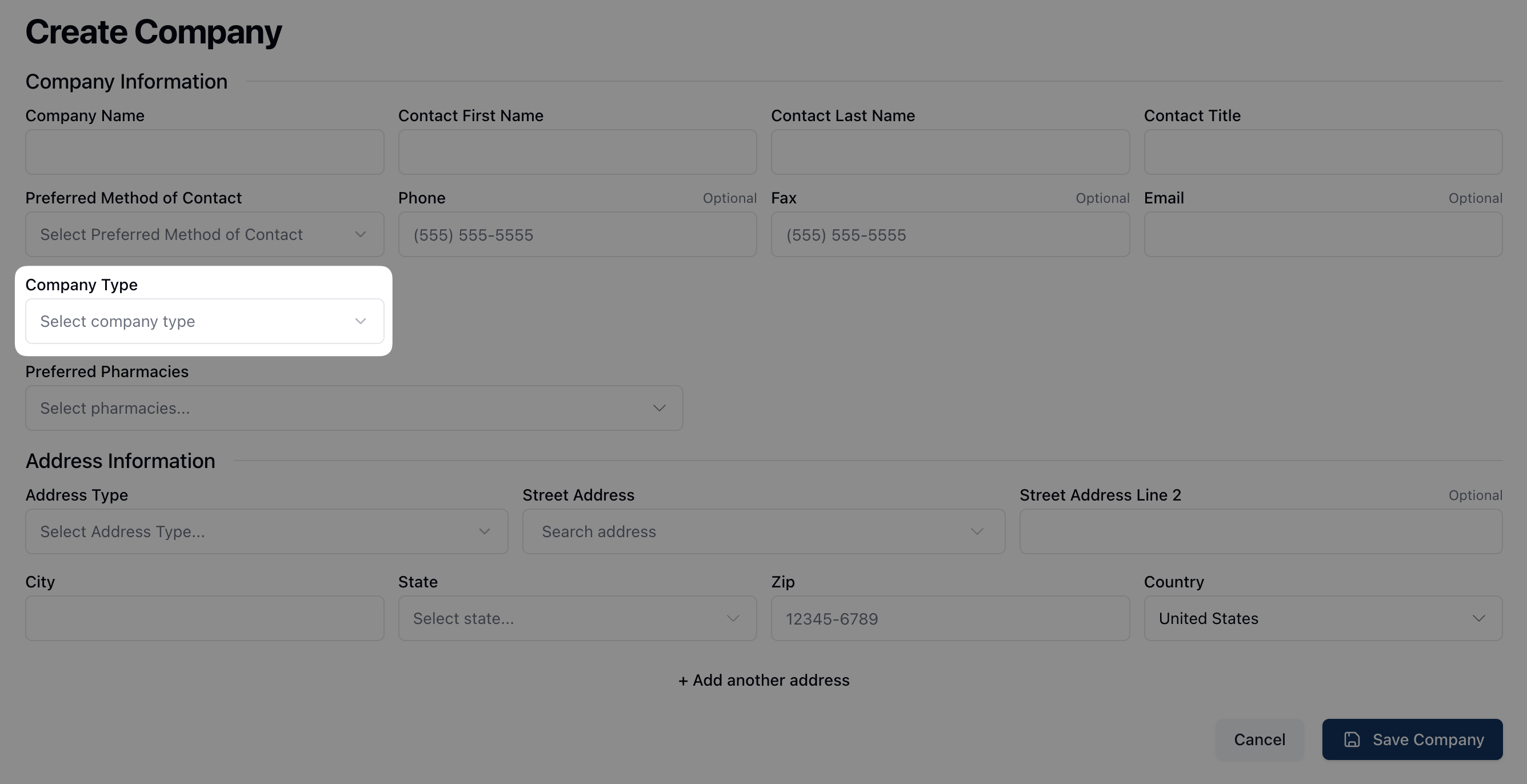
Under Company Type, select the appropriate relationship from the drop-down: B2B Contract or Direct Contact.
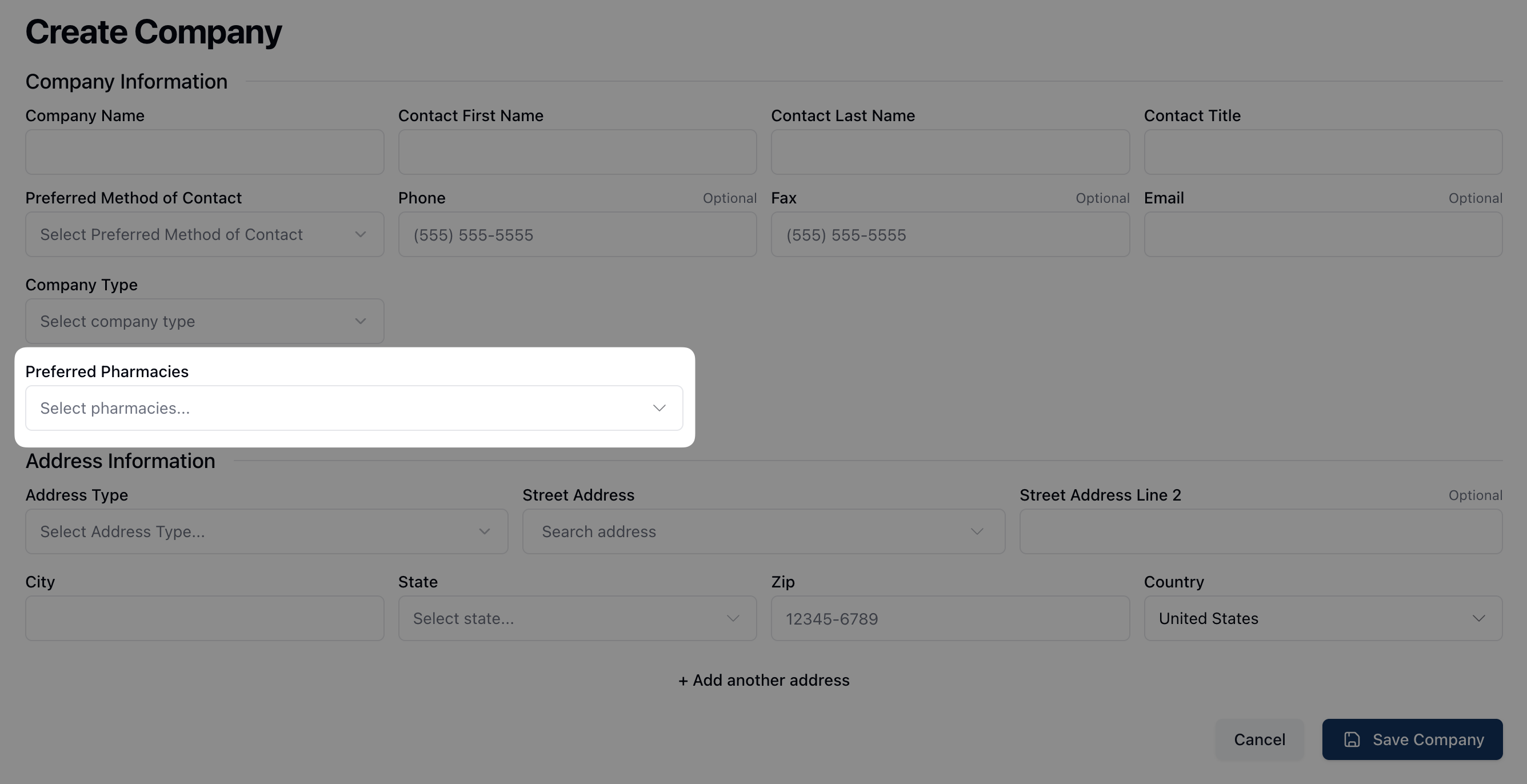
Under Preferred Pharmacies, select the company's preferred pharmacies. Note that it's possible to select more than one pharmacy.
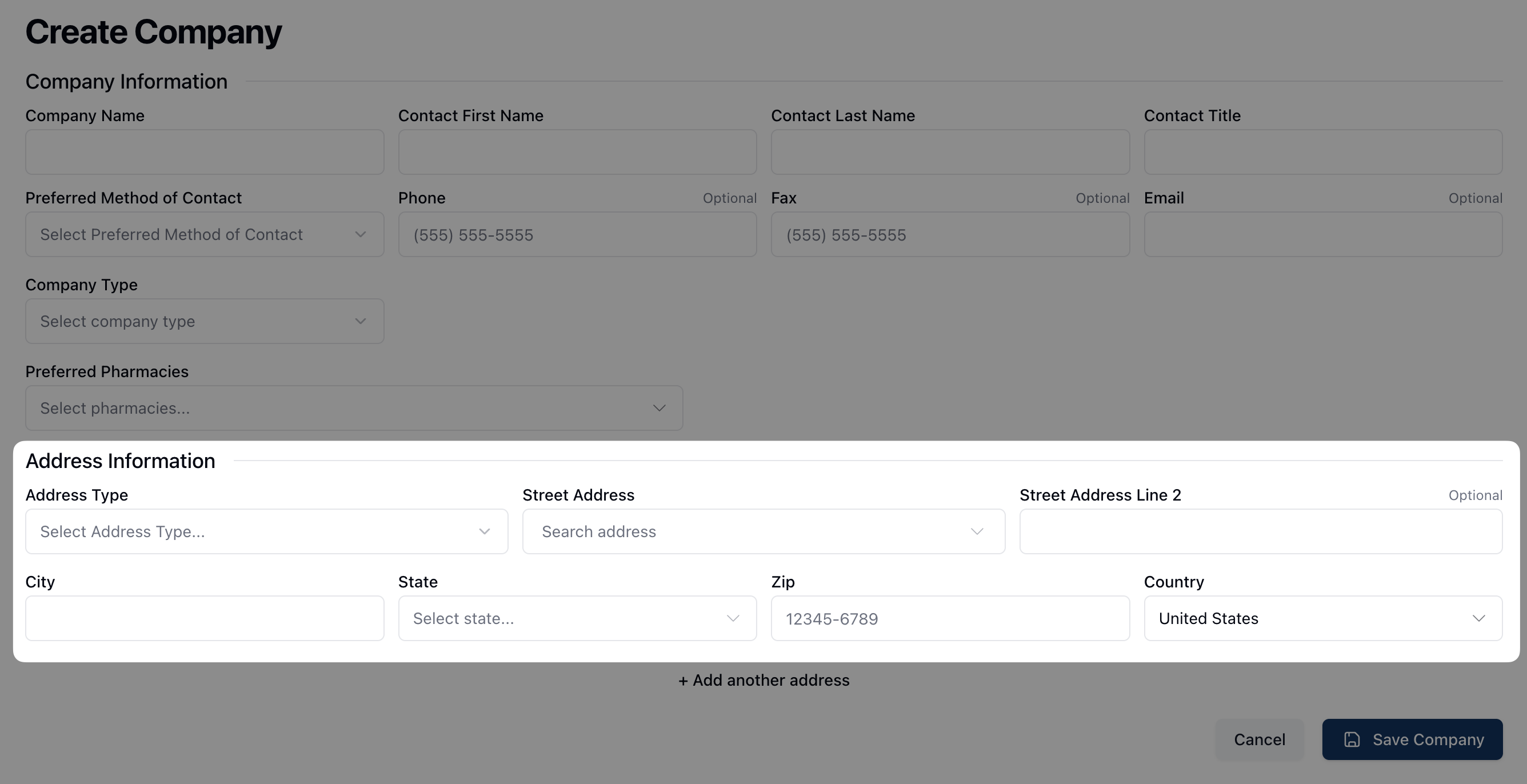
Enter the Address Information, including the type of address from the related dropdown menu.
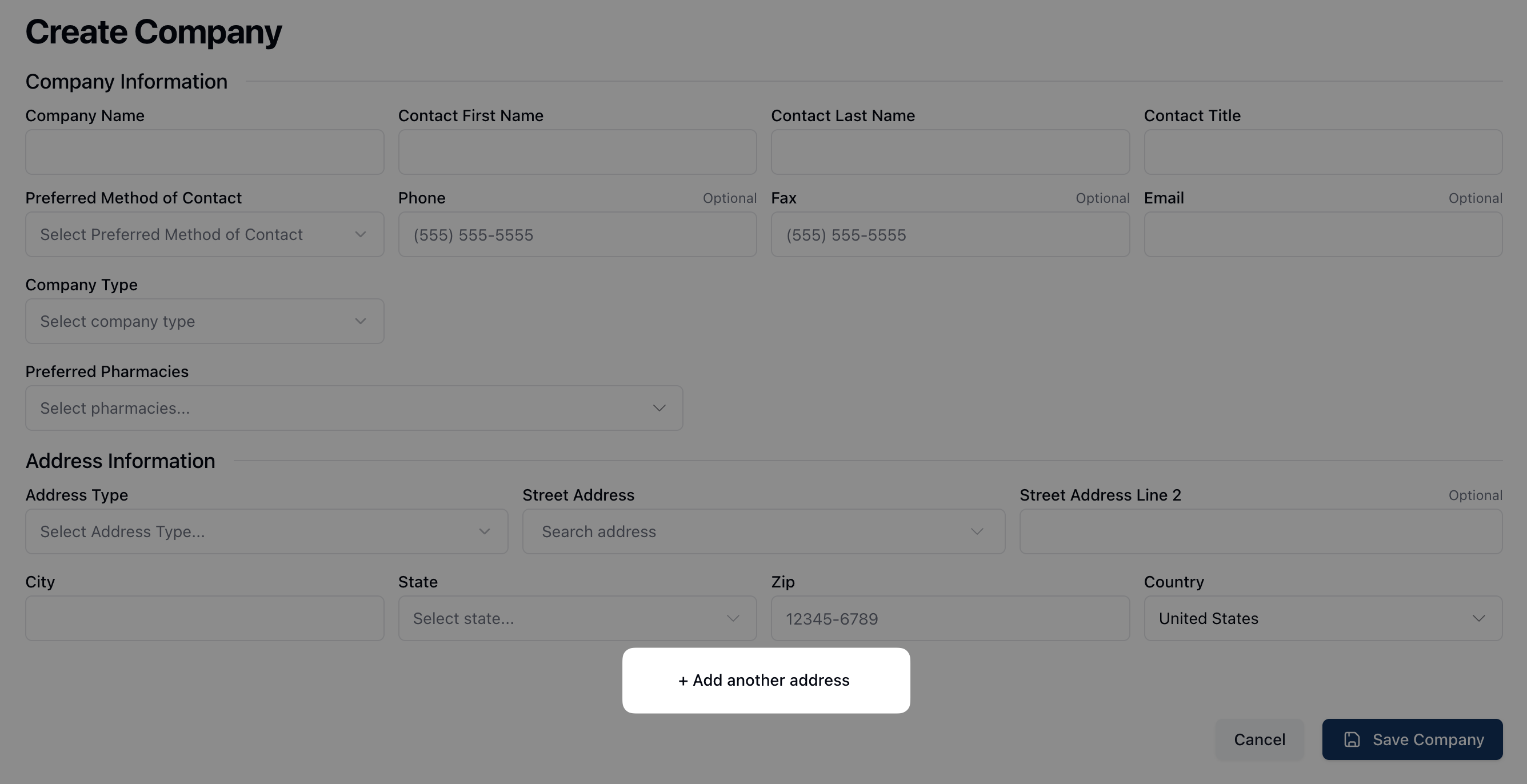
If there are additional addresses, click the + Add another address link and enter the relevant information.
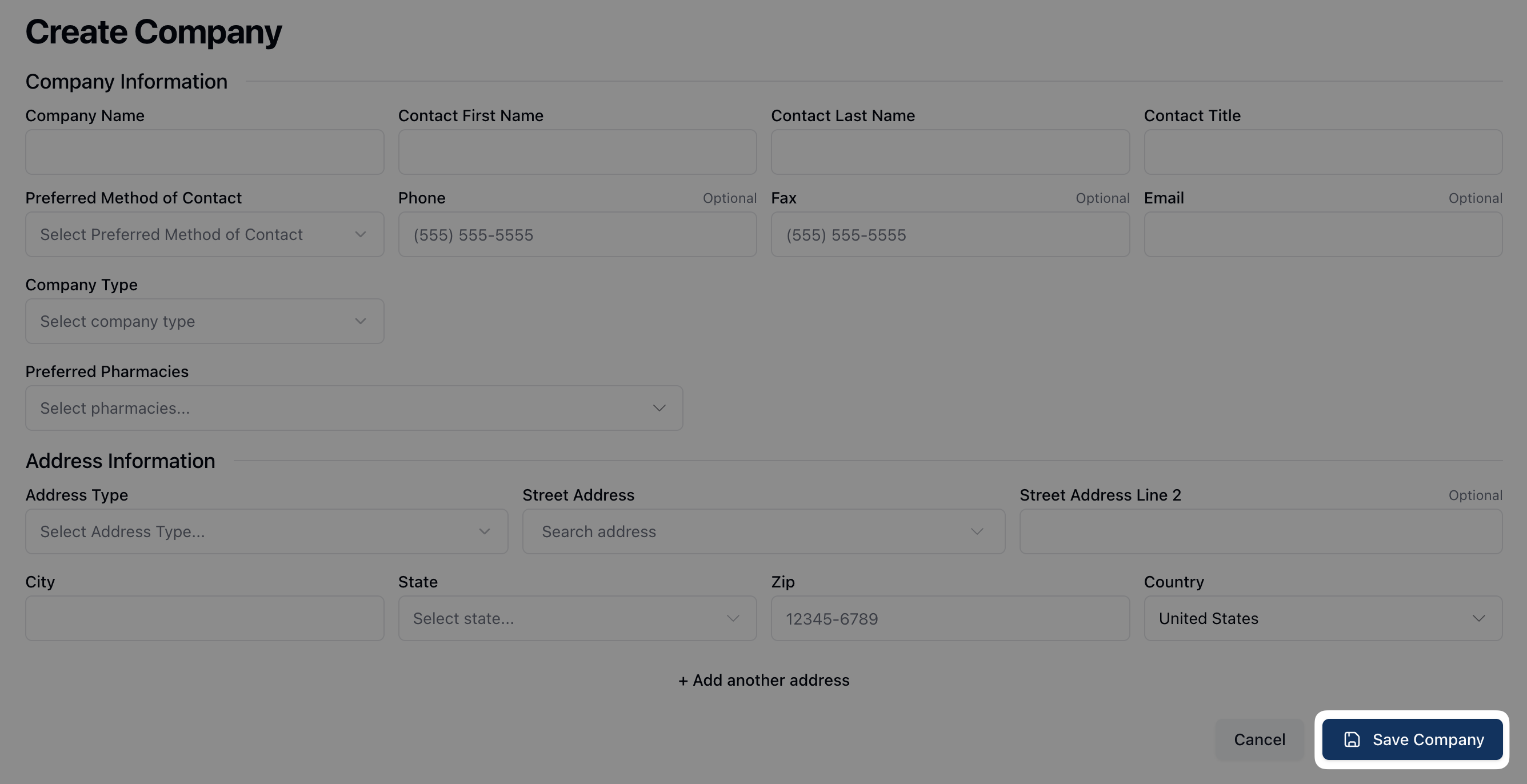
Once all fields are complete, click the Save button to save the new company.