How-to: Viewing priority company notes
A streamlined, step-by-step refresher for viewing priority company notes.
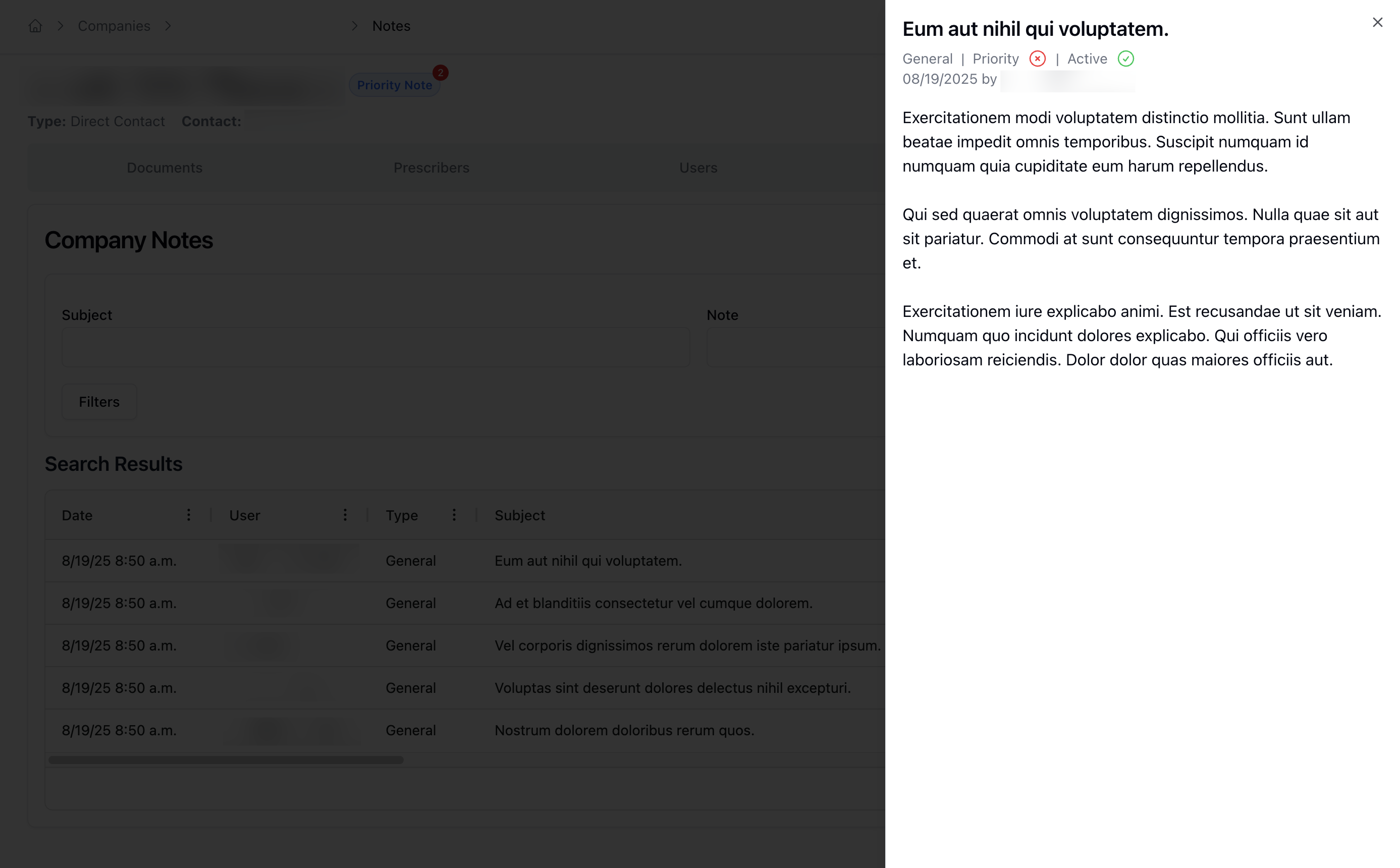
Companies with priority notes display a Priority Note badge next to the company name.

To view the priority notes, directly click the badge to navigate to the Notes tab. This loads the page with a filter automatically applied to display only priority notes in the Search Results table.
Alternatively, navigate to the Notes tab and click the Filters button. Here, select Priority Notes to manually filter for priority items.

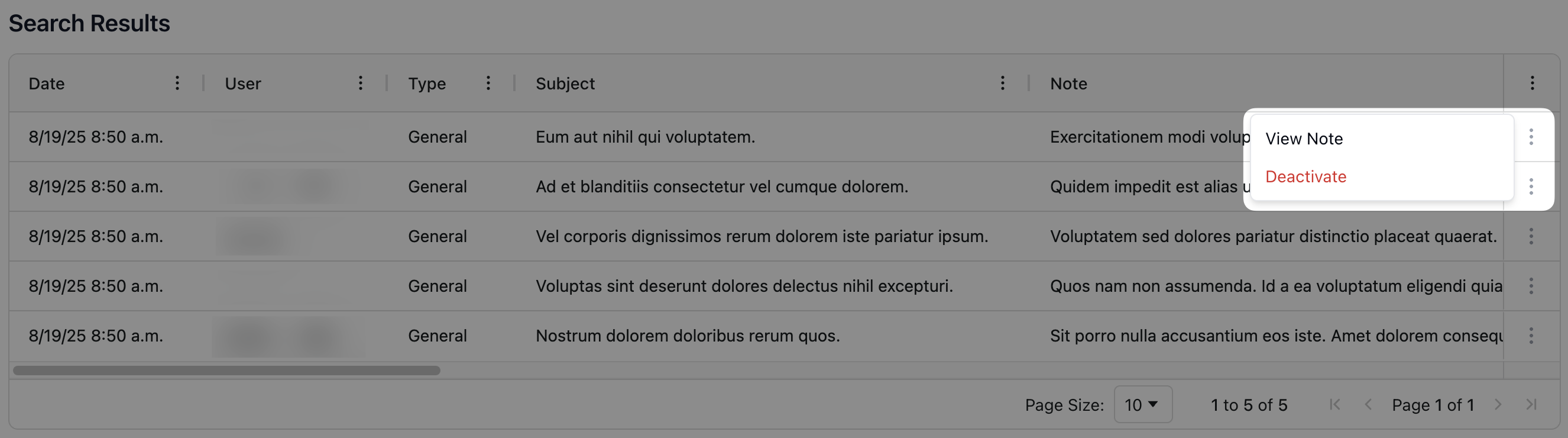
In the Search Results table, click the actions menu ( ⠇) next to the note you'd like to open. Then, select View Note.
Clicking View Note displays the note in a sidebar on the right side of the page. You can return to the search results page by clicking the X in the upper right corner of the sidebar. Alternatively, click anywhere outside of the note.