How-to: Adding a prescriber note
how-to
A streamlined, step-by-step refresher for adding a prescriber note.
Navigate to the Prescriber Notes tab and click the + Add Note button.

On the Create Prescriber Note form, fill out all relevant fields. Note that you can select from Clinical or General Note Type dropdown menu.

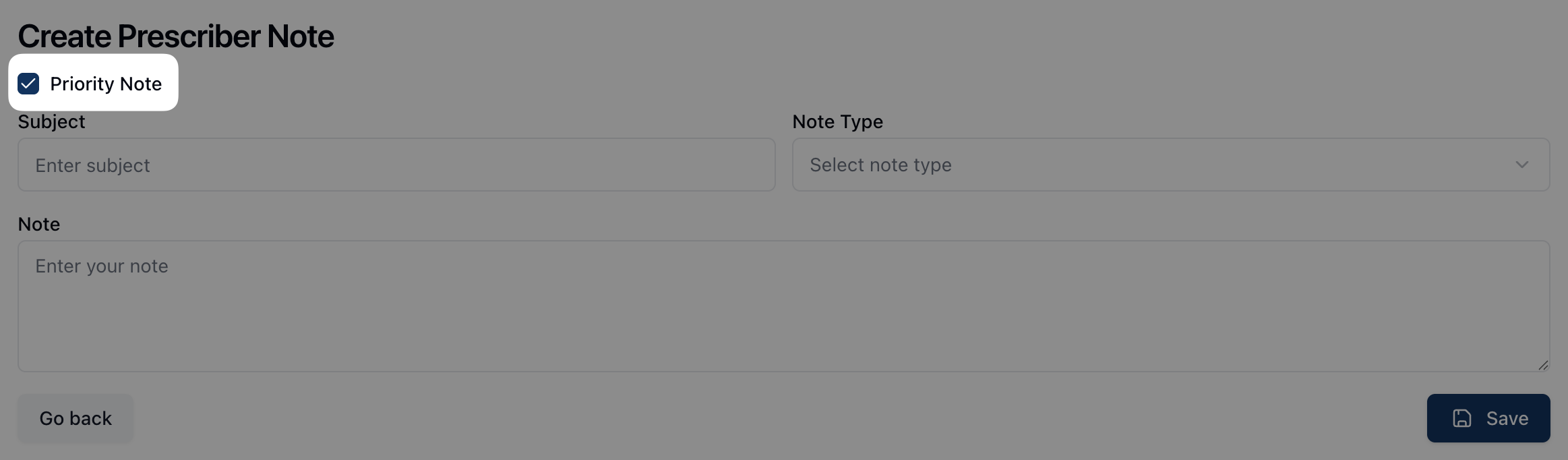
If the note is high priority, select the checkbox next to Priority Note. This displays a badge next to the prescriber's name on the prescriber record.
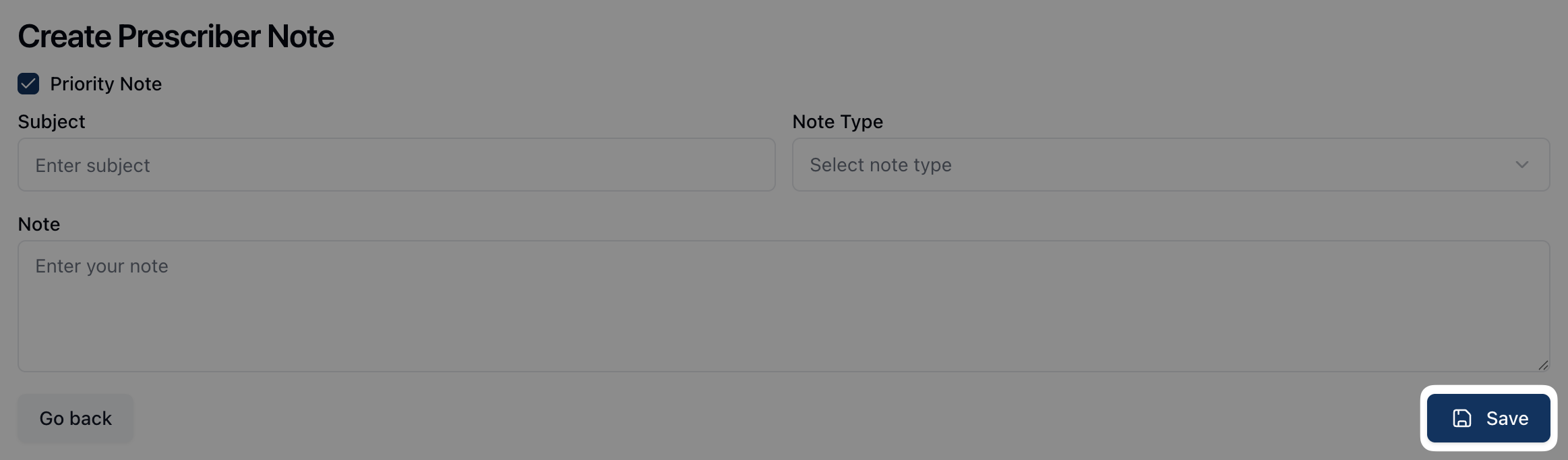
Once all fields are complete, click Save.