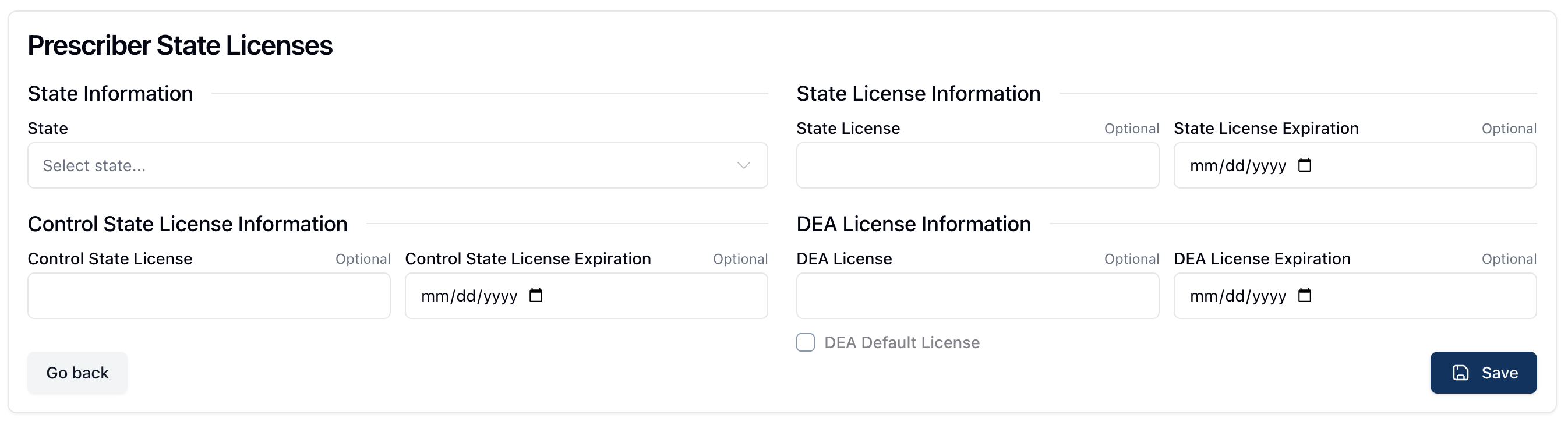
How-to: Adding a prescriber state license
how-to
A streamlined, step-by-step refresher for adding a prescriber state license.
Navigate to the State Licenses tab and click the + Add State button.

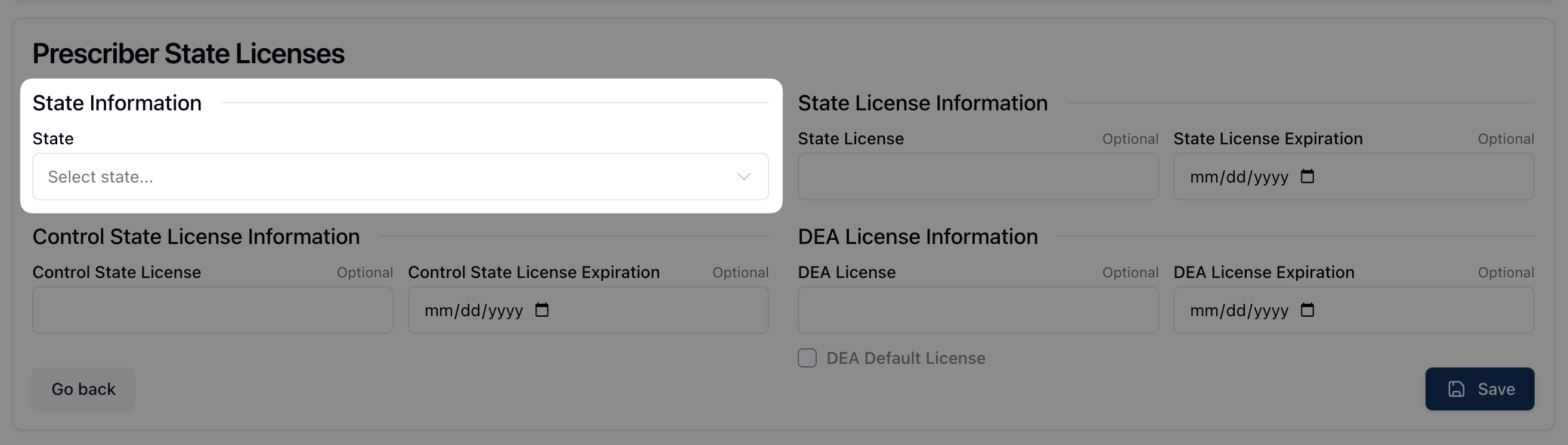
In the Prescriber State Licenses form, begin by entering the State Information. You can use the search field at the top of the dropdown menu to filter the states displayed.
Enter the relevant license information, including the number and expiration date. Note that you don't need to include all licenses.
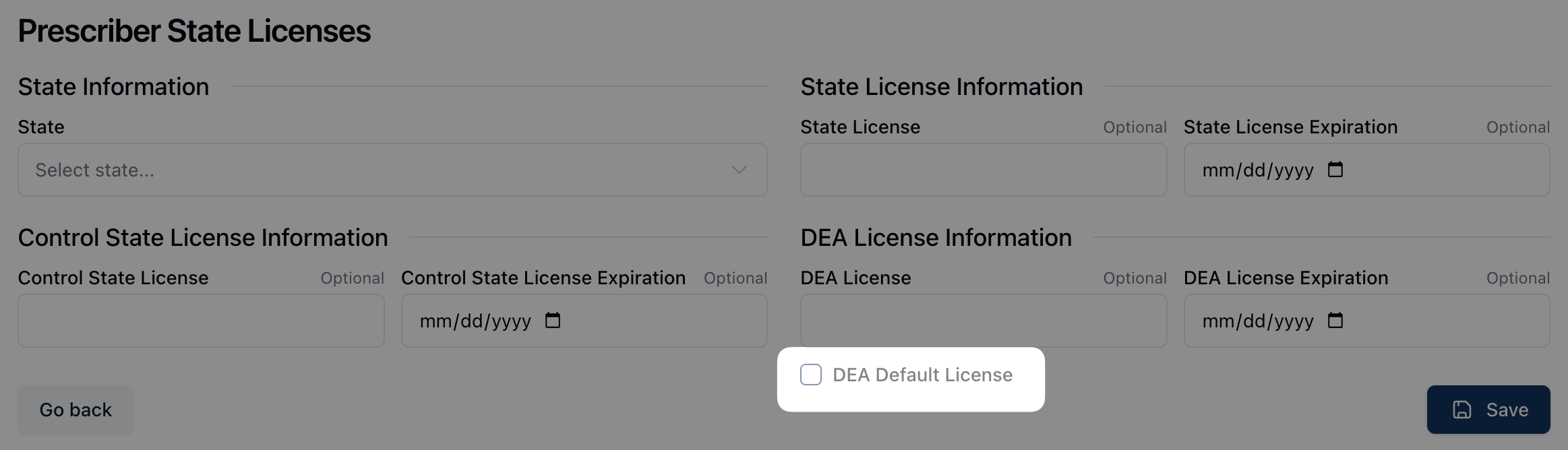
If the state license is the prescriber's primary DEA license, select the checkbox next to DEA Default License.
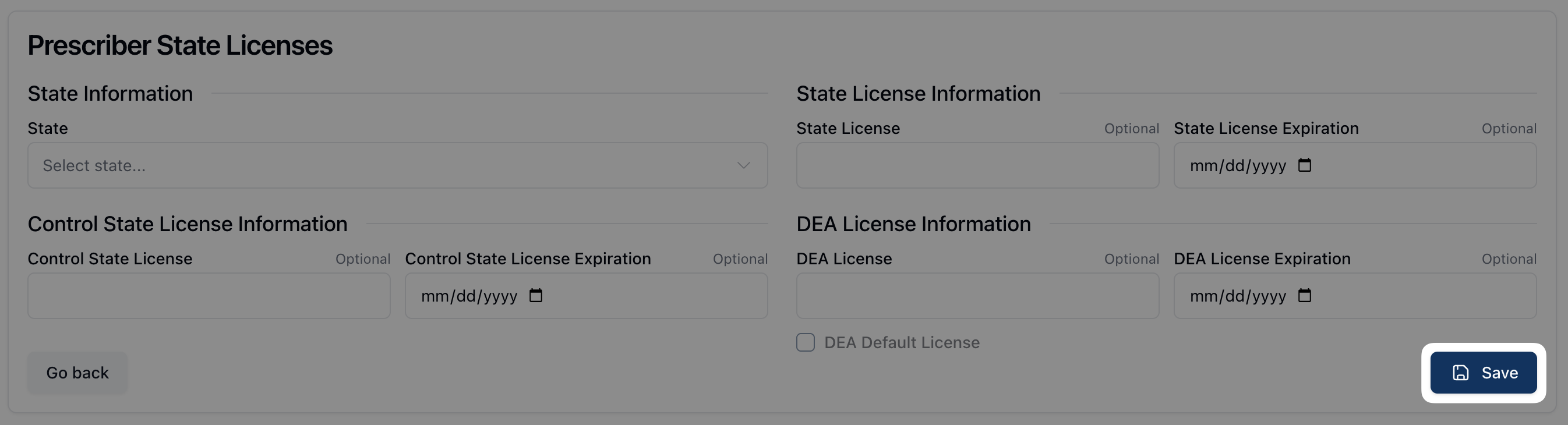
Once all fields are complete, click Save to save the state license information.