How-to: Adding chemical inventory
A streamlined, step-by-step refresher for adding a new chemical inventory record.
From an existing record
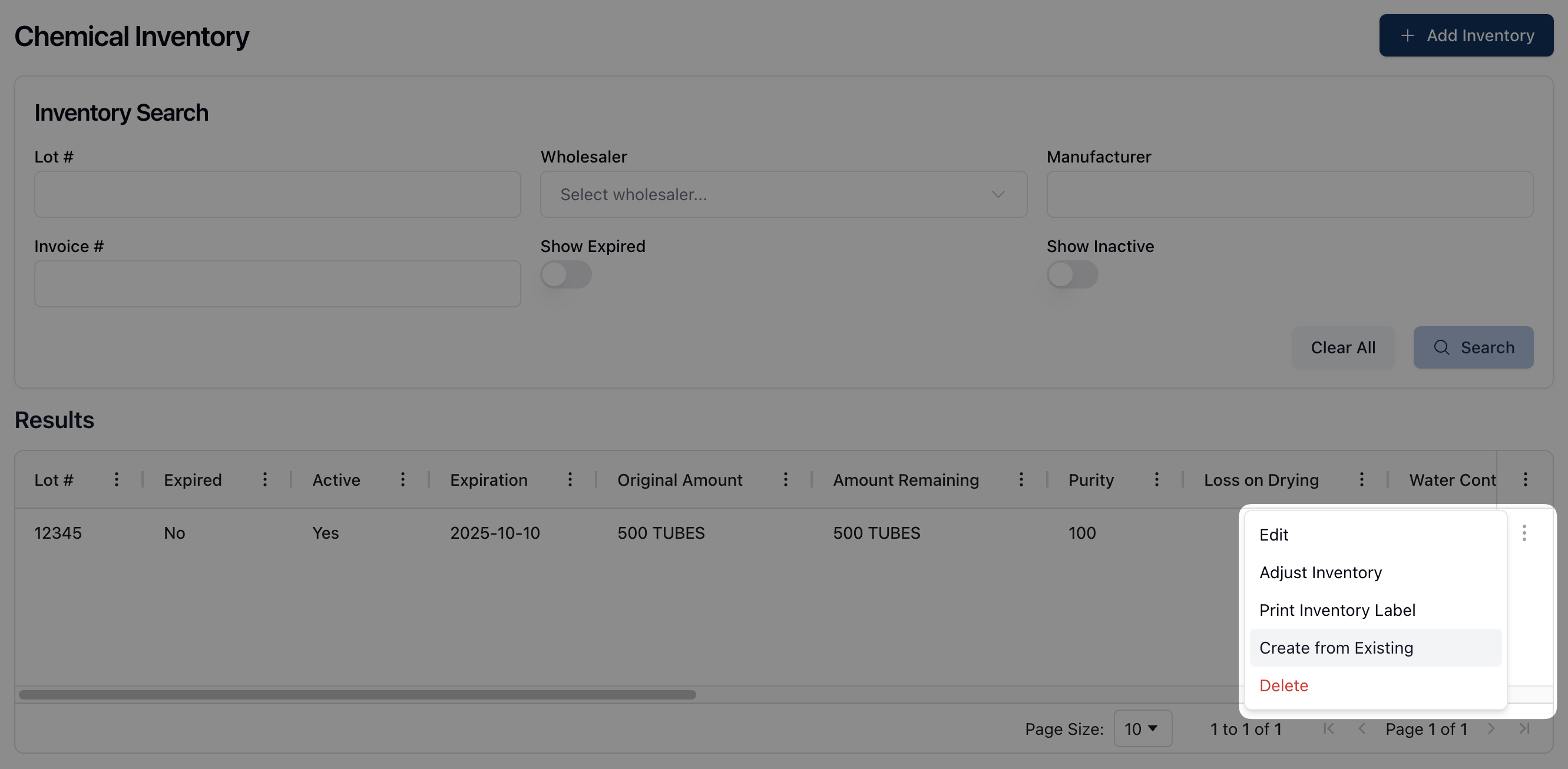
Click the actions menu ( ⠇) next to the relevant chemical inventory in the Results table and click Create from Existing.
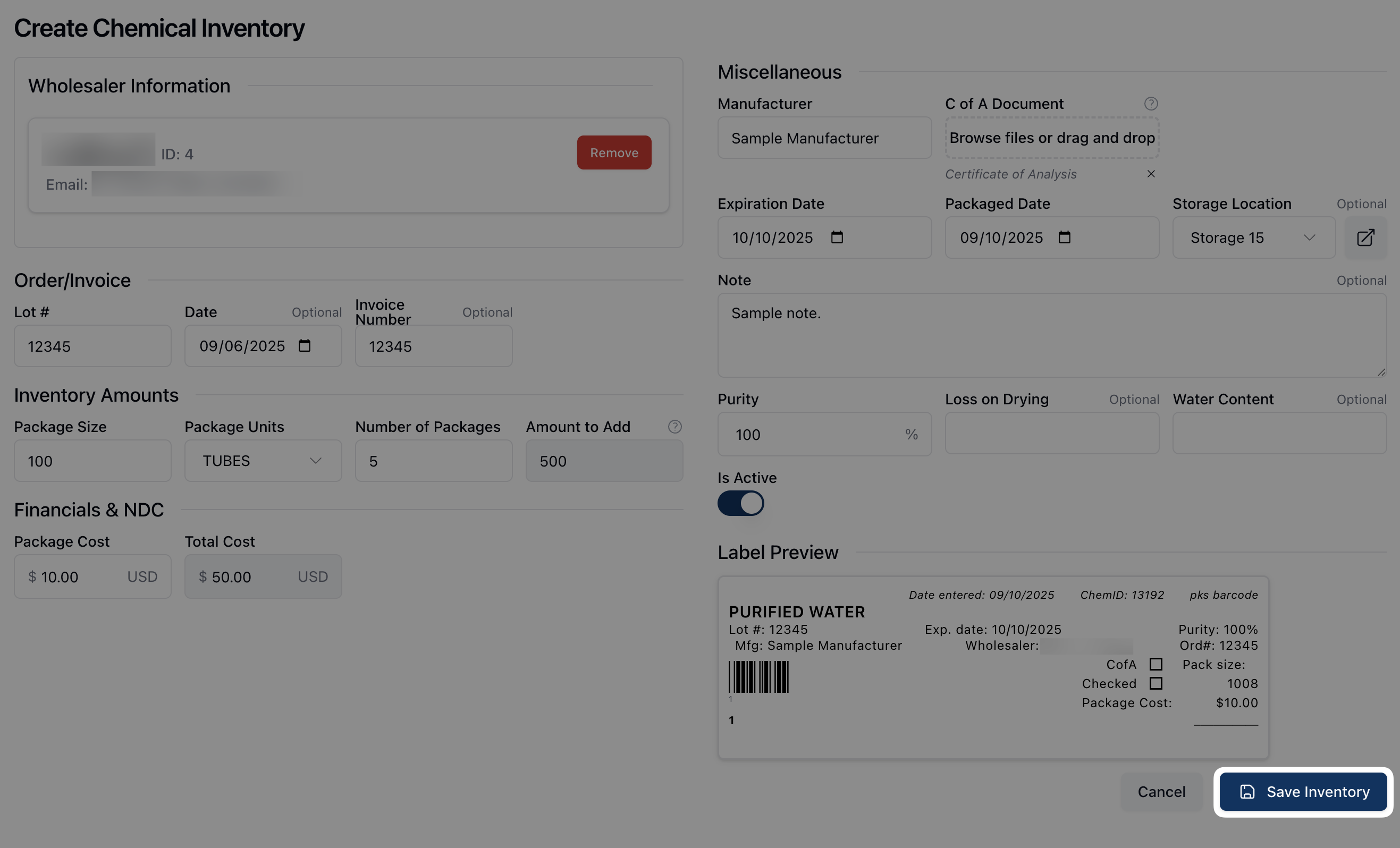
On the Create Chemical Inventory form review the prefilled form, updating and editing any relevant fields.

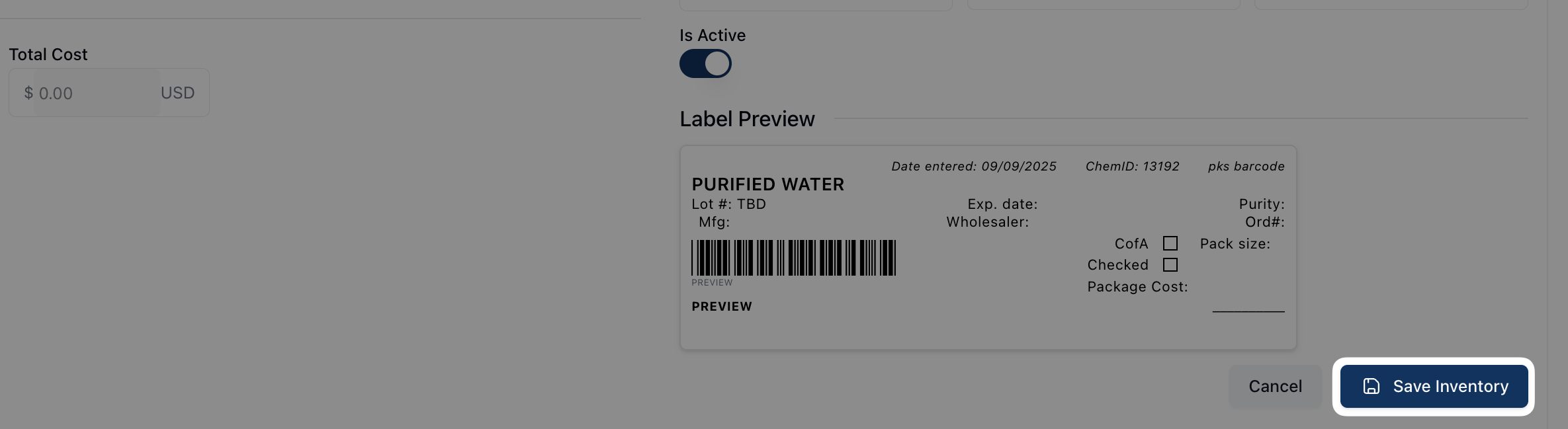
Once complete, click Save Inventory to save the new inventory record.
From a blank form
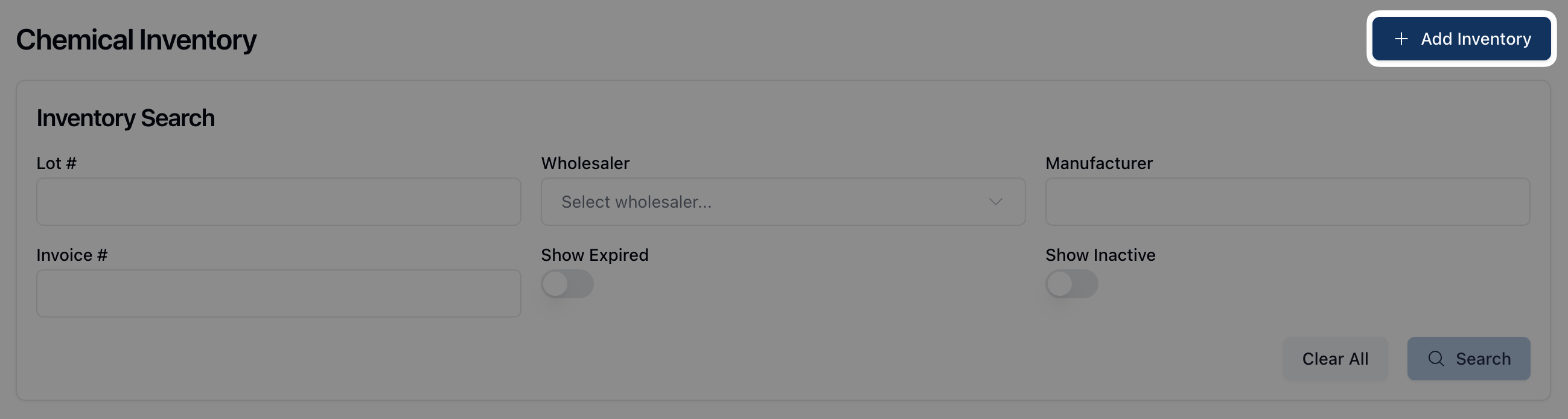
Click + Add Inventory from the relevant chemical record.
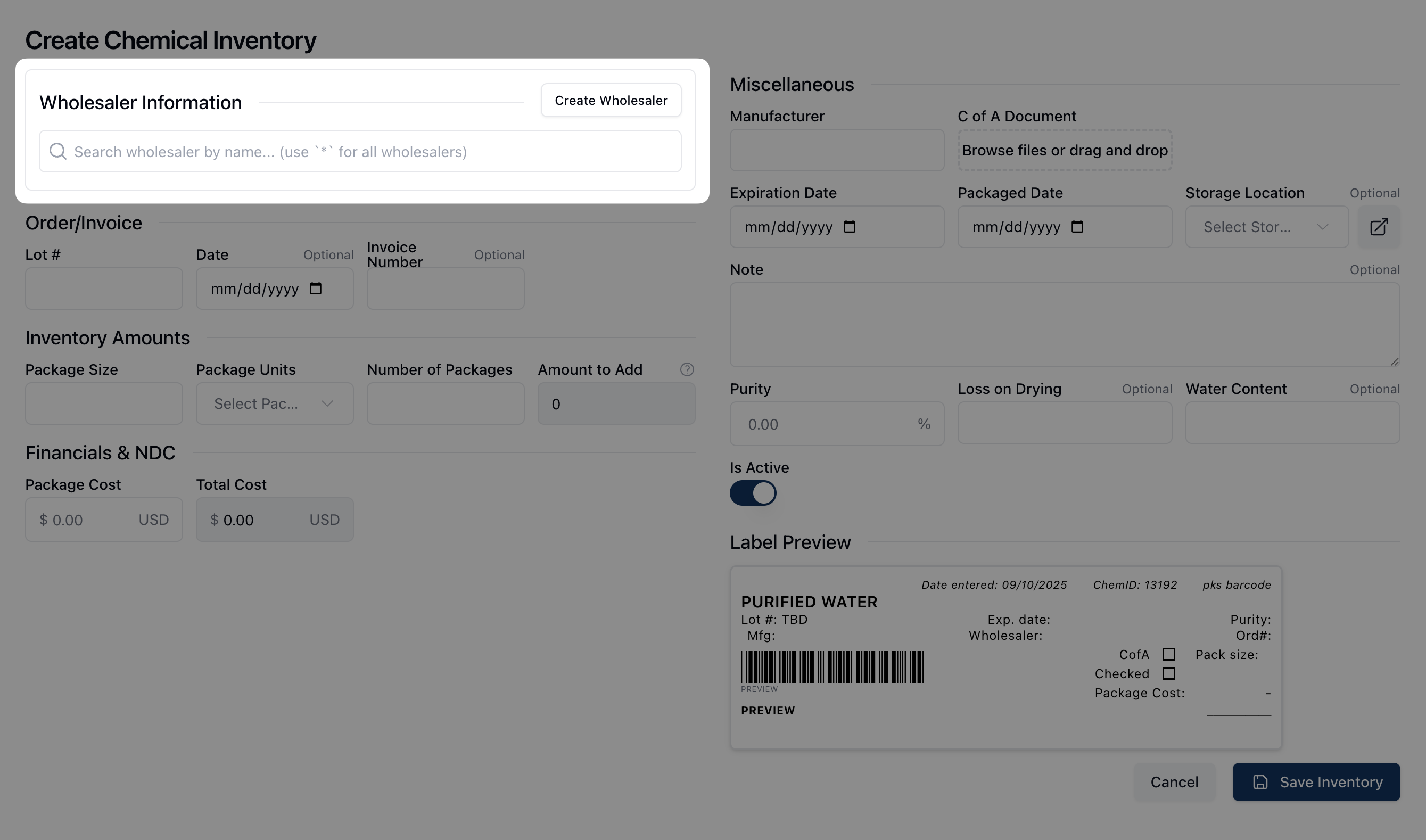
On the Create Chemical Inventory form, begin by searching for the relevant wholesaler using the search field below Wholesaler Information. If the wholesaler does not exist in the system, click Create Wholesaler to create a new wholesaler record.
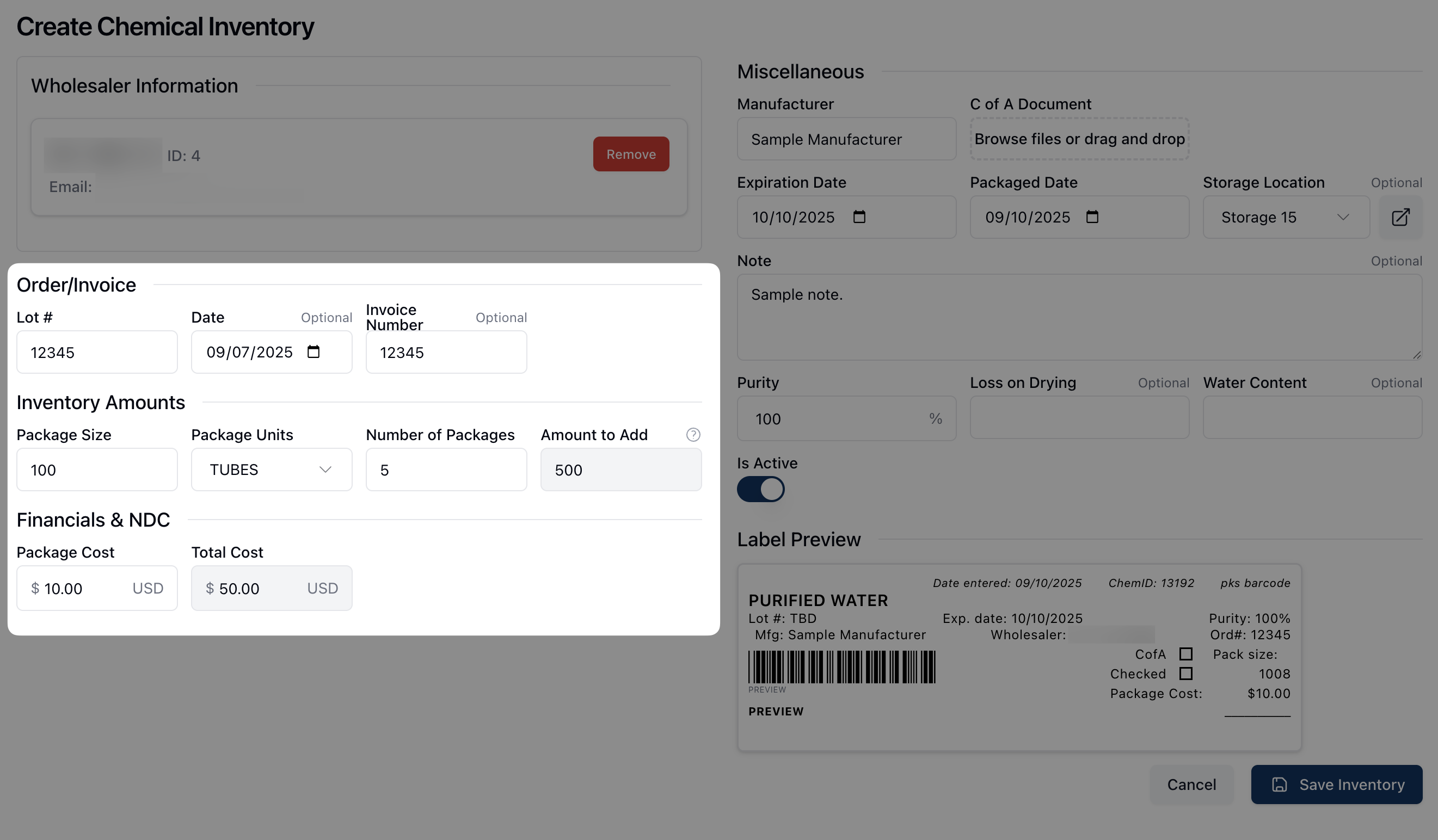
Fill out the relevant information under Order/Invoice.
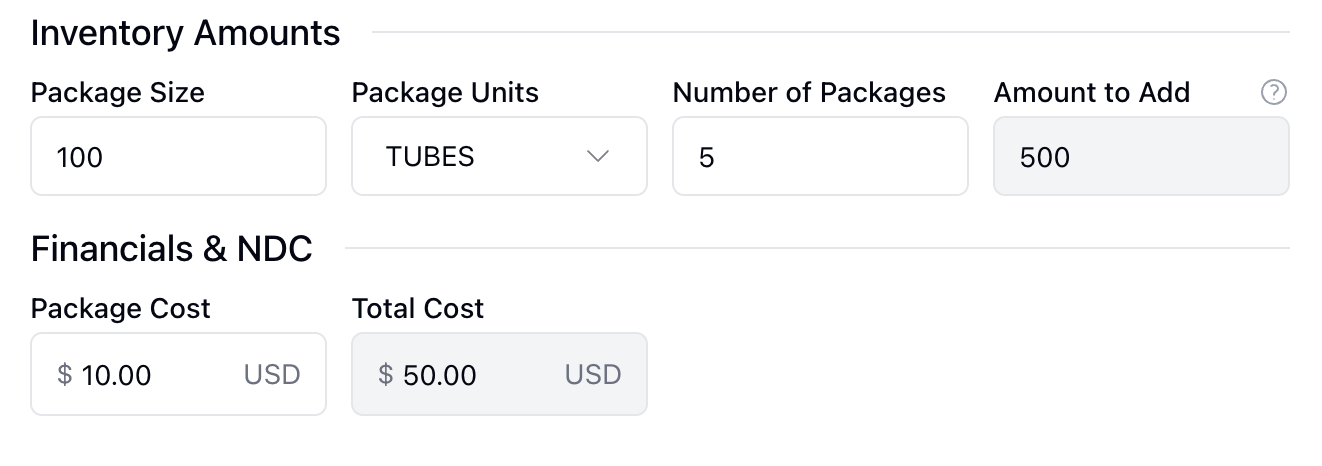
Fill out the Inventory Amounts and Financials & NDC fields. Once these fields are complete, the Amount to Add to Inventory and Total Cost are automatically calculated.
Provide any relevant information in the Miscellaneous section, including the C of A Document, if applicable. You can upload the Certificate of Accuracy by dragging and dropping the related file(s) into the outlined area or by clicking directly inside the upload area to select file(s) from your computer.
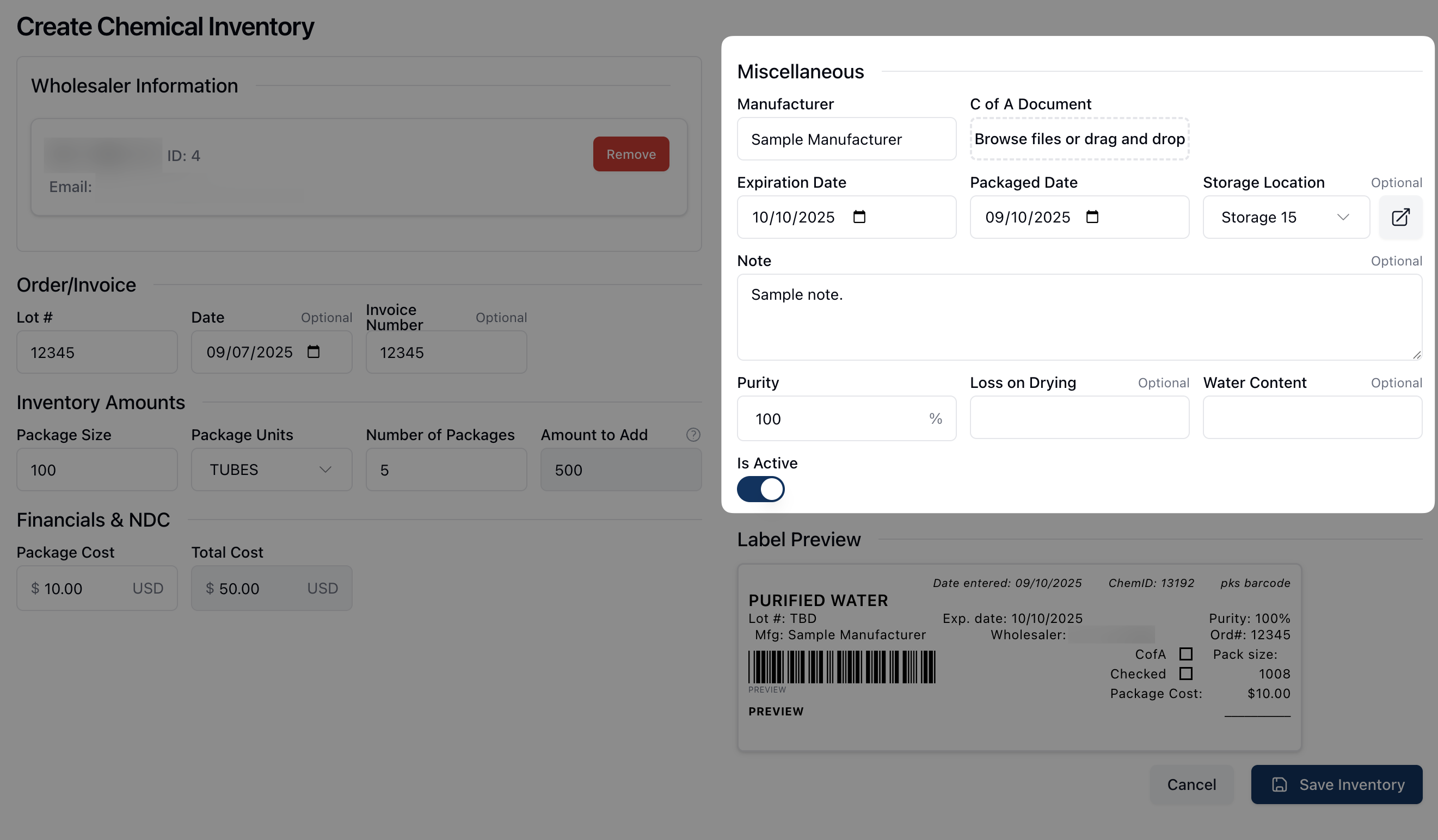
Note that the Label Preview automatically updates as the form changes.
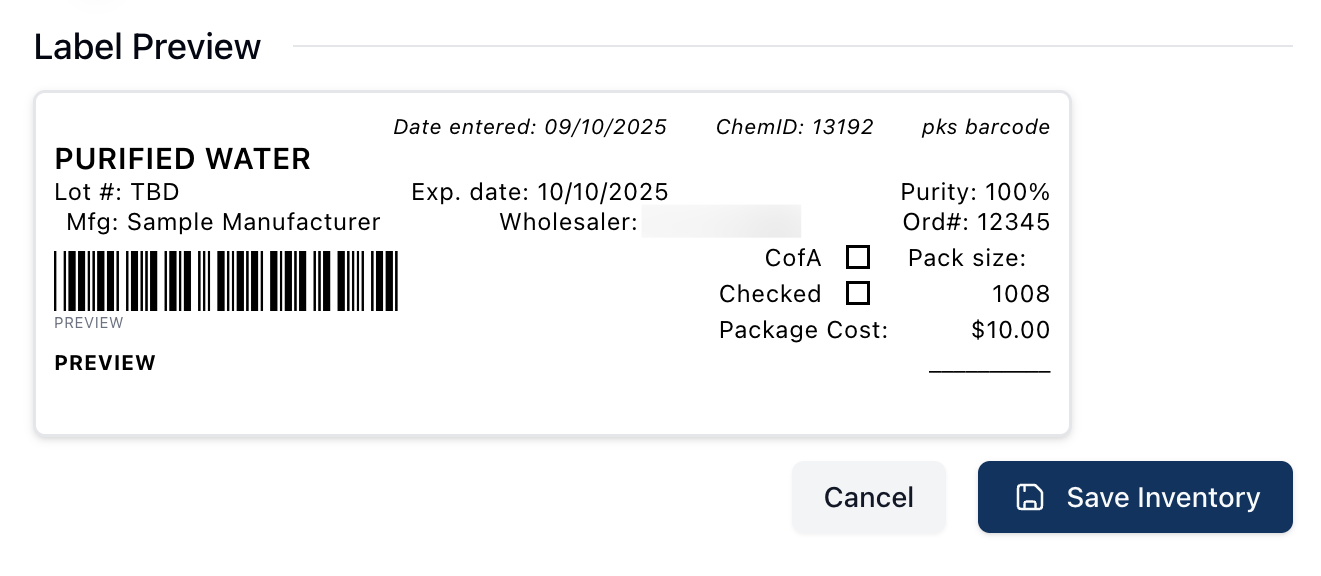
Once all fields are complete, click Save Inventory to save the new inventory record.