How-to: Adding a chemical
A streamlined, step-by-step refresher for adding a new chemical record to the system.
Navigate to the Chemicals page and click the + New Chemical button.

Enter the chemical's basic information into the Details section on the Create Chemical form. Note that all fields are required unless marked as optional.
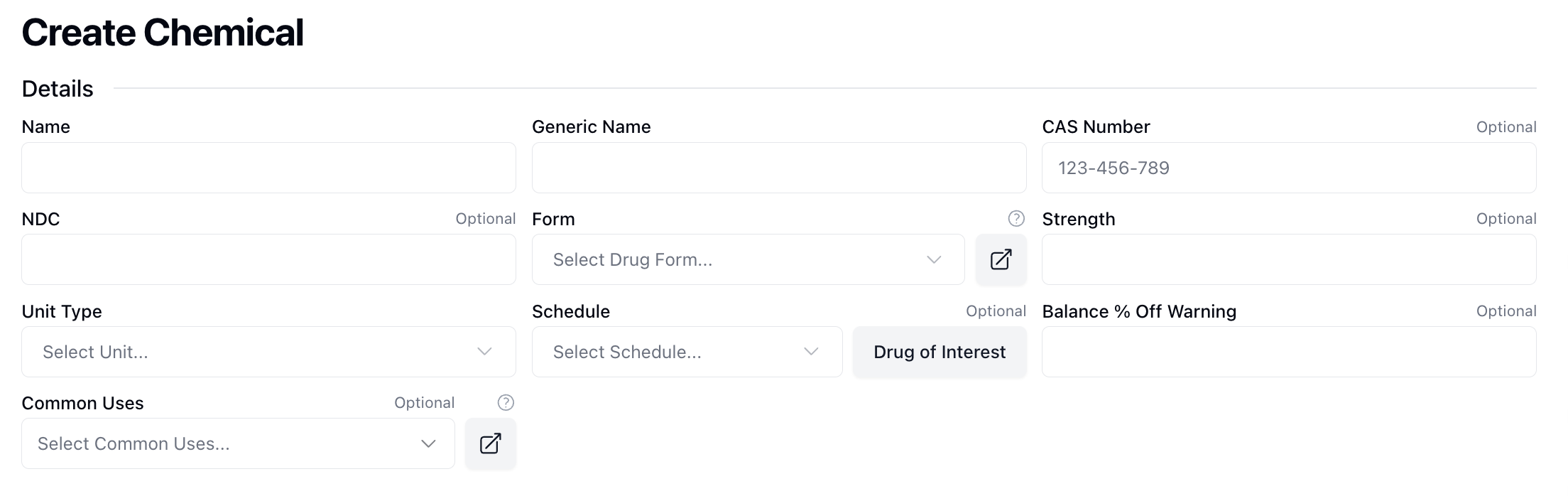
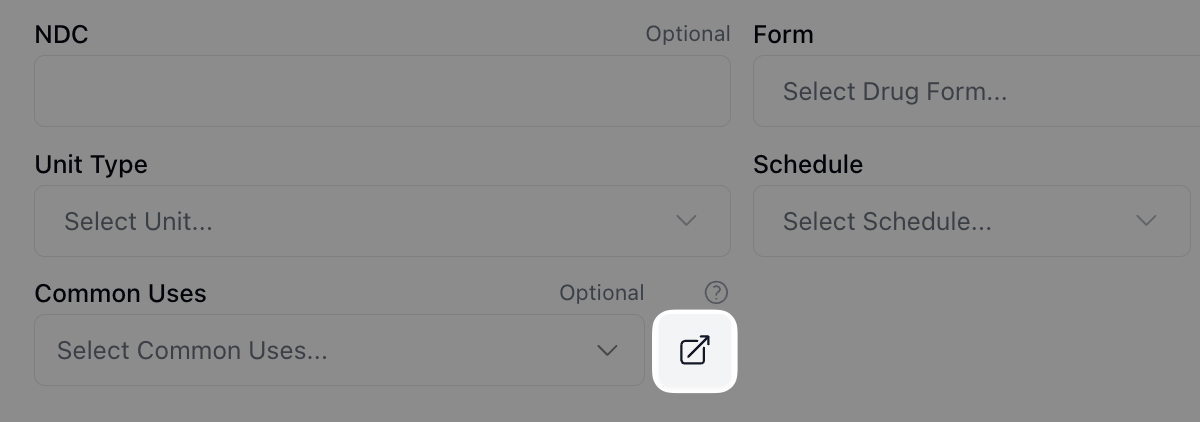
If applicable, add the Drug Form and Common Uses. You can manage the available options that appear in these dropdown menus via the Pharmacy Settings page or by clicking the icon to the right of the field.
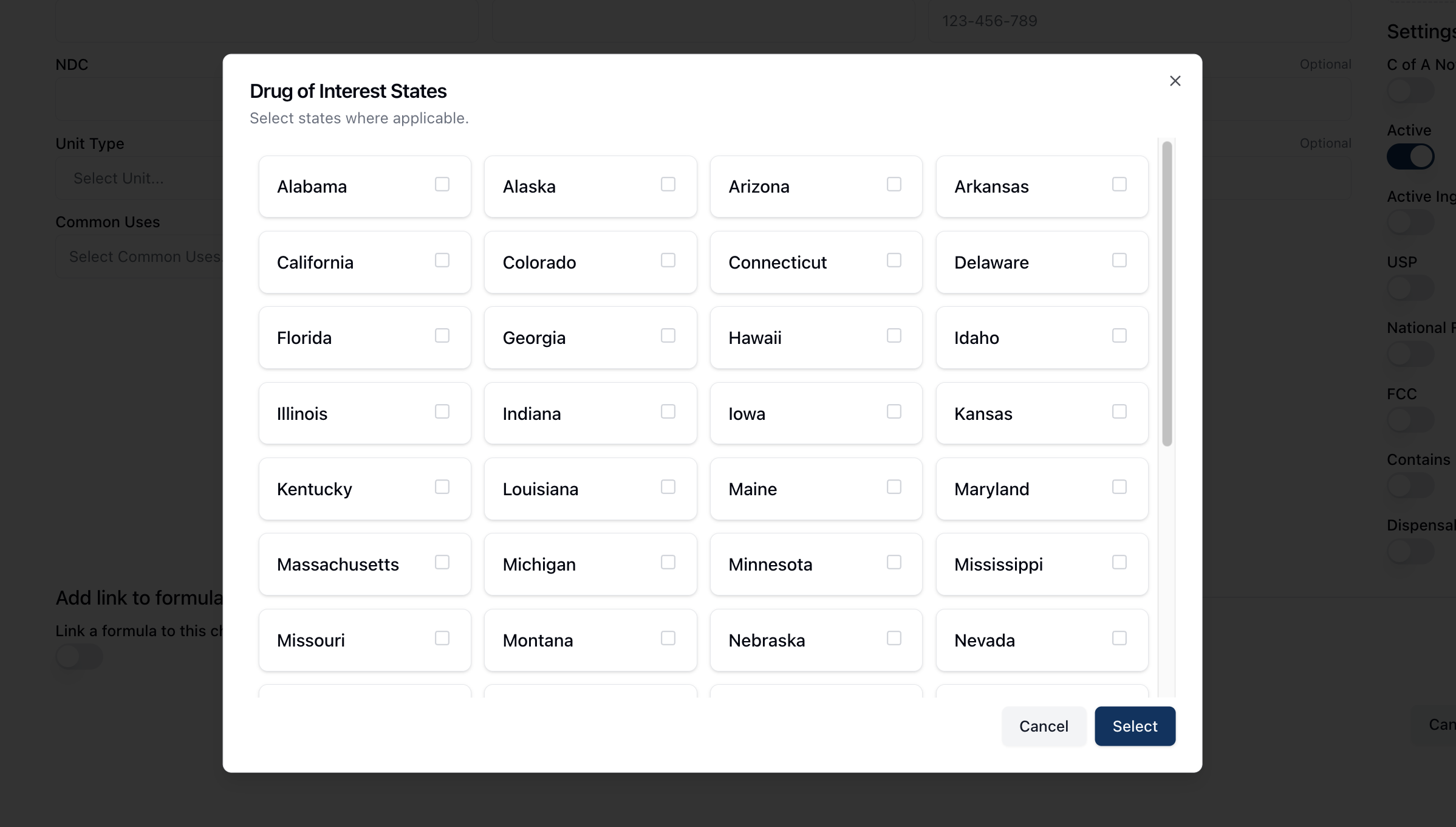
If the chemical is a drug of interest in any state, click the Drug of Interest button next to the Schedule field. In the popup that appears, check all relevant states and click Select.
Upload any relevant safety data sheets under SDS in the right sidebar. You can drag any document(s) into the outlined area or click directly inside the upload area to browse and upload file(s) from your computer.
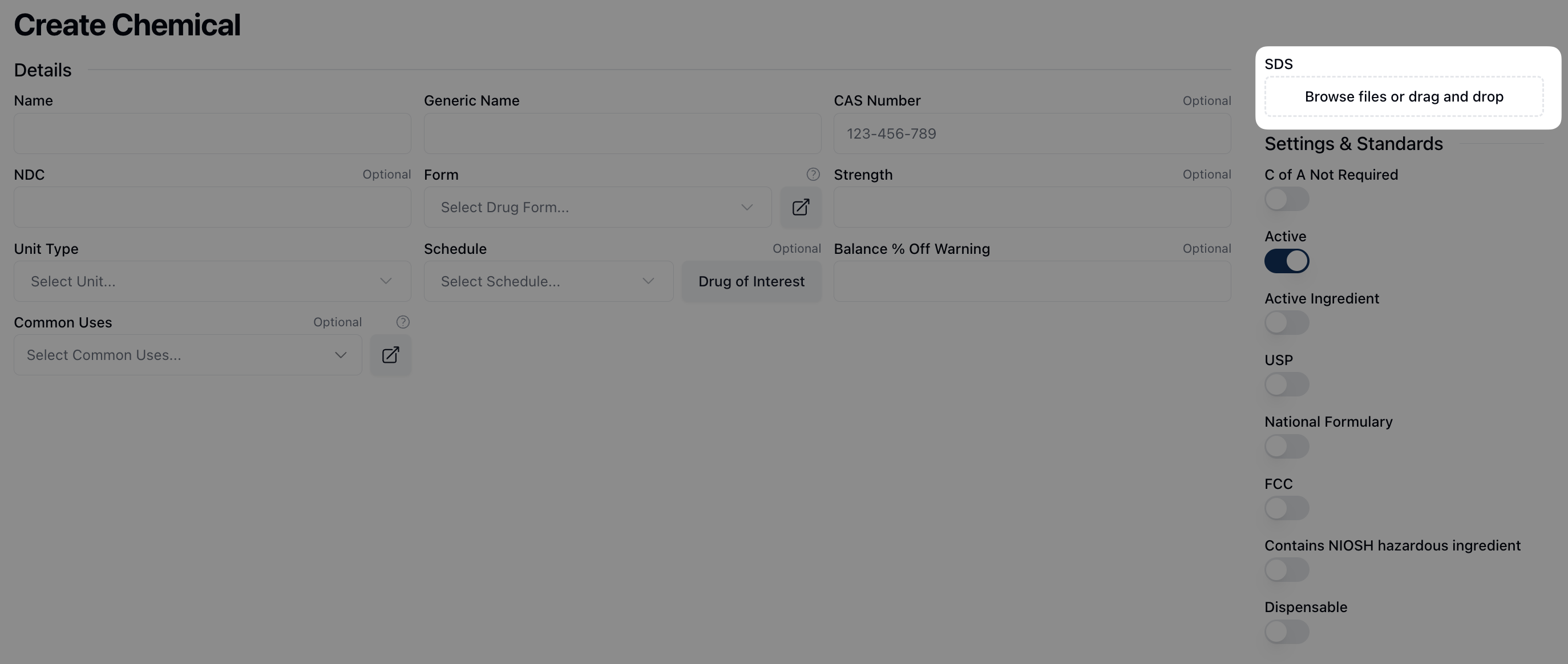
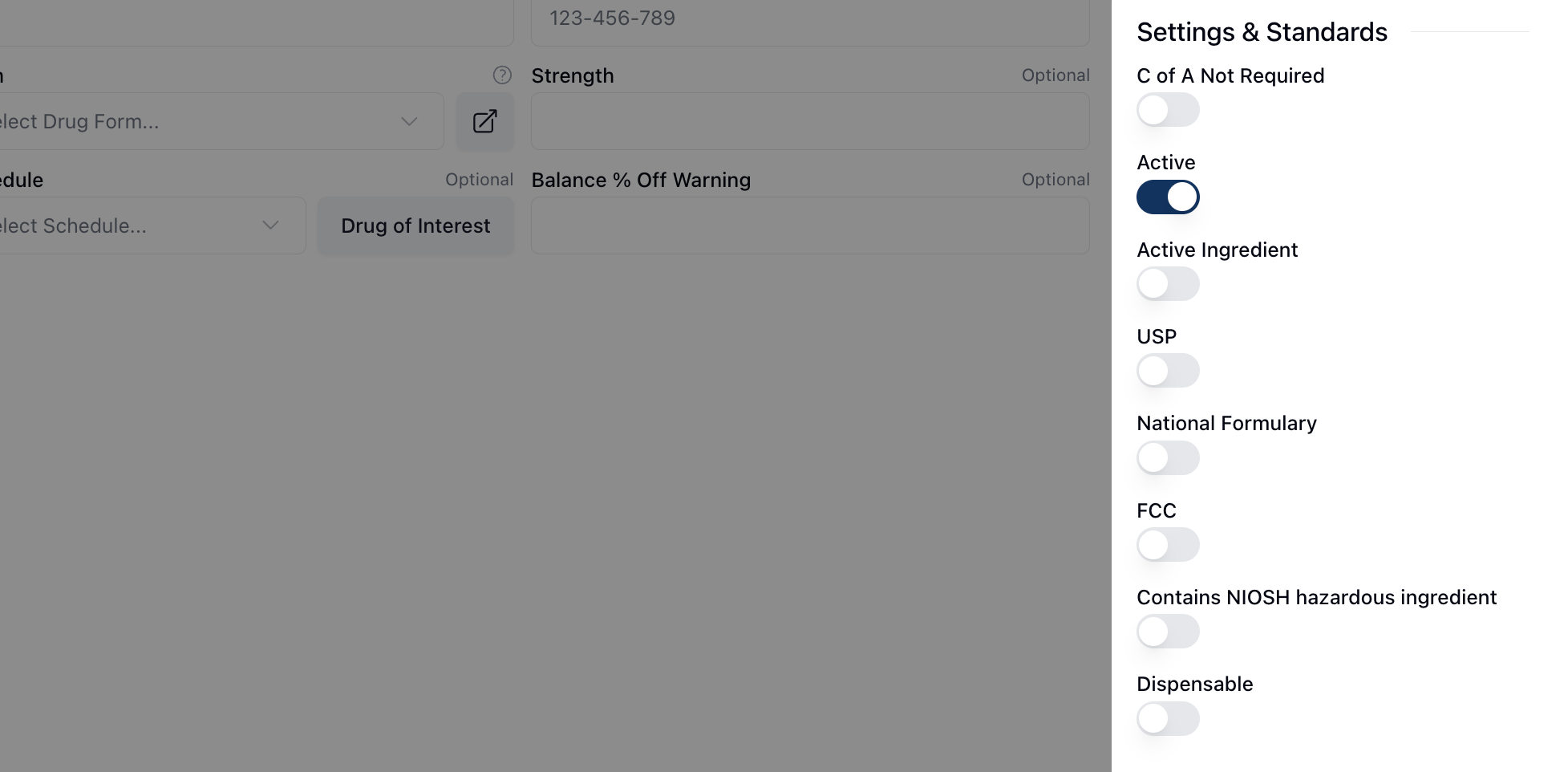
Toggle on any relevant settings under Settings & Standards in the right sidebar. Note that toggling on Contains NIOSH hazardous ingredient displays a badge next to the chemical name on the related record.
If the chemical is created from a formula via compounding, toggle Link formula to this chemical? In the search field that appears, search and select the relevant formula or click Create Formula if the formula record doesn't yet exist in the system.

Click Save Chemical to save the new chemical record.
