Patient Search and Search Results
You can use the Patient Search fields to find a specific patient record in the system. This guide explains how to use basic search and advanced search tools to manage displayed search results.
Patient search
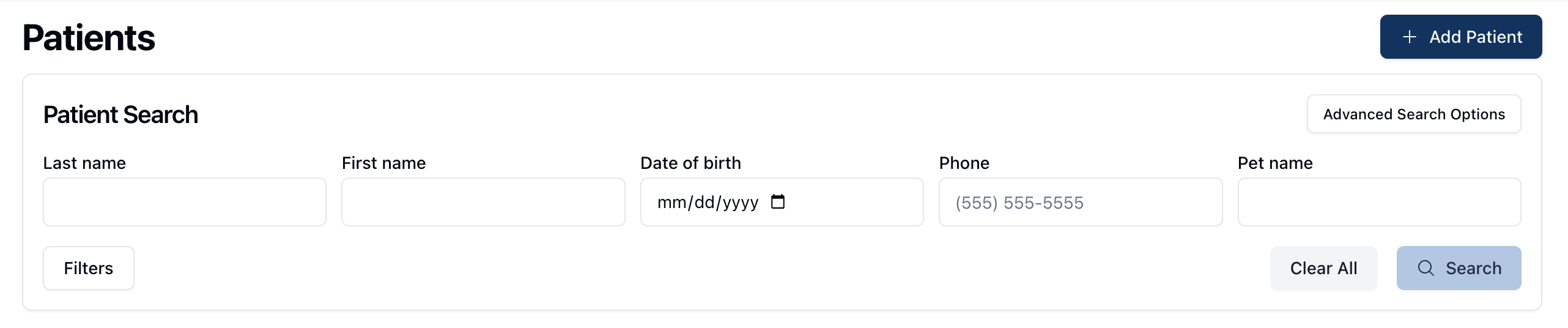 By default, the Patients page displays basic search options for filtering the list of patients displayed in the table below. These fields allow you to search for patients according to Last Name, First Name, Date of Birth, Phone, or Pet Name for veterinary patients.
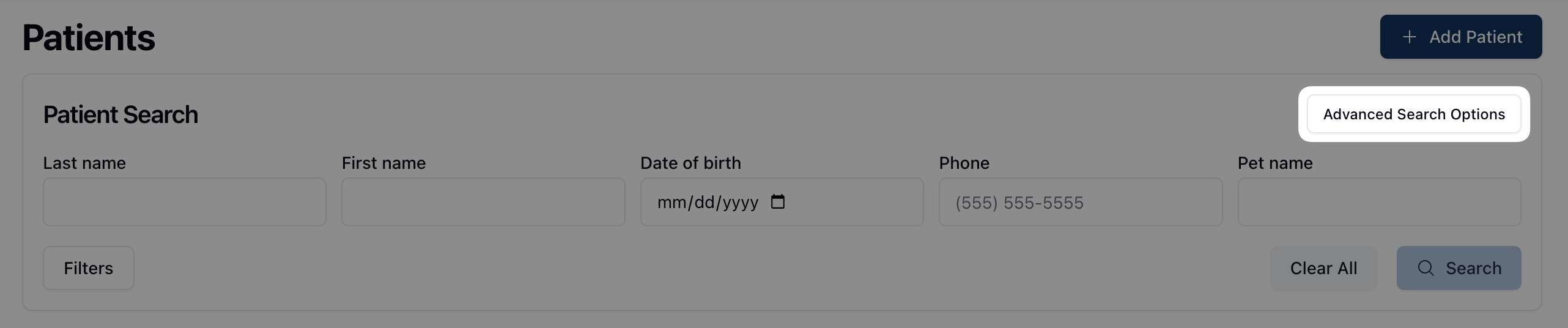 Additional search parameters are available under the advanced search options. You can open the advanced search fields by clicking the Advanced Search Options button in the upper right corner of the page.
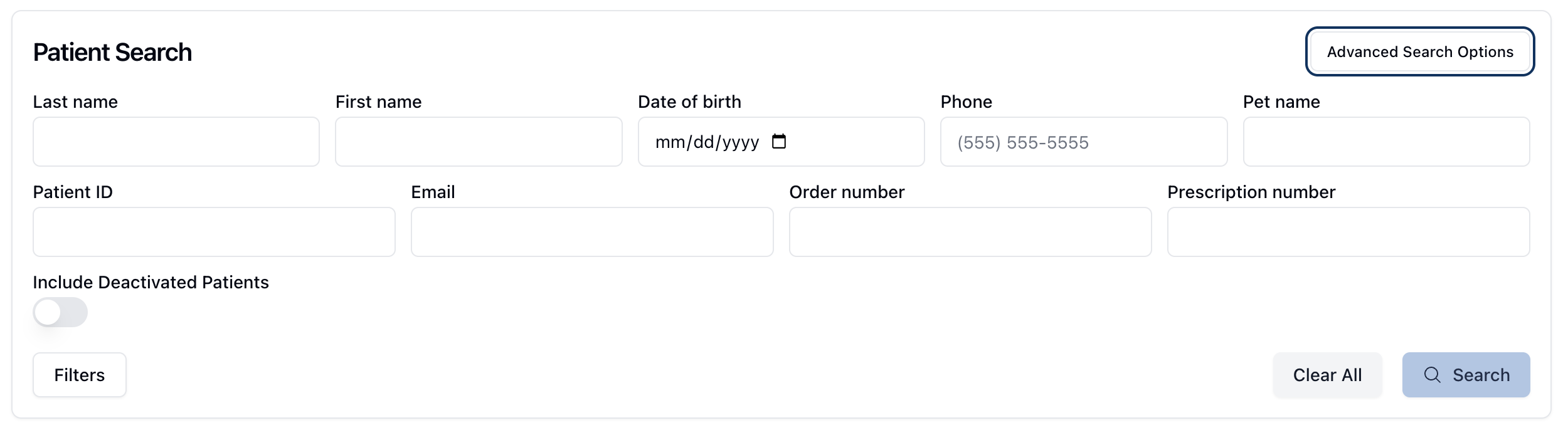 Advanced search fields include the option to search via Patient ID, Email, Order number, and Prescription number. Displaying the advanced search options also reveals a toggle to Include Deactivated Patients. You can use this toggle to include inactive or deactivated patient records in your search results.
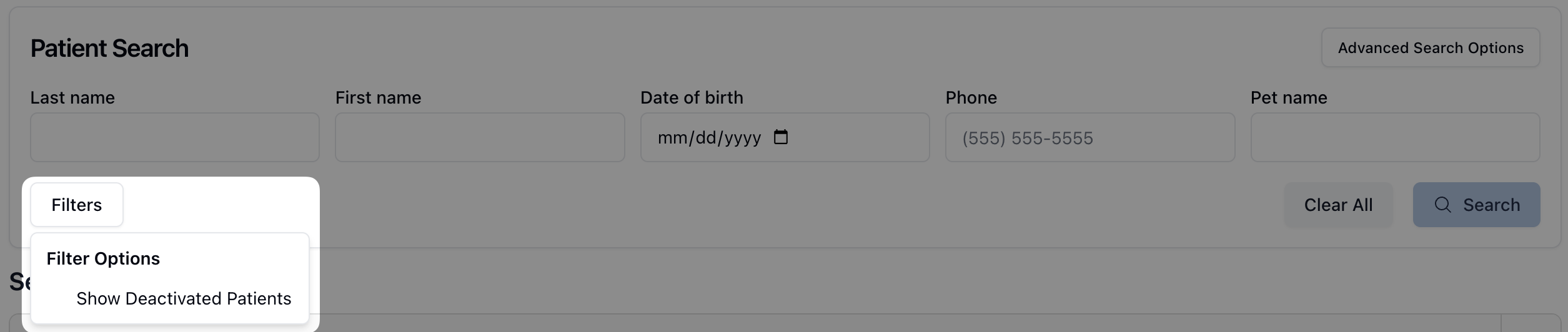 Below the search fields, the Filters button offers the ability to displace only deactivate patient records.
To search for a patient record, enter the relevant information in the related search field and click Search to view the results in the table below. If you'd like to start over, click the Clear All button to remove any applied filters.
Search Results
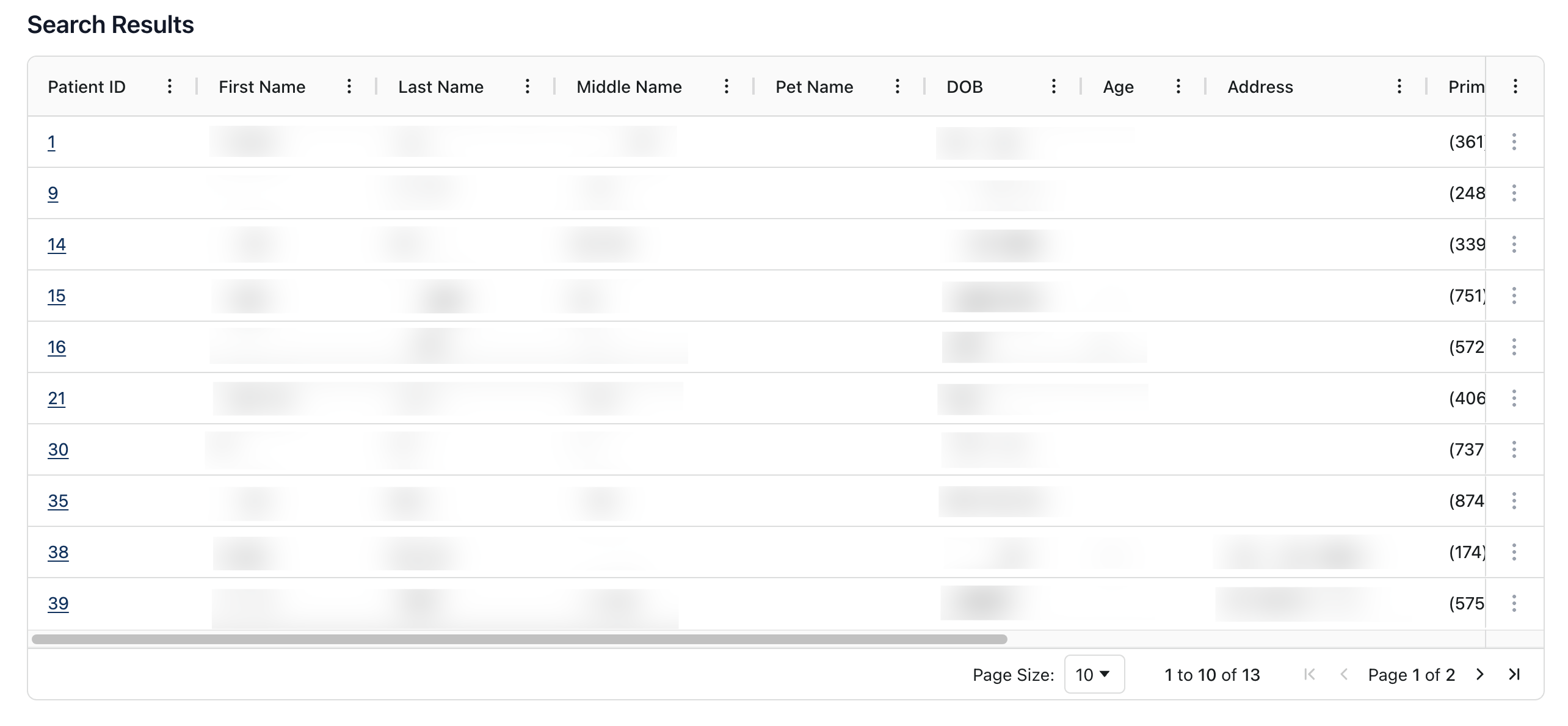 When visiting the Patients page, all patient records are displayed in order of Patient ID number by default. Patient record results display the following information, by column:
Patient ID | The number automatically assigned to the patient when added into the database. |
First Name | The patient's first name. |
Last Name | The patient's last name. |
Middle Name | The patient's middle name. |
Pet Name | The pet's name, for veterinary patients. |
DOB | The patient's date of birth. |
Age | The patient's age. Note: A purple (<18) icon appears next to all pediatric patients. |
Address | The patient's address. |
Primary (Cell) | The patient's primary mobile phone number. |
The patient's email address. | |
Active | The patient's status in the database. If active, a green checkmark appears. |
You can sort the patient list and search results by each category listed at the top of the patient table by clicking on the actions menu ( ⠇) to the right of each column title.
You can find more information on customizing the table view and sorting options in Table Options and Sorting.