How-to: Adding a patient medication
A streamlined, step-by-step refresher for adding a medication to a patient record.
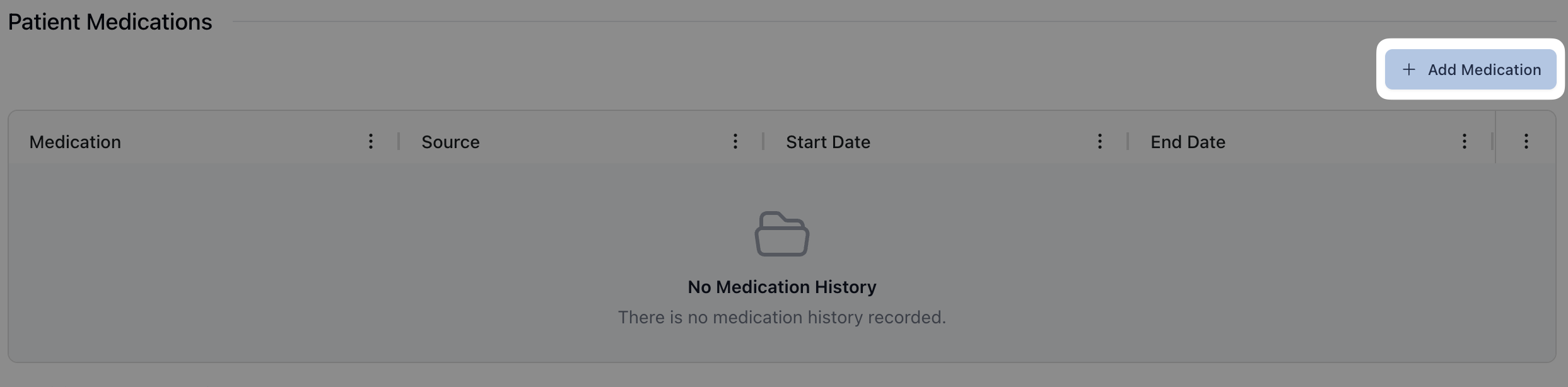
Navigate to the patient's Clinical Info / Medical History tab and click the Add Medication button.
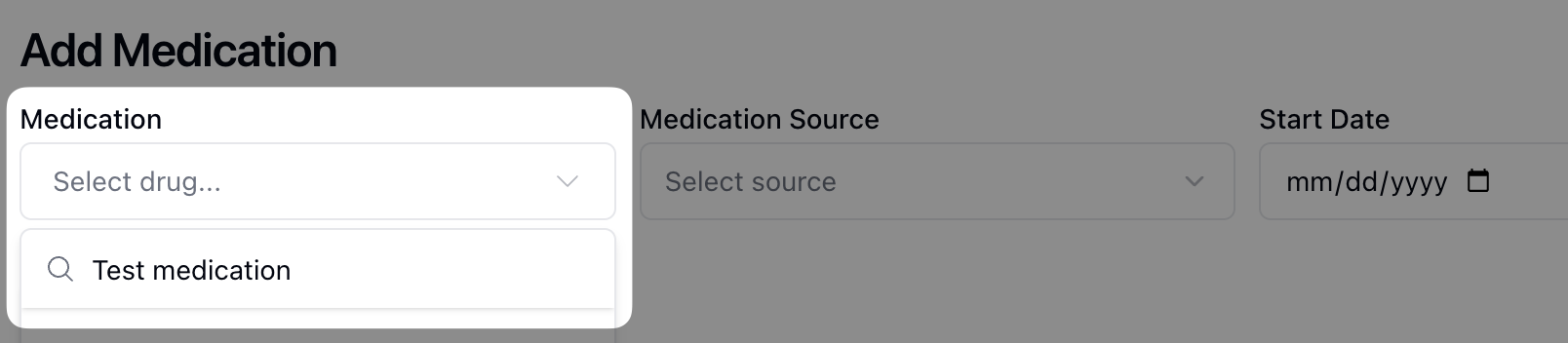
Using the search field in the dropdown below Medication, begin typing the name of the relevant medication to automatically filter the results available. Select the relevant medication once it appears in the list.
Next, add the Medication Source by selecting the appropriate source from the dropdown menu.

Add the medication Start Date and End Date. You can enter start and end dates in an MM/DD/YYYY format or by selecting the date in the calendar view.

Once all fields are complete, click the Save button to save the medication to the patient profile.

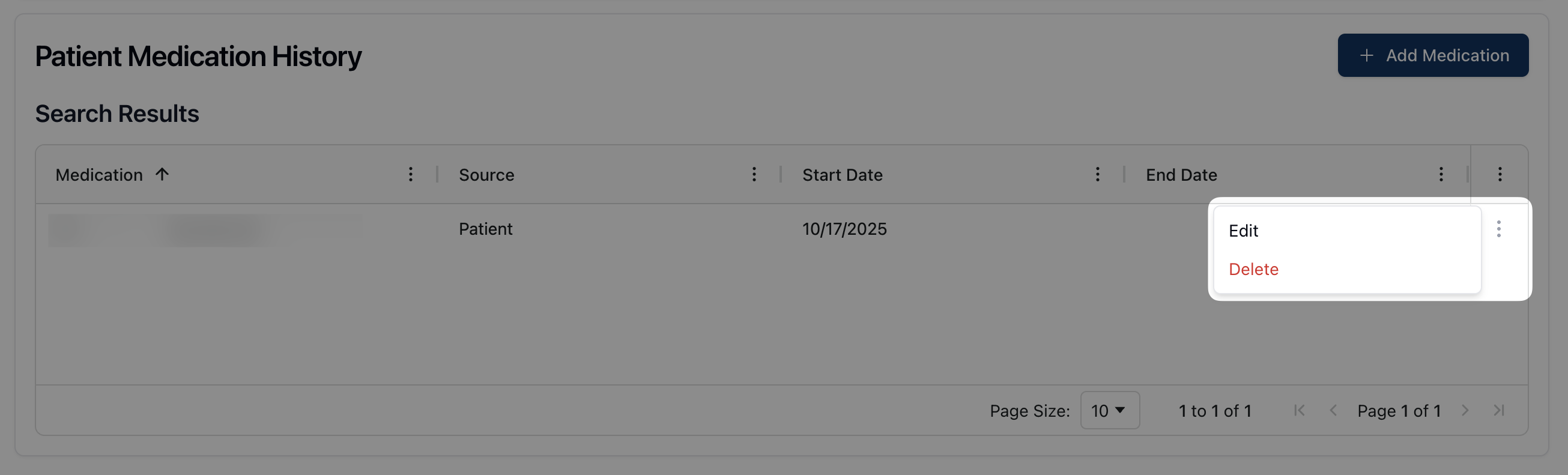
To edit or update a patient medication, click the actions menu ( ⠇) to the right of the medication in the Patient Medications table. Select Edit or Delete to edit or remove the medication from the patient record.