Tutorial: Adding a patient medication
This guide provides a walkthrough of adding a medication to a patient's record.
Looking for a shorter overview? Visit the how-to guide instead.
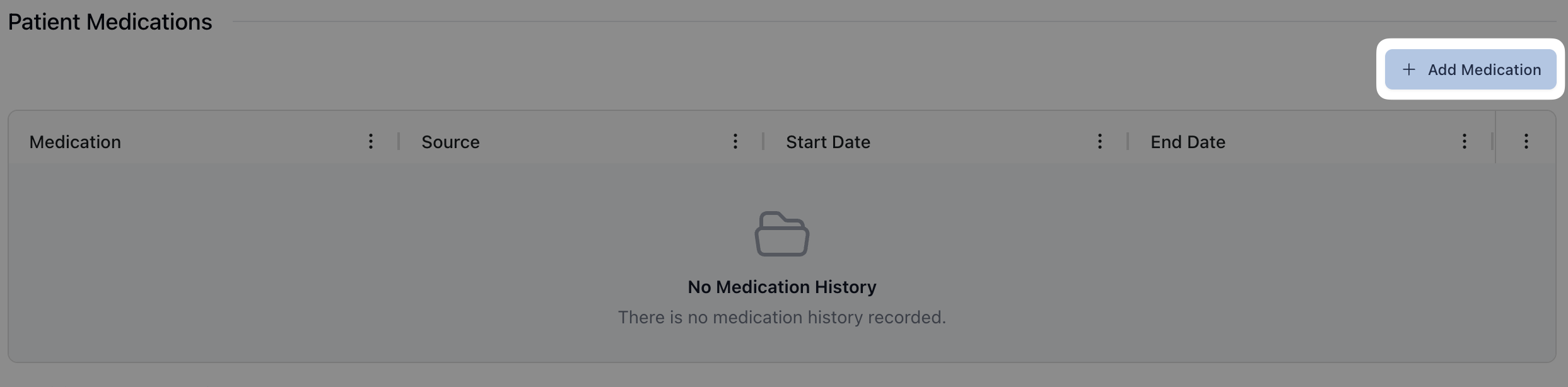 To add a medication to a patient's profile, click the + Add Medication button below Patient Medications. Clicking this button opens a form where you can enter the relevant medication history to the patient's record.
 To start, click the dropdown menu below the Medication field. By default, this menu displays all medication options, pulled from First Databank. To filter which medications appear in the dropdown, begin typing the medication name in the search field. Once the relevant medication appears, click the medication name to enter it into the field.
The Medication Source field also provides a dropdown list of options, ranging from Doctor, Patient, Parent/Guardian, and Pharmacist. Select the appropriate source for the medication history to complete the field.
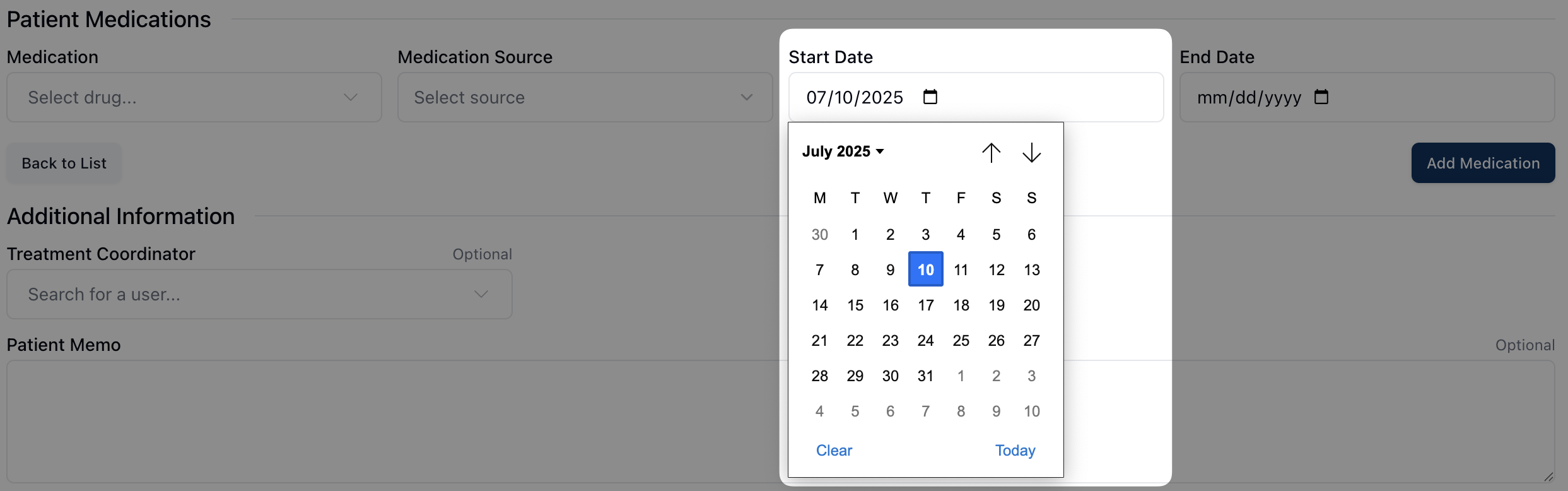 The Start Date and End Date fields allow you to enter the start and end dates of the patient's medication usage. You can enter the dates in an MM/DD/YYYY format or by selecting the appropriate date from the calendar view.
 Once all fields are complete, click the Add Medication button to add the medication to the patient's record. Repeat this process as many times as needed.