Tutorial: Adding a patient document
This guide provides a walkthrough of adding a document to a patient record.
Looking for a shorter overview? Visit the how-to guide instead.
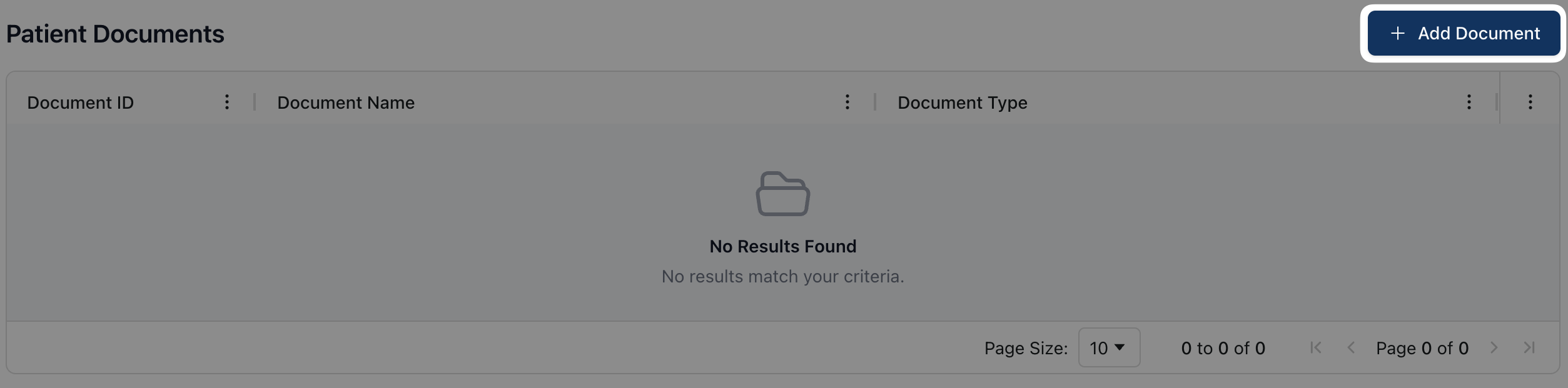 To upload a new document to the patient record, click the + Add Document button to open the Add New Document popup.
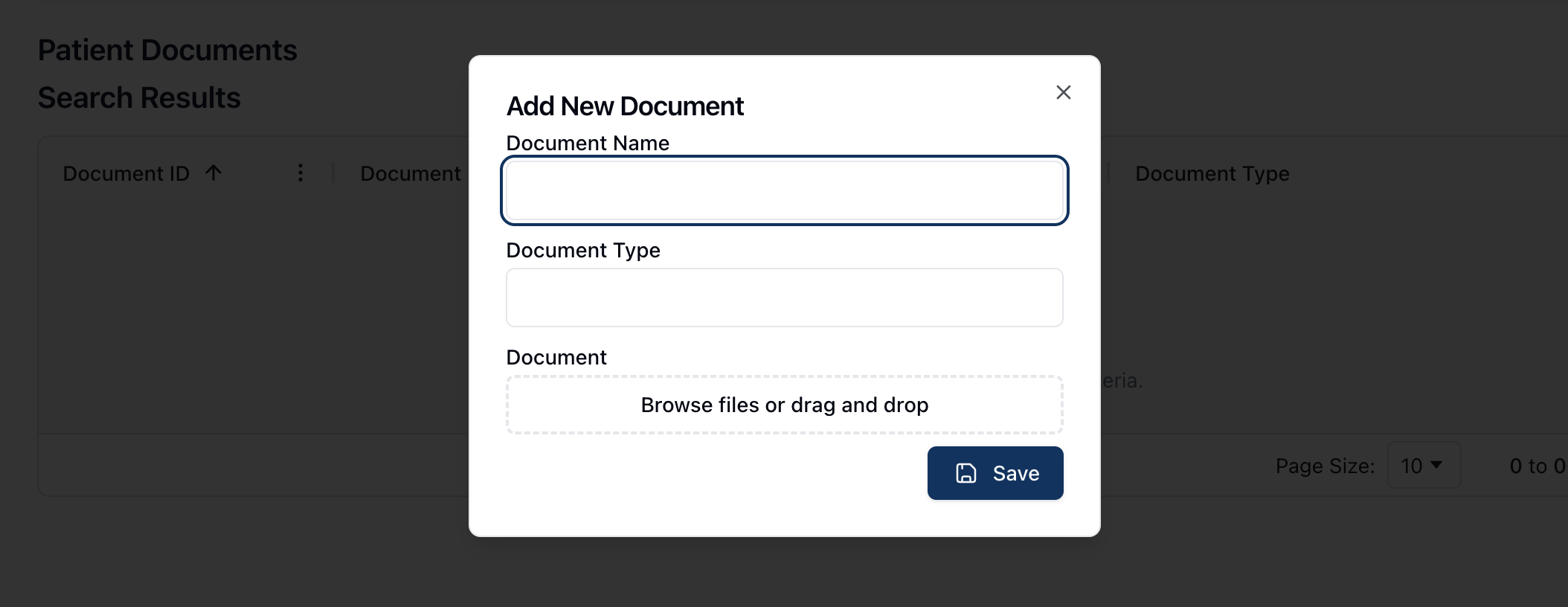 On the Add New Document form, enter the name and type of document into the relevant fields. Note that both fields are open text fields, so you can enter the most relevant description for the name or document type.
Under Document, you can upload the document by dragging and dropping it into the outlined area. Alternatively, click directly inside the outlined area to open a system dialogue, allowing you to search and select the related file directly from your computer.
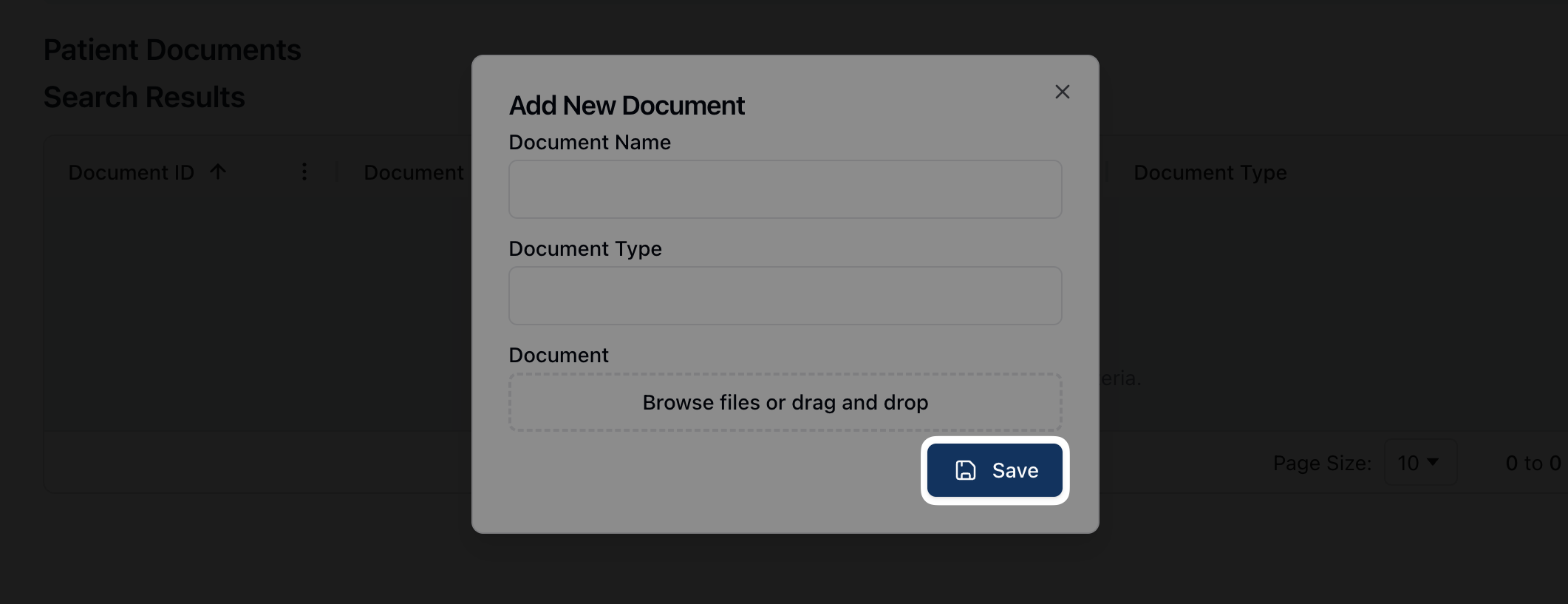 Once the document uploads, click the Save button to save the document to the patient record.