How-to: Adding a patient document
how-to
A streamlined, step-by-step refresher for adding a document to a patient record.
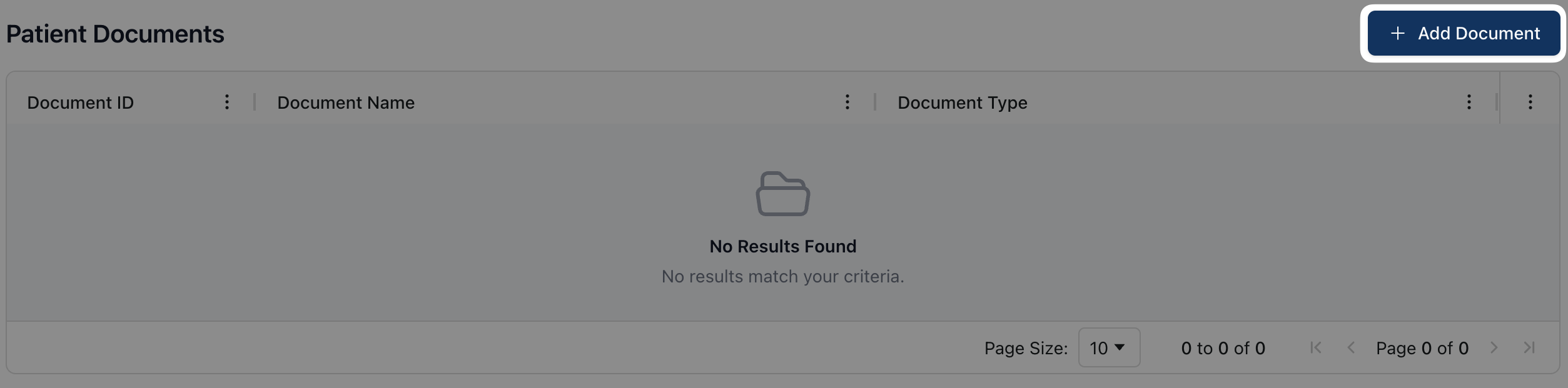
On the patient record, navigate to the Documents tab and click the + Add Document button.
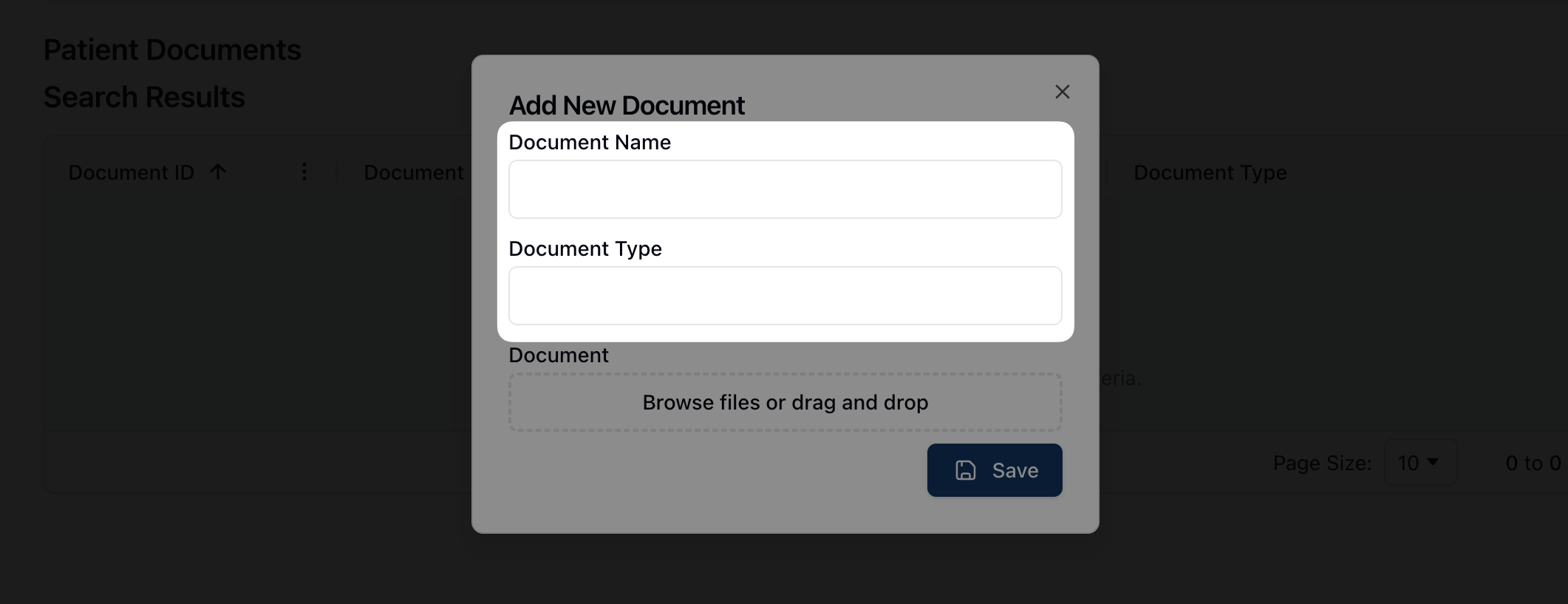
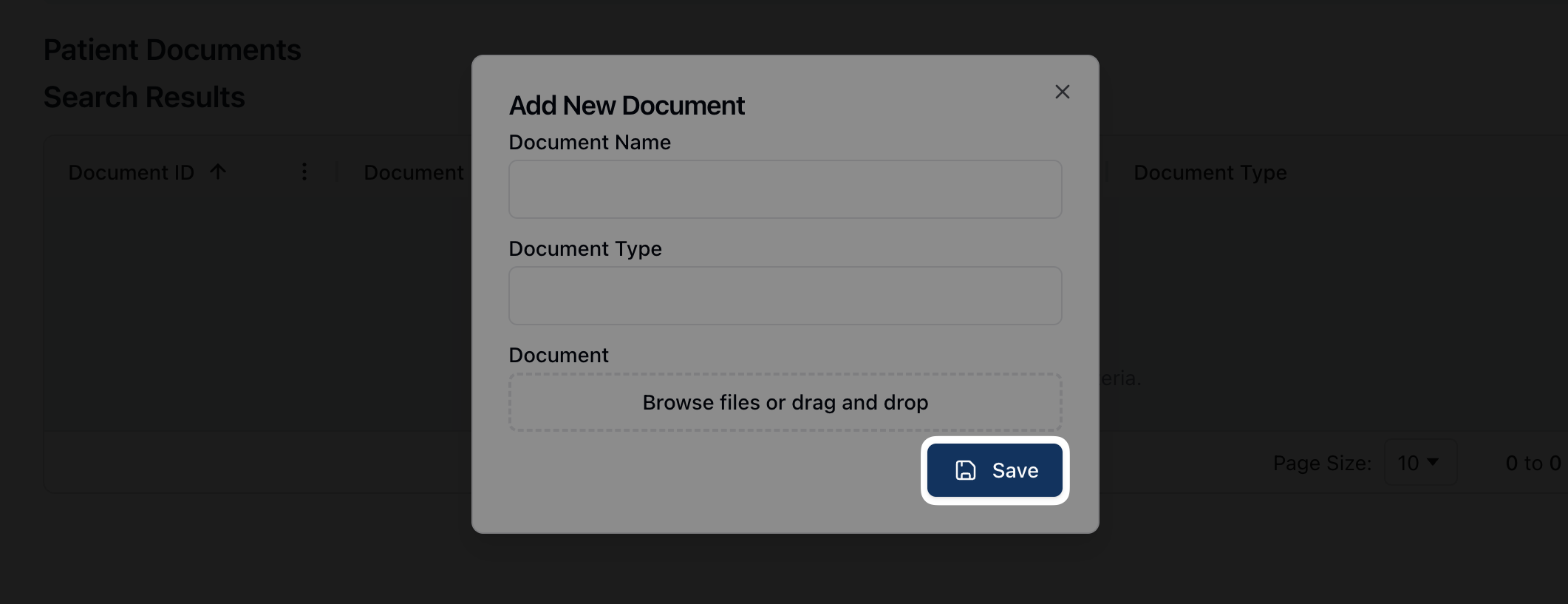
In the Add New Document popup, enter the document name and type.
Under Document, drag and drop the relevant file into the outlined area. Alternatively, click directly inside the outlined area to open a system prompt to browse and select the relevant file from your computer.
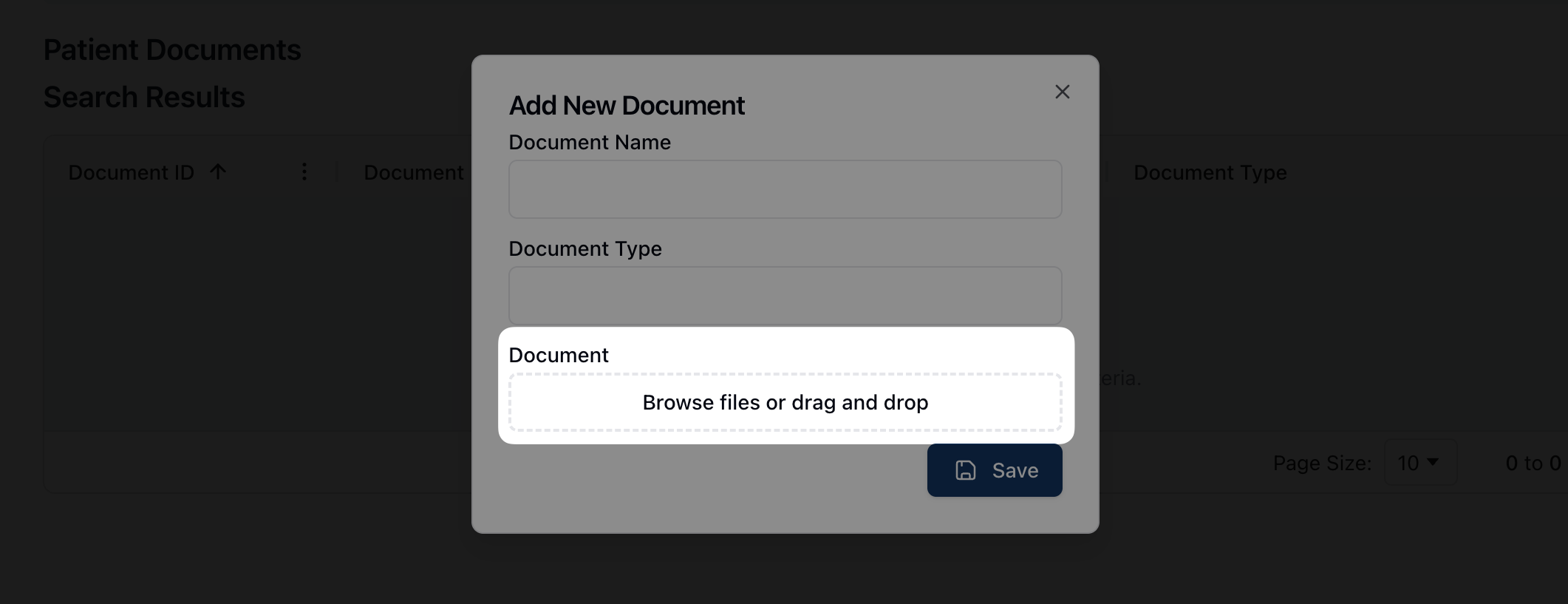
Once the upload finishes, click Save.
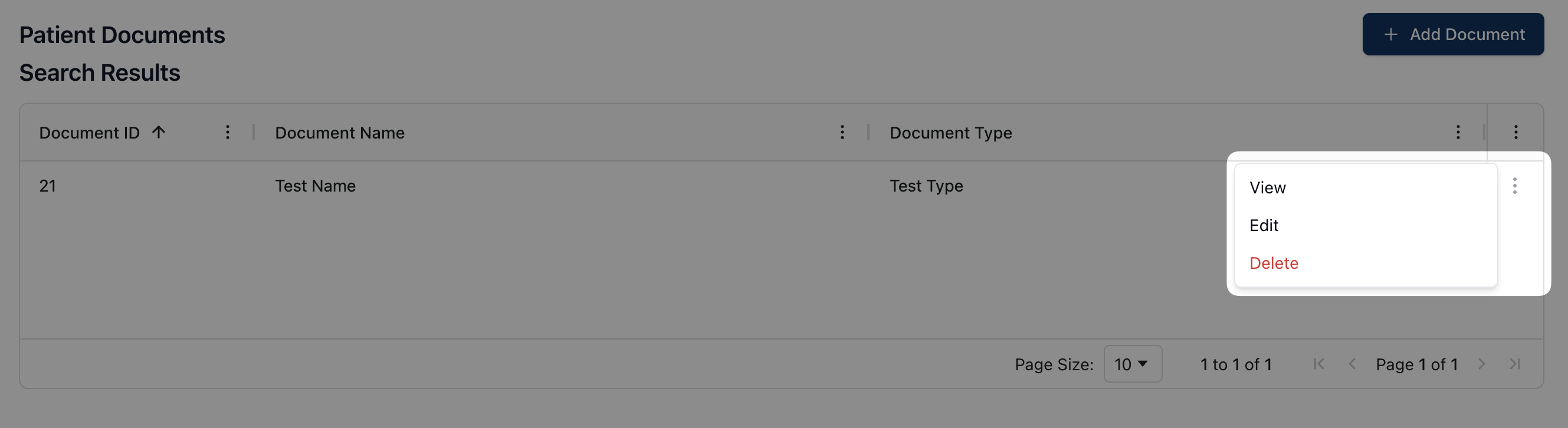
To Edit or Delete a document, open the actions menu ( ⠇) to the right of the document.
Select View to down the document.
Select Edit to edit the document name, type, or file.
Select Delete to delete the document from the patient record.