Tutorial: Adding a shipping profile
This guide provides a walkthrough of adding a shipping profile to a patient record.
Looking for a shorter overview? Visit the how-to guide instead.
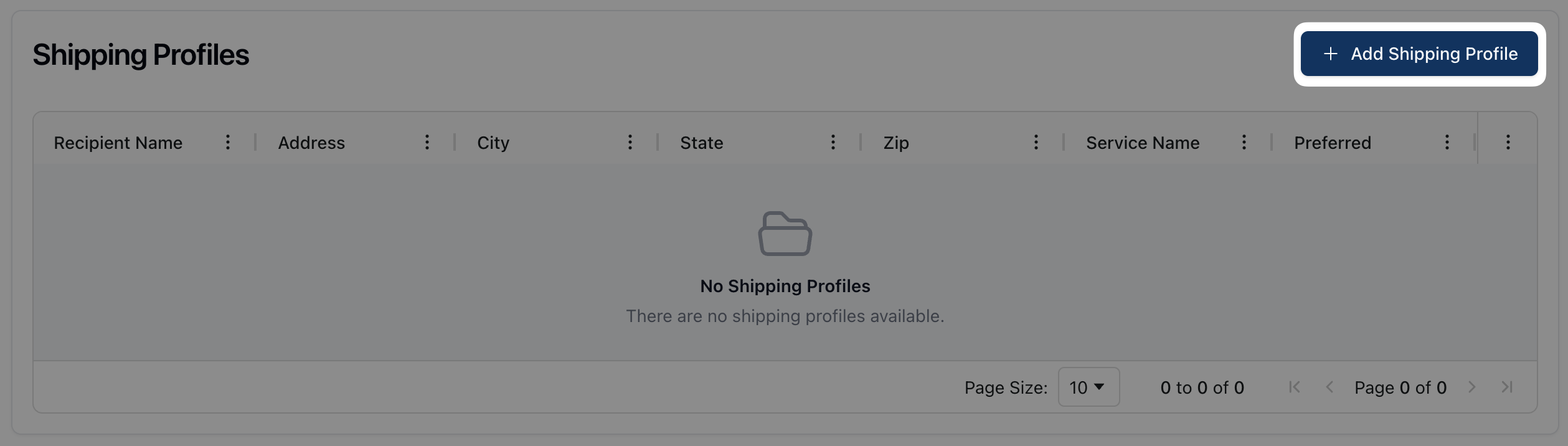 You can add a new shipping profile by clicking the + Add Shipping Profile button in the upper right corner of the table.
On the Add Shipping Profile form, you can start by entering the recipient's information, including their name and contact information.
 Under Address, enter the relevant address for the shipping profile. Clicking Use Primary Residence automatically fills the form with the patient's primary address, stored in their patient record.
To add a different address for shipments, select the appropriate address type from the dropdown menu below Address Type. Then, between typing the street address into the Street Address field. The search field automatically attempts to complete the address entered. Once you see the correct address, based on the information entered, select it to fill the remaining address fields.
 In the Service section, you can set the appropriate preferences for delivery service types. This includes the delivery service and carrier and the preferred signature type. You can also select the checkboxes to set the profile as the preferred shipping profile and/or to note whether the location accepts Saturday deliveries, such as in the case of a residential address.
 Once all fields are complete, click Save to save the shipping profile.