How-to: Adding a shipping profile
A streamlined, step-by-step refresher for adding a shipping profile to a patient record.
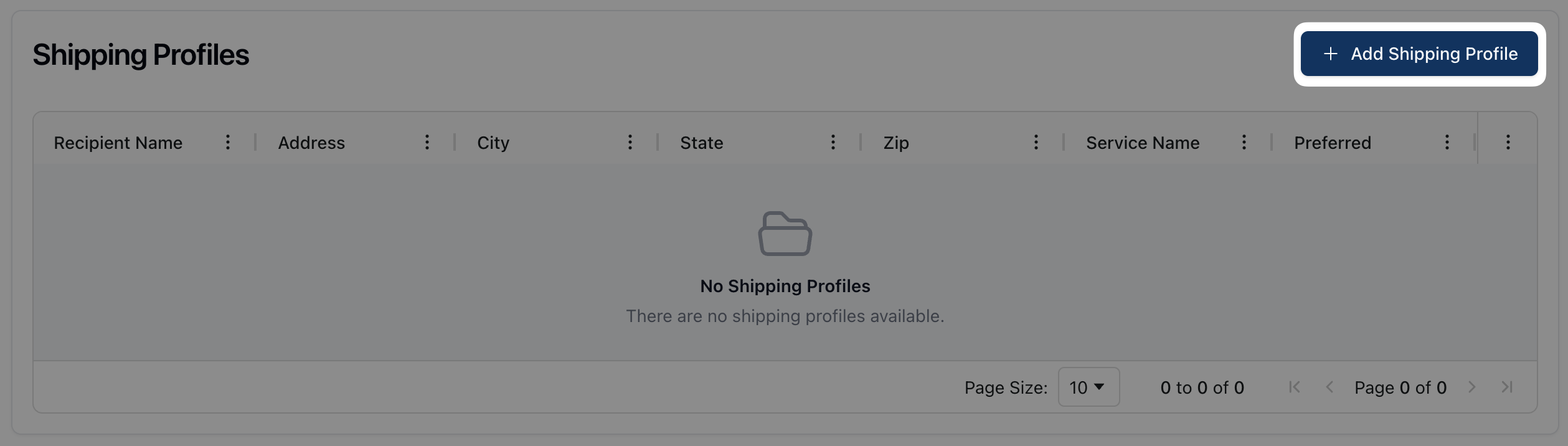
Navigate to the Shipping Profiles tab and click the Add Shipping Profile button.
Enter the recipient's name and email address under Recipient.

Select the Address Type and then enter the street address into the Street Address field. As Street Address field attempts to autocomplete the address, continue typing until the relevant selection appears.

Select the patient's preferred delivery service and signature type from the dropdown menu below each field.

If applicable, select the Saturday Delivery checkbox for weekend deliveries. Likewise, select Set as Preferred Shipping Profile if this is the patient's default shipping address.

Click Save to save the shipping profile.

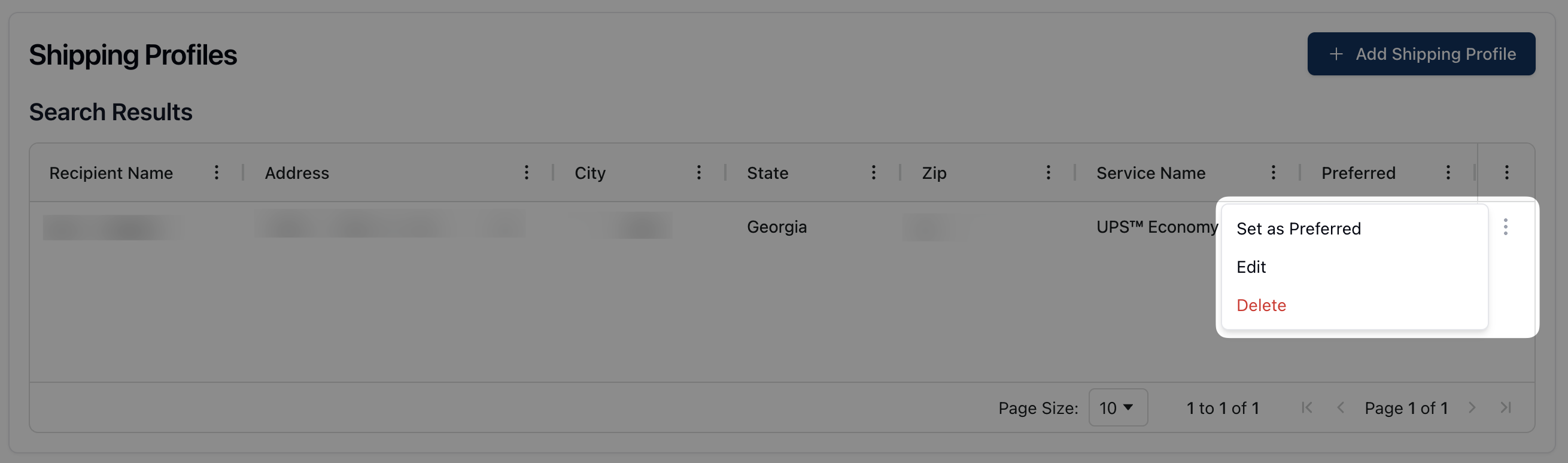
To edit or remove an existing shipping profile, click the actions menu ( ⠇) to the right of the shipping profile. Then, select Edit to update the profile or Delete to remove the shipping profile.