How-to: Adding a patient allergy
A streamlined, step-by-step refresher for adding an allergy to a patient record.
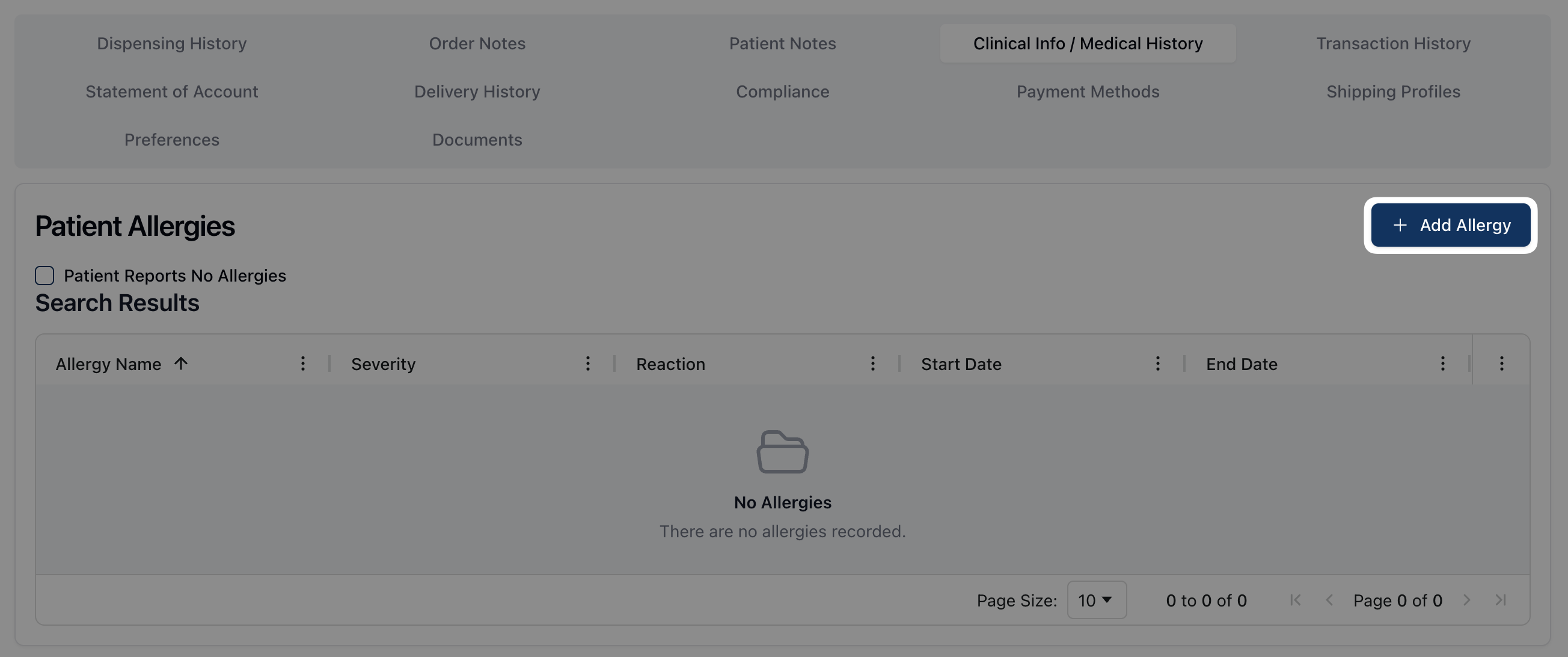
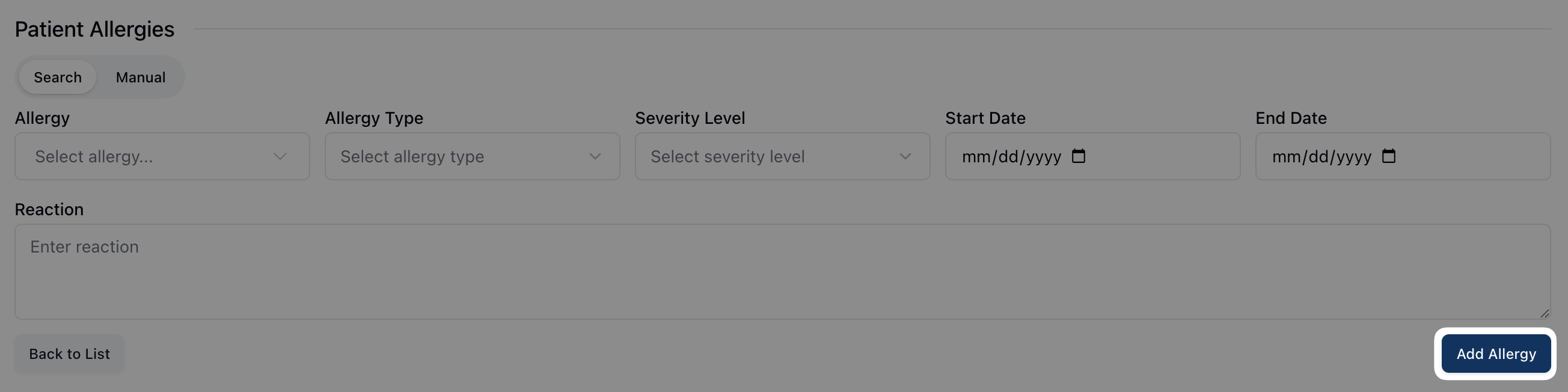
Navigate to the patient's Clinical Info / Medical History tab and click the Add Allergy button.
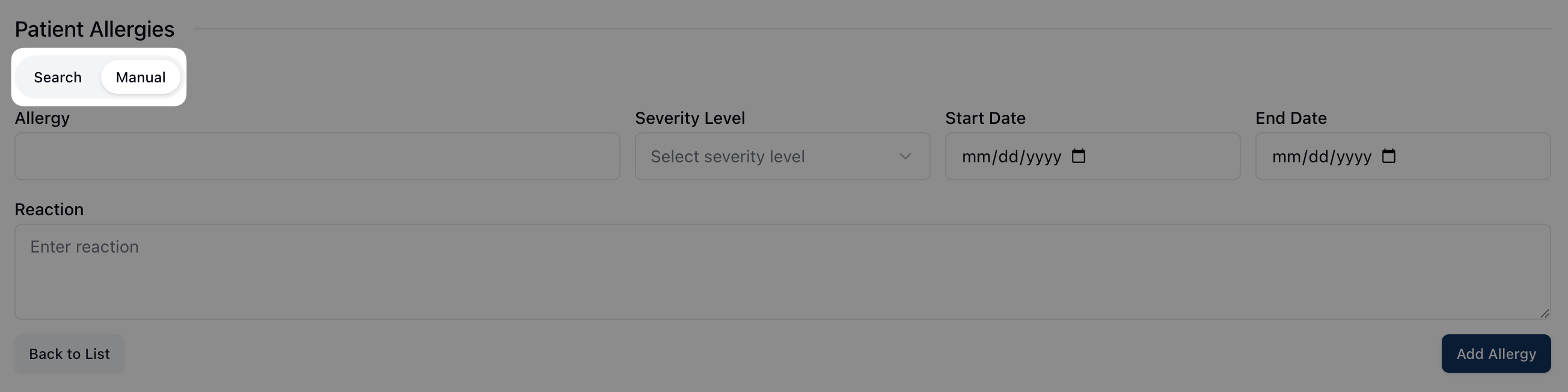
Using the Search option, enter and select the allergy from Allergy dropdown. If the allergy doesn't appear in the search results, select Manual to manually enter the allergy. Note that the Allergy Type field only appears when using Search.
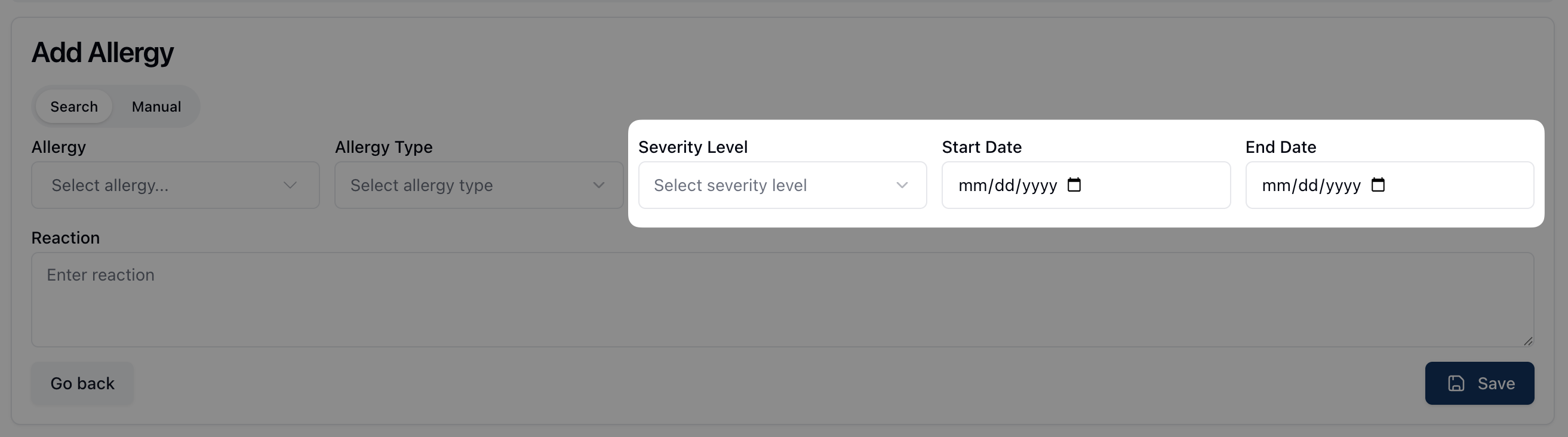
Enter the allergy's Severity Level, as well as the Start Date and End Date, if known.
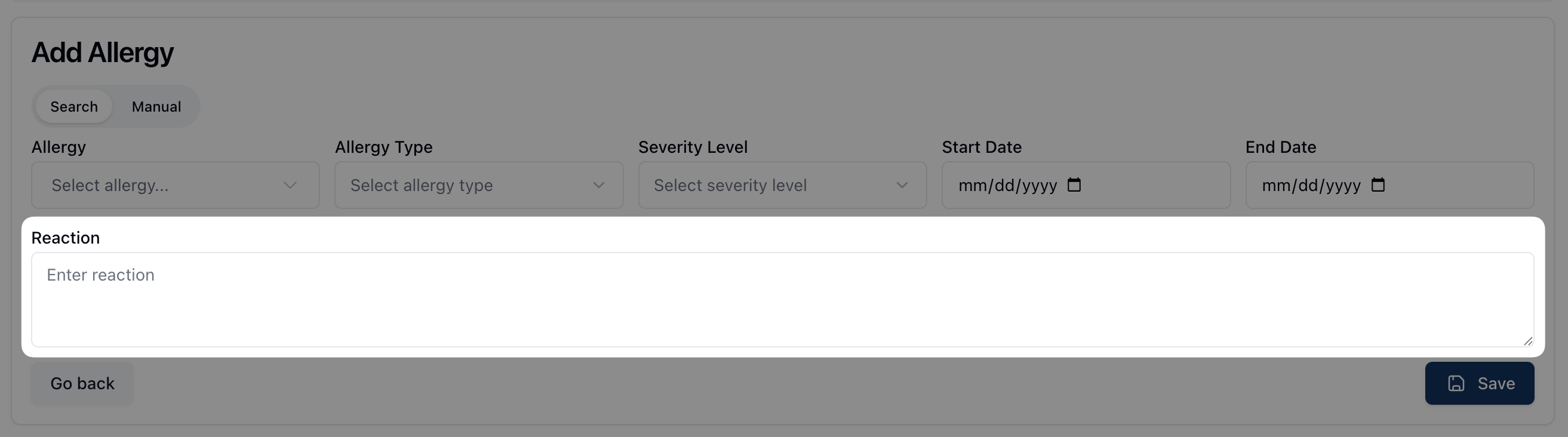
Describe the patient's allergic reaction in the Reaction field.
Click the Add Allergy button to save the allergy to the patient record.
If you need to edit or make changes after saving the allergy, click the actions menu ( ⠇) to open the Edit or Delete options.
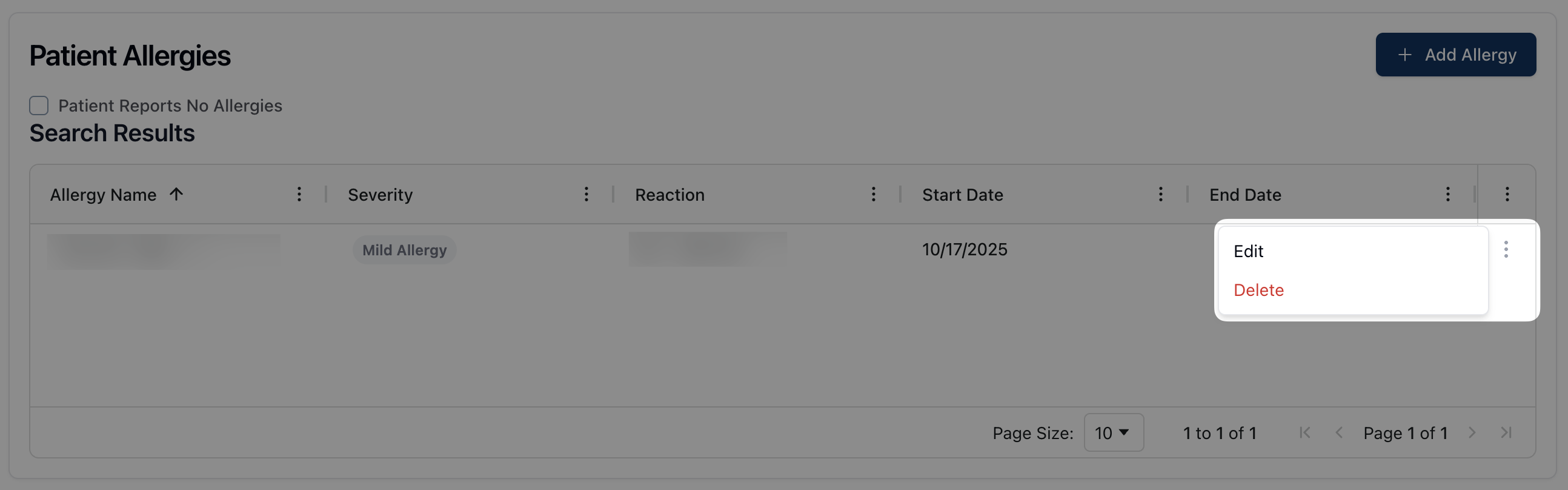
Note that if a patient doesn't report any allergies, you must select Patient Reports No Allergies to store the patient record.